

NetDocuments IT Questions: The Support Guide for IT Providers
We’ve rolled out NetDocuments for over 600 law firms, and a good number of those involve an outside IT provider on the other end of the call. A lot of the NetDocuments IT questions we field in the first week of go-live come down to the same thing: the workstation install didn’t finish.
Issues With the NetDocuments Install During the First Week of Go-Live
The firm goes live Monday. By Tuesday, the tickets start, and they don’t make sense. NetDocuments is missing from Outlook on a handful of machines. ndOffice settings don’t match what the firm signed off on. It’s happening on some workstations and not others, and the ones IT tested are fine.
The install ran. The HKEY_CURRENT_USER keys never applied.
HKLM and HKCU Are Not the Same Thing
The NetDocuments batch file contains two types of registry entries: HKLM and HKCU. After 600+ installs, we still see IT teams push both out the same way — and that’s where things break.
HKLM keys? No problem. Push them out as an administrator, and you’re done.
HKCU keys are different. They’re user-specific, which means they must be applied while logged in as that user. Running them as an admin won’t work — the keys end up in the admin’s profile instead of the user’s, and ndOffice misbehaves.
The fix is straightforward: put the HKCU batch file in a login script. When each user logs in, the keys are automatically applied to the correct profile.
How Do You Know the Batch File Wasn’t Applied?
You usually find out during go-live week, and it shows up as one of three things:
- NetDocuments is disabled in Outlook, Word, or Excel – the software is installed, but the add-in doesn’t load.
- The Echo retention policy in ndOffice is incorrect – it’s set to 0 instead of 14.
- The document footer isn’t set correctly – documents come out without the footer the firm signed off on.
Watch this video to check a workstation.
Step 1: Install ndOffice
Step 2: Restart the Machine
Step 3: Click on ndOffice in the System Tray
Step 4: Click on the Gear
Step 5: Click on Settings
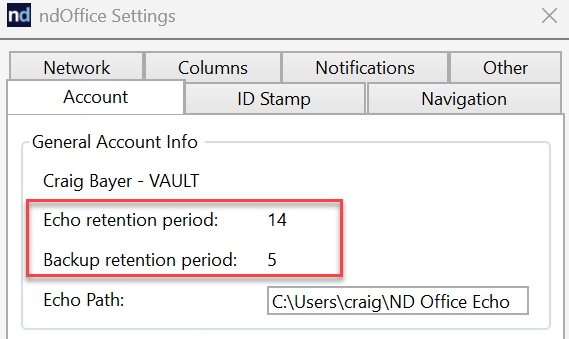
If you don’t see 14 and 5, this was not done correctly.
If you see any of those, go back to the batch file we sent you and push the HKEY_CURRENT_USER file out to every machine through a login script, so it runs in the user’s own session.
Why does Outlook keep disabling the NetDocuments add-ins?
It shouldn’t. Our batch file sets the resiliency keys that tell Outlook to leave the NetDocuments add-ins alone. If Outlook is disabling them, that’s not a separate problem to chase — it’s the same problem as everything above. The batch file didn’t run correctly on that machine.
Left to itself, Outlook watches how long each add-in takes to load and whether it was running during a crash, and when it decides one is misbehaving, it changes the add-in’s LoadBehavior and parks it in the disabled list. The user turns it back on, it disables again a week later, and you get the ticket a second time. That cycle is what the resiliency keys exist to stop. See the full guide →
User Logins
How do I add a new user to NetDocuments?
Creating the user record is the easy part. Licensing, email, SSO, and workstation provisioning all have to line up too, and if the firm logs in through Office 365 the user has to be added to the Azure NetDocuments app or the account won’t work no matter how correct it looks in the Admin Console. See the full guide →
Why can’t my new user log in? Error 80030005
You created the account, the user has a license, and NetDocuments still refuses the login with error 80030005. It’s a permissions issue rather than a credentials issue, so resending the invitation won’t resolve it. See the full guide →
Why can’t a new user see a Cabinet?
The user logs in fine, but the Cabinet isn’t there. Cabinet access is determined by group membership, not by the user record, so a new hire who wasn’t added to the correct group sees an empty home page. Mirroring an existing user’s groups is usually the fastest fix. See the full guide →
Why do users have to log in every single time?
They shouldn’t. When NetDocuments prompts for Office 365 login on every launch, the session isn’t persisting as single sign-on is intended, and it’s usually due to how the firm’s Microsoft tenant is configured rather than anything in NetDocuments. See the full guide →
“Sorry, but we’re having trouble signing you in” — AADSTS50105
This one is Microsoft’s error, not NetDocuments’. The full text says your administrator has configured the application NetDocuments to block users unless they are specifically granted access — which means the enterprise application in Entra ID requires user assignment, and this user hasn’t been assigned. See the full guide →
How do I change someone’s name in NetDocuments?
Someone gets married, and now their name is wrong in four places. A name in NetDocuments isn’t a single field — it shows up on the user record, in the author list, and on documents already profiled to them, and changing one doesn’t change the others. See the full guide →
Why is another law firm’s NetDocuments showing up in ours?
Nothing has been breached. The user has been added as an external user at another firm, and their single account can see both. See the full explanation →
Browsers
NetDocuments runs in the browser, so the browser is part of your install whether you treated it that way or not.
Why do NetDocuments links keep opening in the wrong browser?
Microsoft apps override the firm’s default browser and force links to open in Edge. The user lands in a browser they aren’t signed in to and where the NetDocuments extension was never deployed, so Open and Edit stop working, and they get a login prompt instead of their document. It’s reported as “the NetDocuments link is broken,” but it isn’t. See the full guide →
Why won’t NetDocuments open dialog windows?
Clicking anything in NetDocuments does nothing. A pop-up blocker or a browser extension is swallowing the window before it opens — worth checking before you assume the profile is corrupt. See the full guide →
Why does emailing a document open a web form instead of Outlook?
Email Link should hand off to Outlook. When it opens a web form instead, the handoff between the browser and the mail client isn’t wired up on that machine. See the full guide →
Outlook
How do I set up the NetDocuments M365 Outlook add-in?
This is the add-in that works in classic Outlook, the new Outlook, Outlook on the web, and Outlook on a phone. If the firm is moving to the new Outlook, this is the deployment path — set it up centrally rather than machine by machine. See the full guide →
The M365 add-in says “Taking longer than expected” or “NetDocuments is unavailable”
The add-in loads but never finishes connecting, and users see the message instead of their filing locations. It looks like an outage and usually isn’t. See the full guide →
“A problem occurred while communicating with NetDocuments, which is preventing the document from being saved online”
The user has the document open and can’t save it back. There are several causes behind the same message, so work through them in order rather than starting with a reinstall. See the full guide →
Why does “Convert to PDF” fail when using ndAttach?
The user attaches a document to an email with ndAttach, selects Convert to PDF, and the conversion fails. See the full guide →
Easy Fixes to Common User Complaints
Documents aren’t checking in or out
Start with the quick fixes, then work through the complete check-in troubleshooting guide if they don’t work.
There’s no NetDocuments integration in Adobe
The integration has to be installed against Adobe, and installing ndOffice alone doesn’t do it. See the full guide →
Users can’t log in to NetDocuments
Walk a first-time user through the Windows login. See the full guide →
ndMail isn’t saving documents
New clients and matters aren’t showing up in NetDocuments
That’s ndLink, not NetDocuments — the sync from the firm’s practice management or accounting system has stopped. See the full guide →
NetDocuments isn’t working in Firefox
Third-Party Workstation Integrations
- Setting up NetDocuments and Workshare
- Setting up NetDocuments and Litera Compare – the old Workshare.
- Setting up NetDocuments and Draftable
- Setting up NetDocuments and the Fujitsu ScanSnap integration
- Setting up NetDocuments with Tungsten Power PDF – formerly Kofax, formerly Nuance.
When to Call NetDocuments Support
NetDocuments tech support: 801-226-6882, Option 2.
Call them for anything server-side — a Repository that won’t respond, a sync backlog, an OCR queue that’s stuck, a bug in a release. Call us for anything configuration-side, because support will tell you, correctly, that how the firm’s Cabinets and Workspaces are built is not their call to make.
Need Help?
If you’re an IT provider supporting a firm on NetDocuments and you’d rather not learn all of this on the firm’s dime, we do this every week. We’ll audit the install, fix what the batch file missed, and hand you a workstation build you can push.
Schedule a consultation or get in touch with our team.
Optiable has implemented NetDocuments at over 600 law firms since 2010, specializing in firms with 10 to 150 users.