

If users at your firm are seeing an Outlook error message saying the NetDocuments add-in is taking longer than expected — or that NetDocuments is unavailable and can’t process your email — you are not alone. This is a known issue that occurs specifically between the deployment of the NetDocuments M365 Outlook add-in and the firm’s actual go-live on NetDocuments. But before we get to the fix, there is a bigger question worth asking: does everyone at your firm even need this add-in? In our experience, about 95% of users do not — and deploying it only to the people who actually need it eliminates this problem entirely.
What the Message Looks Like
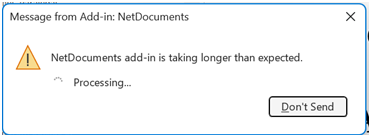
When users open Outlook and attempt to send an email, they see a pop-up dialog. The exact wording varies — users may see either of these messages:
NetDocuments add-in is taking longer than expected.
NetDocuments is unavailable and can’t process your email at this time
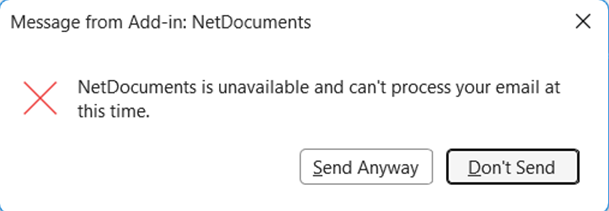
Both come from the same underlying issue. The message may include options to wait, send anyway, or cancel. It does not prevent email from being sent, but it interrupts the workflow and generates confusion and support calls — especially in the days leading up to go-live.
Why This Happens
This error is triggered by the NetDocuments M365 Outlook add-in — not ndMail or ndSave. This distinction matters.
When Optiable sets up NetDocuments, we install both ndSave and ndMail on user workstations. Those are traditional desktop add-ins installed locally. The NetDocuments M365 Outlook add-in is entirely different: it is a web-based add-in deployed to users through the Microsoft 365 Admin Center under Integrated Apps. It works across Outlook desktop, Outlook on the web, and mobile — and it does not require a local installation.
This add-in uses event-based activation, meaning it runs automatically each time a user clicks Send in Outlook. When the add-in fires but the firm is not yet live on NetDocuments — meaning users are not authenticated, and the add-in cannot connect to a NetDocuments account — the add-in hangs waiting for a response that never comes. Microsoft’s Outlook platform has a built-in timeout: if a web add-in takes more than five seconds to process, Outlook surfaces the “taking longer than expected” message to the user. When the add-in fails outright rather than timing out, users see the “NetDocuments is unavailable and can’t process your email at this time” message instead.
The add-in is doing exactly what it is designed to do. The problem is that it has been deployed to far more people than will ever use it — and before the firm is ready to use it.
The Three Ways to Save Email into NetDocuments from Outlook
To understand why most users do not need the M365 add-in, it helps to know the three different ways email gets saved from Outlook into NetDocuments:
- ndSave (installed with ndOffice). On a normal computer running Windows and classic Outlook, installing ndOffice adds an ndSave option to Outlook. This lets users save emails and attachments directly into NetDocuments from the Outlook ribbon.
- The ndMail panel. When ndMail is installed, an ndMail panel gets added to Outlook. It uses predictive filing to suggest where each email should go, and users can file messages with a single click right from the panel.
- The NetDocuments M365 Outlook add-in. Unlike the other two, this one is not installed on the workstation at all. It is pushed out centrally through the Microsoft 365 Admin Center and simply shows up in everyone’s Outlook — desktop, web, and mobile — whether they need it or not. That “whether they need it or not” part is exactly the problem this article is about.
The Real Question: Who Actually Needs This Add-In?
Here is the part most firms miss. If a user works in classic Outlook on a Windows desktop — which describes the vast majority of law firm users — ndMail and ndSave already handle everything. The M365 add-in adds nothing for them. It just sits there firing on every send.
The M365 Outlook add-in only matters for users who file emails to NetDocuments from somewhere the desktop add-ins cannot run:
- Outlook on the web (OWA) — users who live in the browser version of Outlook
- The new Outlook on a Mac — the desktop add-ins are not available there
- Heavy NetDocuments users on mobile — attorneys who regularly file emails from Outlook on their iPhone or Android device
That is it. For roughly 95% of a typical firm, this add-in serves no purpose — which means there is no reason to deploy it to the entire organization in the first place.
Fix Option 1: Deploy Only to the Users Who Need It (Recommended)
Instead of pushing the add-in to everyone and dealing with the fallout, assign it only to the users who fall into the categories above:
- Sign in to the Microsoft 365 Admin Center
- Navigate to Settings → Integrated Apps
- Locate the NetDocuments add-in in the list (there may be several items listed — look for the one specifically labeled as the NetDocuments Outlook add-in)
- Click into it and select Edit Users
- Change the deployment from the entire organization to specific users or groups, and add the OWA users, Mac users, and mobile power users who actually need it
- Click Update
A tip that makes this easier to maintain: create a mail-enabled security group (something like “NetDocs M365 Add-In”) and assign the add-in to that group. When someone new needs the add-in — a new Mac user, an attorney who starts filing from their phone — IT just adds them to the group. No need to touch the Integrated Apps settings again.
Deployed this way, the “taking longer than expected” message never reaches your general user population, before or after go-live.
Fix Option 2: Temporarily Restrict It Until Go-Live
If your firm does plan to roll the add-in out broadly, the interim fix is to limit who has it until go-live:
- Sign in to the Microsoft 365 Admin Center
- Navigate to Settings → Integrated Apps
- Locate the NetDocuments add-in and click Edit Users
- Change the deployment from the entire organization to just the IT administrator or project lead managing the implementation
- Click Update
Once updated, only the assigned user will see the add-in in Outlook. Everyone else will no longer encounter the error message. This is a quick change that IT administrators can make in under two minutes. In most implementations, it is the firm’s IT company that handles this, and they are comfortable with the M365 Admin Center.
At Go-Live
When the firm goes live on NetDocuments, decide which deployment model you want going forward:
- Return to Microsoft 365 Admin Center → Settings → Integrated Apps
- Find the NetDocuments add-in and click Edit Users
- Assign it to your targeted group of OWA, Mac, and mobile users (our recommendation) — or to the entire organization if your firm truly wants it everywhere
- Click Update
Either way, users who receive it will now be authenticated in NetDocuments, and the add-in will function as intended — prompting them to file emails on send without any timeout errors.
The Bottom Line
If your firm is seeing the “taking longer than expected” or “NetDocuments is unavailable” message in Outlook, the add-in is working correctly — it has just been deployed too broadly, too early. The two-minute fix is to restrict it in the M365 Admin Center. The better long-term fix is to recognize that only a small slice of your firm — OWA users, new Outlook on Mac users, and mobile power users — needs this add-in at all, and deploy it to just that group. Everyone else already has everything they need in ndMail and ndSave.