

Litera Compare installs cleanly, opens fine, and compares documents all day long — and still won’t show your users a single NetDocuments document. The Litera Compare NetDocuments integration isn’t part of the standard install. It’s a separate configuration step in a separate utility, and it’s the step almost everyone misses.
First, Make Sure You Actually Have Litera Compare
Litera bought Workshare, and for a few years the two products overlapped. They are configured completely differently, so getting this wrong costs you an afternoon.
Here’s the trap: the Workshare Compare installer is already Litera-branded. Litera’s name and logo sit at the top of every window, with the product name a few lines below. Seeing “Litera” on the screen tells you nothing.
Go by the product name in Programs and Features, not by the logo:
- Litera Compare – configured through the Litera Administration Panel. Keep reading.
- Workshare Compare – configured through the installer, by adding the NetDocuments component. Different post: How to Set Up the Workshare NetDocuments Integration.
Before You Start
Three things that will save you a phone call:
- You need local admin rights. This is an IT task. If you’re an attorney reading this because Compare can’t see your documents, forward this to whoever supports your firm.
- Close Word, Excel, PowerPoint, and Outlook. The installer will ask you to anyway.
Part 1: Install Litera Compare
Step 1: Run Setup.exe
Run the installer and take the defaults. There is no DMS option to choose from here — unlike Workshare, the NetDocuments selection isn’t included in the install. Nothing you pick on these screens turns the integration on.

Step 2: Let the Install Finish, Then Restart
Restart the workstation before you configure anything. The Administration Panel reads components that don’t fully register until after a reboot.
Part 2: Turn On the NetDocuments Integration
This is the part that’s missing from most rollouts.
Step 1: Run the Litera Administration Panel
Find lcpcfg7m.exe in the Litera Compare program folder and run it as administrator. The filename carries a version number, so on your build it may read slightly differently — look for the lcpcfg prefix.
Step 2: Open General Settings
The Administration Panel opens to its settings tree. Go to General Settings.
Step 3: Select NetDocuments
Check NetDocuments in the DMS list. Leave every other DMS unchecked — turning on a system the firm doesn’t use is a good way to write yourself a support ticket six months from now.
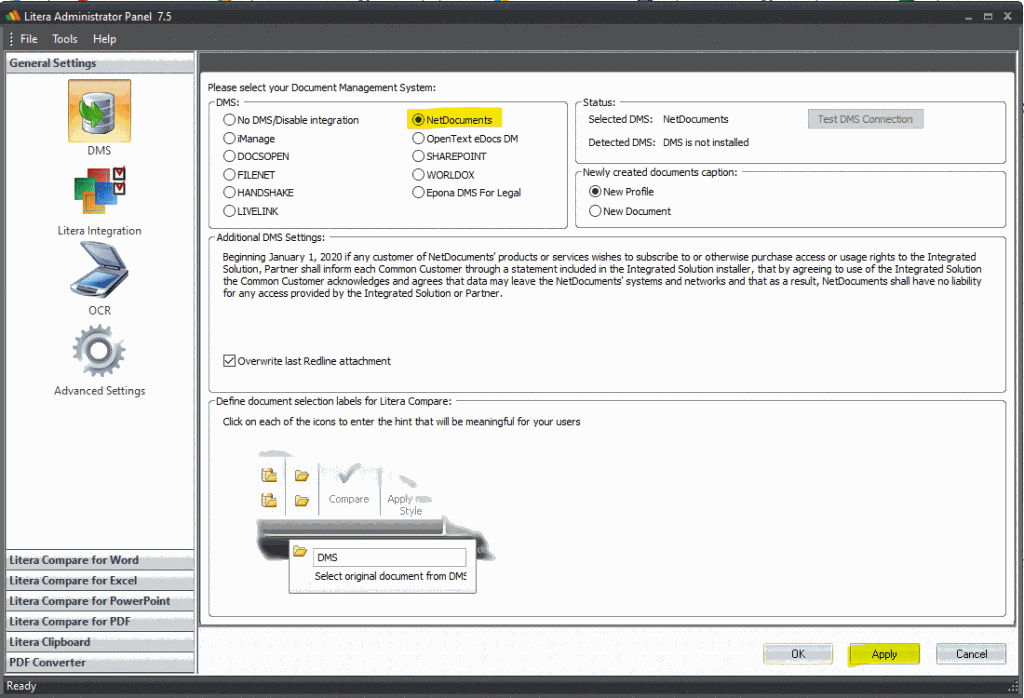
Step 4: Apply the Settings
Click Apply, close the Administration Panel, and restart the workstation one more time.
Rolling It Out to More Than One Workstation
Everything above is per-machine. Doing it by hand at twenty desks is a bad afternoon.
If the firm has Enterprise licensing, Litera can provide .reg files that carry both the license and the DMS selection, which means you can push the configuration through Group Policy or your RMM tool instead of walking every workstation through the Administration Panel. Ask Litera Support for the files that match your exact build — they’re version-specific, and the set from last year’s upgrade may no longer be the right one.