

You’ve got an executed agreement, a filed brief, or a final version of something that took three weeks to negotiate. You don’t want anyone opening it, bumping a key, and saving over it. Making a document read only in NetDocuments is how you stop that, and it takes about a minute.
It takes ten if you go hunting for a checkbox, because there isn’t one.
Read Only in NetDocuments Isn’t a File Setting. It’s an Access Right.
In Windows, you right-click a file, tick Read-only, and you’re done. That’s a property of the file.
NetDocuments doesn’t work that way. Every document in NetDocuments carries its own access list — who can see it, who can edit it, who can share it, who can delete it. There’s no separate read-only attribute sitting on top of that. You make a document read only by changing the access list so that everyone who can see it has View rights and nothing more.
That’s why the setting lives under Modify Access and not under something called Properties. Once you know that, the rest is just clicks.
Should You Lock the Document Instead?
Before you start changing access rights, know that NetDocuments has a second way to do this — and for a genuinely final document, it’s usually the better one.
Select the document, click More, and click Lock. That’s it. A locked document is read-only to every single person in the firm. Nobody can edit it, nobody can save a new version over it, and there’s no group you have to configure correctly for that to be true. Only a Cabinet administrator can unlock it.
The real advantage is that locking is visible. NetDocuments puts a lock icon next to the document, so anyone looking at the list can see at a glance that it’s final. When you make a document read only through Modify Access, there is no indication of any kind. The document looks exactly like every other document in the Workspace, and the first anyone finds out is when they try to save and can’t.
So pick by what you’re doing:
- Lock it when the document is final for everybody — an executed agreement, a filed brief, a signed engagement letter. One click, no configuration, and a visible icon.
- Use Modify Access when you need a specific split — most of the firm read-only, but a few people still editing. Lock is all-or-nothing; access rights are not.
The rest of this post covers the Modify Access route.
What You Should Know Before You Do This
- This applies to one document, not the Workspace. Locking down a document doesn’t lock the matter it lives in, and new documents saved to that Workspace still get normal access.
- It’s a permission, not a padlock. Anyone with administer rights on the Cabinet can open the access list and put it back. This stops accidents. It does not stop a determined administrator.
- Nothing on screen will say so. There’s no badge, no icon, no colored text. If you need people to be able to see that a document is final, lock it instead.
- Don’t lock yourself out. You’ll be removing the default access group in a moment. Make sure you’re still on the list before you click Apply.
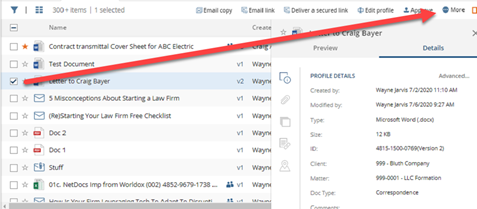
Step 1: Check the Box Next to the Document and Click More
You can check several documents at once here if you want to apply the same change to all of them.
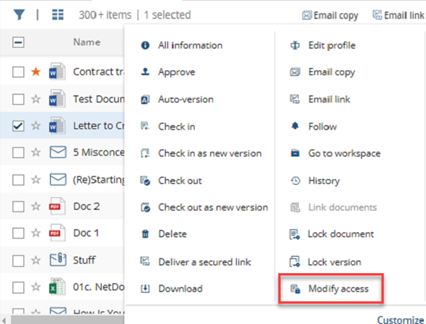
Step 2: Click Modify Access
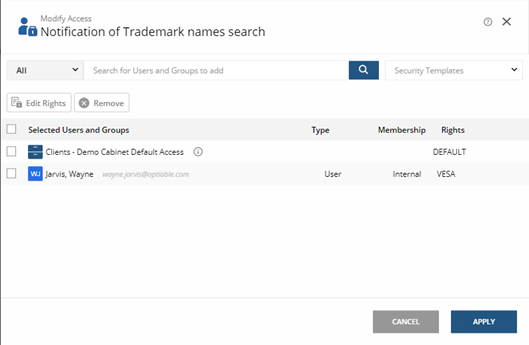
Step 3: Review Who Currently Has Access
This is the access list. Before you change anything, use your eyeballs and see who’s on it. You should be one of them. If you aren’t, add yourself first — otherwise you’re about to remove your own ability to fix this.
Step 4: Select Default Access and Click Remove
Default Access is the group that gives everyone in the Cabinet normal edit rights. That’s the one you’re replacing.
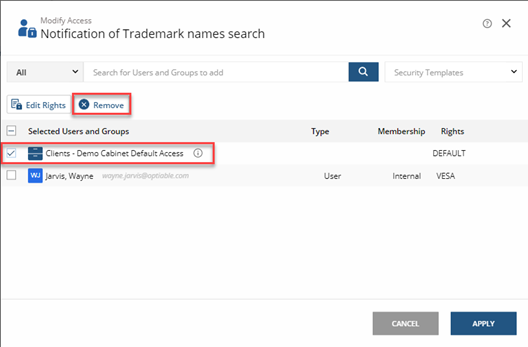
You should be the only person listed. If you are not listed, you will need to add yourself and remove everyone else.
Step 5: Add the Group That Can See the Cabinet
This is the step people get wrong. You want the security group, not the Cabinet itself. The group shows an icon of two blue people. The Cabinet shows an icon of a cabinet. Pick the two blue people.
Step 6: Change the Rights to V and Click Apply
V is View. That group can now open the document, read it, and print it — and that’s all. No edits, no new versions, no deletion.
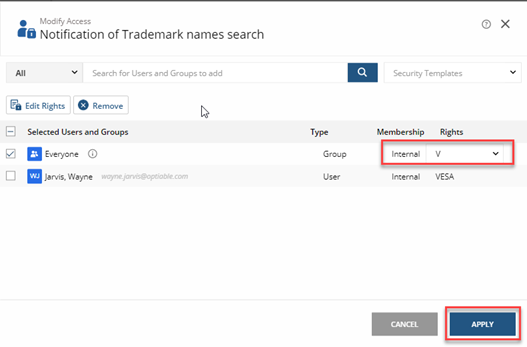
This can be a pain in the neck to do, so once you have set this up correctly, you should create a security template so you can do this every time.
Part 2: Save It as a Security Template
Six steps per document is fine once. It is not fine for forty documents. Save the configuration as a template and it becomes a one-click job forever after.
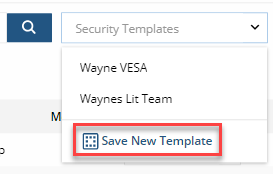
Step 1: Under Security Template, Click Save New Template
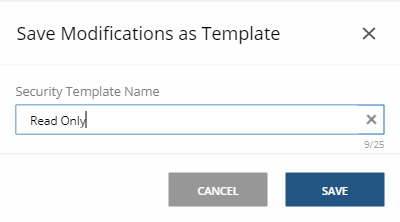
Step 2: Name It Read Only and Click Save
Now, when saving or modifying a document, you will have a Read Only option
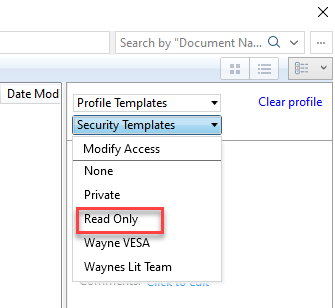
The Result
From now on, when you save a document or open Modify Access, Read Only appears in the Security Template list. Pick it, click Apply, and the whole six-step sequence above happens in one shot.
That’s the version of this worth setting up. Everyone in the firm gets the same read-only configuration, nobody has to remember which icon has the two blue people, and you stop finding documents that someone locked down slightly wrong.
If you’re doing this for an entire matter every time a case closes, that’s a sign your firm needs a matter-level workflow rather than a document-level one. That’s a different conversation, and a worthwhile one.
Need Help?
Not sure who should be able to edit what once a matter closes? We can look at how your Cabinet security is set up today and build the templates your team will actually use — usually in a single call.
Schedule a free consultation at go.oncehub.com/optconsult.
About the Author
Craig Bayer is the founder of Optiable, a document management consulting firm dedicated to helping law firms get the most out of NetDocuments. Specializing in firms with 10 to 150 users, he has guided over 550 law firms across the United States and Canada through NetDocuments implementations since 2010.