

If you’ve moved from Windows folders to NetDocuments and now can’t find a document you used to open in three clicks, you’re not alone.
The Good News: Your Documents Are There
Nothing got lost in the move. Your documents are in NetDocuments — they’re just organized differently than they were on the server.
Why Can’t I Find Anything?
On a Windows file server, you found documents by remembering where you put them. You opened the S: drive, clicked into the client’s folder, clicked into a subfolder, and there it was.
NetDocuments doesn’t start with folders. It starts with the client and the matter.
Every client document is profiled with a Client and a Matter, and every matter has its own Workspace. That Workspace is where the matter’s documents live. Here’s what that means for you:
- The client folder is now a Client – it’s a value on the document’s profile, not a folder you click into.
- The matter folder is now a Matter – and the Matter has a Workspace that holds everything filed to it.
- The folders under the matter came with you – when we migrate, the folder structure below the matter comes over as folders inside that matter’s Workspace.
So the question is no longer “which folder did I put it in?” It’s “which client and matter is this for?” Answer that, and you’re one click from the folder you remember.
How to Find a Document You Used to Find by Folder
Step 1: Decide Which Client and Matter the Document Belongs To
Before you search, think about who the document is for and what it’s about. That’s the client and the matter.
Step 2: Search for the Matter
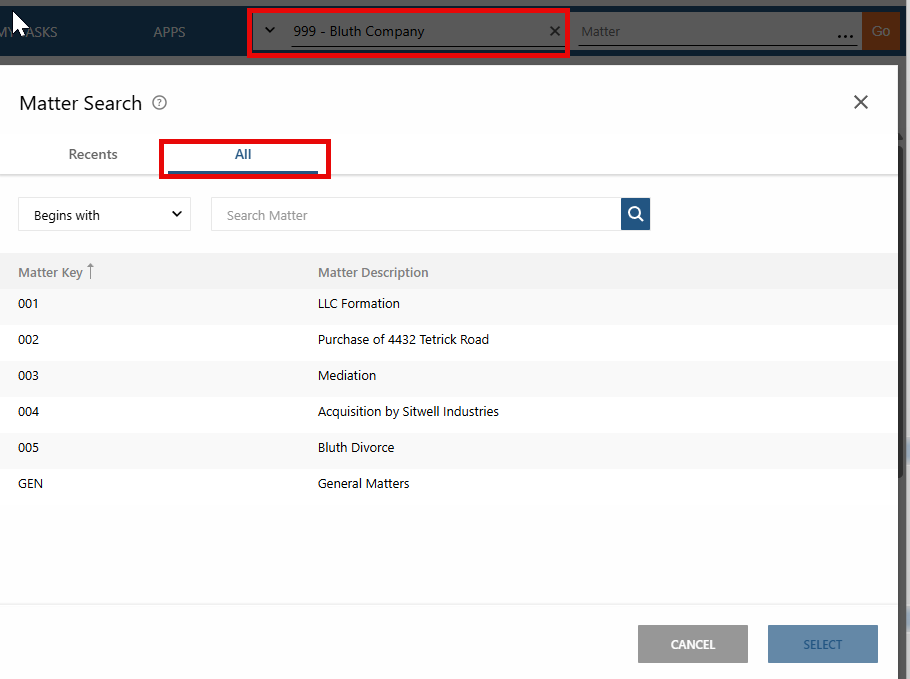
Type the client name, client number, matter name, or matter number into the search box at the top of NetDocuments. Workspaces that match show up in the results.

Once you have selected a client, click on the … to select a Matter for that Client
Step 3: Open the Workspace
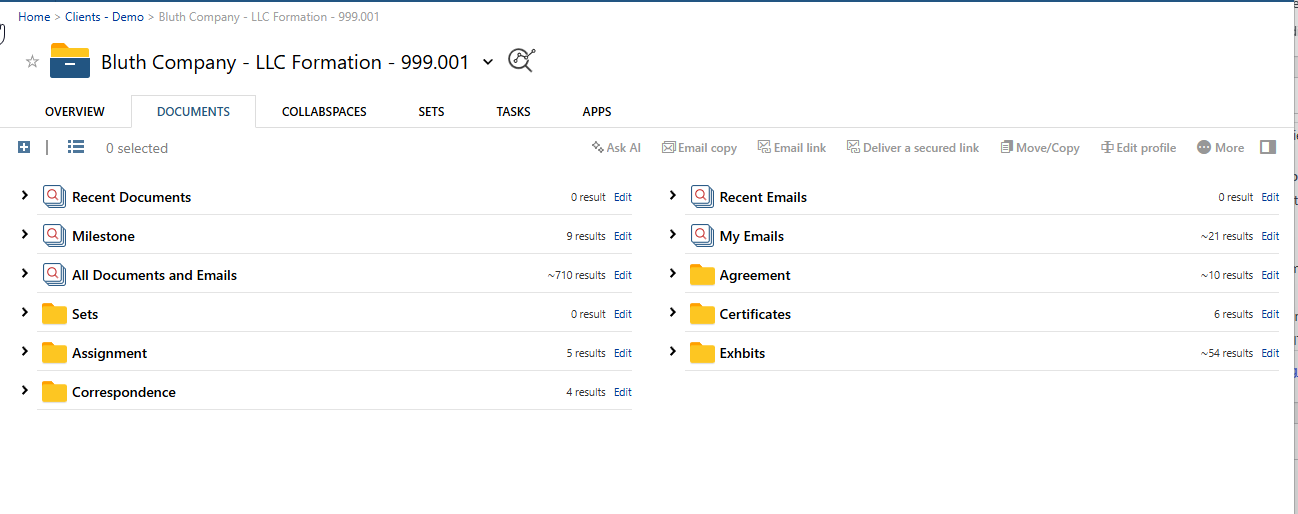
Click the matter’s Workspace. This is the home for every document filed to that matter.
Step 4: Open the Folder You Remember
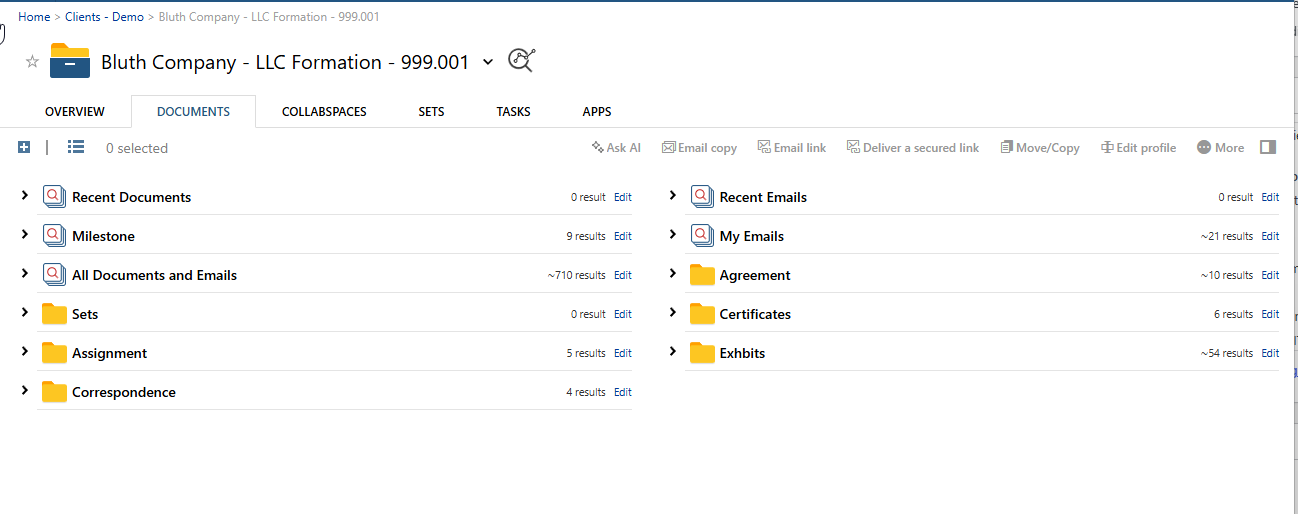
The folders from your old server are inside the Workspace. Click into them the same way you used to.
Tired of Drilling Down? Move the Folders to the Top of the Matter
Depending on how your server was organized, the folders you actually use might be buried a few levels deep in the Workspace — Documents → Server Documents → LLC Formation before you get to anything useful. That’s a pain for saving and finding.
You can fix it. Here’s how I reorganize a Workspace once the migration is complete.
Step 1: Drill Down to the Folders You Use
Open the matter’s Workspace and click down to the folders you work in every day.
Step 2: Select All the Folders
Step 3: Go to More → Move/Copy
Step 4: Move Them to the Top of the Matter
Choose the top of the matter as the destination and click Move.
Step 5: Delete the Empty Folder
Go back to the folder they came out of. There’s nothing in it anymore, so delete it.
Now, when you open the matter, all the folders are right there at the top.
Sometimes we can drop everything onto the matter during the migration. It just depends on how the data was organized.
What If the Old Folder Didn’t Have a Matter?
Plenty of firms filed by client name only on the server, with no matter folder underneath. NetDocuments still needs a matter, so when we know the client but not the matter, we create a General matter for that client and put those documents there.
If you can’t find something in a specific matter, check the client’s General matter. If a folder there belongs to a real matter, you can move the whole folder to that matter. I covered how that works in The NetDocuments General Matter.
Still Can’t Find It? Search the Old Folder Path
When we migrate your documents, we put the folder path each document came from into the Comments field. If you remember where something lived on the server, you can paste that path into Advanced Search and NetDocuments will show you where it’s stored now.
Here’s how: How to Find Migrated Documents by Searching the Old Folder Path.
What If the Documents Were Never Imported?
Some folders get left out of a migration on purpose, usually because the Client or Matter didn’t exist yet. Once it does, you can upload the whole folder yourself with the folder import tool in ndOffice. Here’s how: How to Upload Documents to NetDocuments That Weren’t Migrated.
Need Help?
If your users are struggling to find documents after moving from Windows folders to NetDocuments, we can walk through your matter structure with them and get them comfortable working by client and matter — usually in a single call.
Schedule a free consultation at go.oncehub.com/optconsult.
Craig Bayer is the founder of Optiable and has rolled out NetDocuments for over 600 law firms since 2010, specializing in firms with 10 to 150 users.
CONNECT WITH CRAIG → https://www.linkedin.com/in/craigbayer/