

If you’re looking at a NetDocuments matter called General and wondering what it is, here’s the short answer: it’s where we put a client’s documents when we know who the client is but not which matter the documents belong to.
Why Does the General Matter Exist?
In NetDocuments, every client document has to be profiled with a Client and a Matter. There’s no such thing as a client document without a matter.
Windows folders don’t have that rule. Many firms filed by client name on the server, and sometimes there was no matter folder underneath at all—just a client folder full of documents, or a client folder with some matter folders and loose documents beside them.
When we migrate those documents, the client is easy. The folder name tells us. The matter isn’t, because there wasn’t one.
So we create a General matter for that client and put those documents there.
What Lands in the General Matter
- Documents filed directly under a client folder – no matter folder between the client and the document.
- Client folders that don’t line up with a matter – the folder clearly belongs to the client, but nothing in it tells us which matter.
The folder structure comes with them. If a client folder had subfolders, those subfolders exist inside the General matter’s Workspace, so nothing gets flattened.
How to Find the General Matter
Step 1: Search for the Client
Type the client name or client number into the search box at the top of NetDocuments.
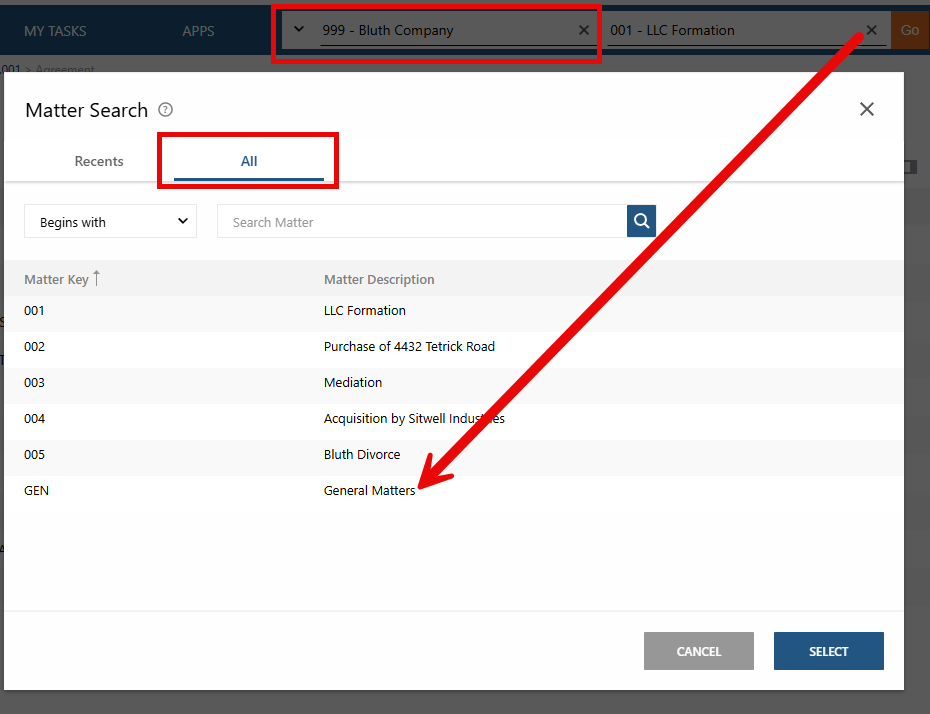
Step 2: Open the General Workspace
Click the Workspace for the client’s General matter. Every document we couldn’t tie to a specific matter for that client is here.
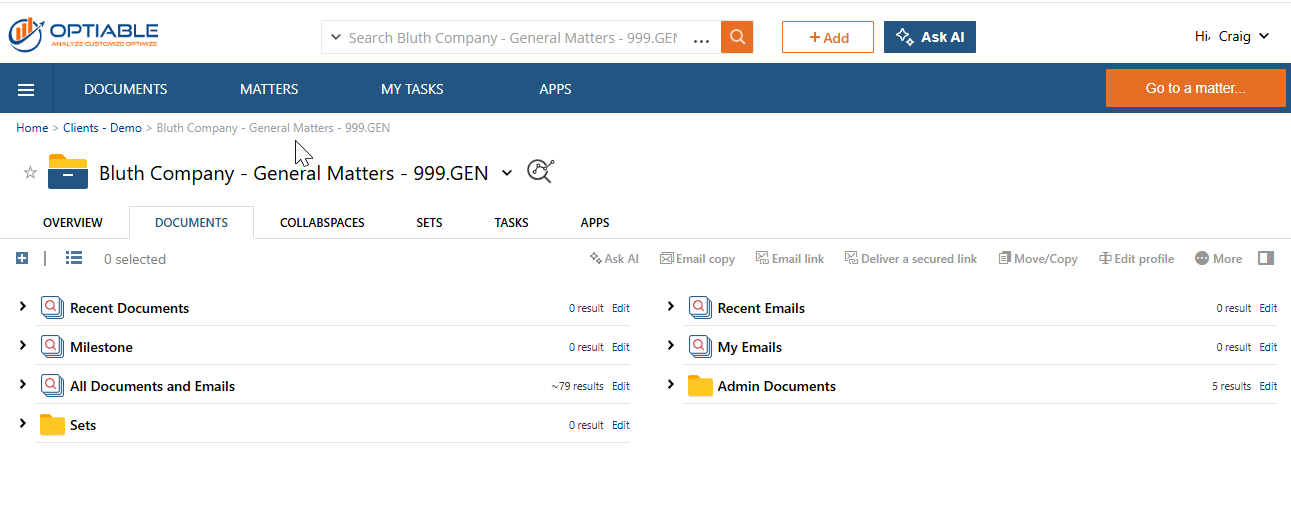
Step 3: Open the Folder You Remember
The folders from the old client folder are inside the Workspace. Click into them the same way you used to on the server.
What If a Folder Belongs in a Real Matter?
You don’t have to move documents one at a time. If a whole folder in the General matter belongs to a specific matter, select the folder and move it to that matter. Everything in it goes with it, subfolders included.
Moving the folder also updates the profile attributes on every document inside it. The documents pick up the new Matter, so there’s no reprofiling to do afterward.
You also don’t have to clean out the General matter on day one. Move folders as you come across them.
How to Move a Folder from the General Matter to the Correct Matter
Step 1: Open the Client’s General Workspace
Search for the client and open the General matter’s Workspace.
Step 2: Select the Folder
Click the folder that belongs in a different matter.

Step 3: Go to More → Move/Copy
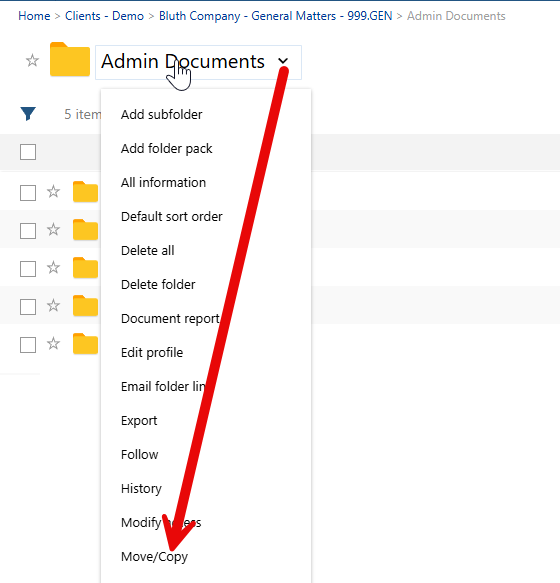
Step 4: Pick the Correct Matter
Select the destination matter’s Workspace — and the folder inside it, if you want it nested — then click Move.
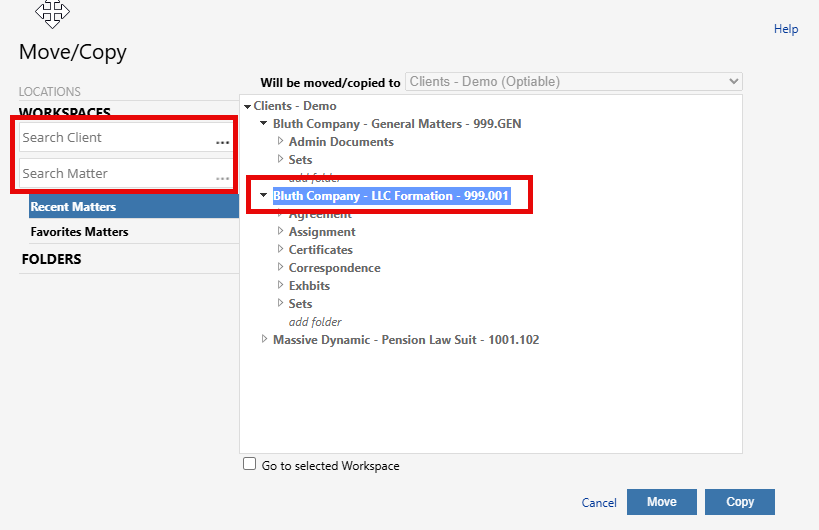
Step 5: Check the Folder in Its New Matter
Open the destination matter’s Workspace and confirm the folder and its documents are there. Open the profile on any document in the folder — the Matter now shows the correct matter.
If it’s a single document rather than a folder, reprofile it instead — change the Matter on its profile to the correct one.
What About Documents With No Client at All?
That’s a different problem with different options. I covered it in Moving to a Document Management System from Windows Folders.
Need Help?
If you’re planning a move from Windows folders to NetDocuments and want to know how much of your server will end up in General matters, we can walk through your folder structure with you before the migration — usually in a single call.
Schedule a free consultation at go.oncehub.com/optconsult.
Craig Bayer is the founder of Optiable and has rolled out NetDocuments for over 600 law firms since 2010, specializing in firms with 10 to 150 users.
CONNECT WITH CRAIG → https://www.linkedin.com/in/craigbayer/