

If a document is too big to email and the recipient is outside your firm, don’t reach for Dropbox, ShareFile, or WeTransfer. You don’t need any of them.
NetDocuments has this built in. It’s called a NetDocuments Secured Link, and it takes about a minute.
What Is a Secured Link?
A Secured Link is a download link you email to someone. They click it and download the document straight from NetDocuments. They don’t need a NetDocuments account.
The document never leaves your repository as an attachment. It stays in NetDocuments, and the recipient gets a link.
Use it when:
- The file is too large – it won’t go through as an email attachment
- The recipient isn’t on NetDocuments – clients, opposing counsel, experts, anyone
- You don’t want firm documents in a third-party file-sharing service – the file stays where it already lives
- You want the link to expire – you decide when it stops working
How to Deliver a Secured Link
Follow these steps in NetDocuments in your web browser.
Step 1: Check the Box Next to the Document
Find the document and check the box next to the document name.
Step 2: Click More → Deliver a Secured Link
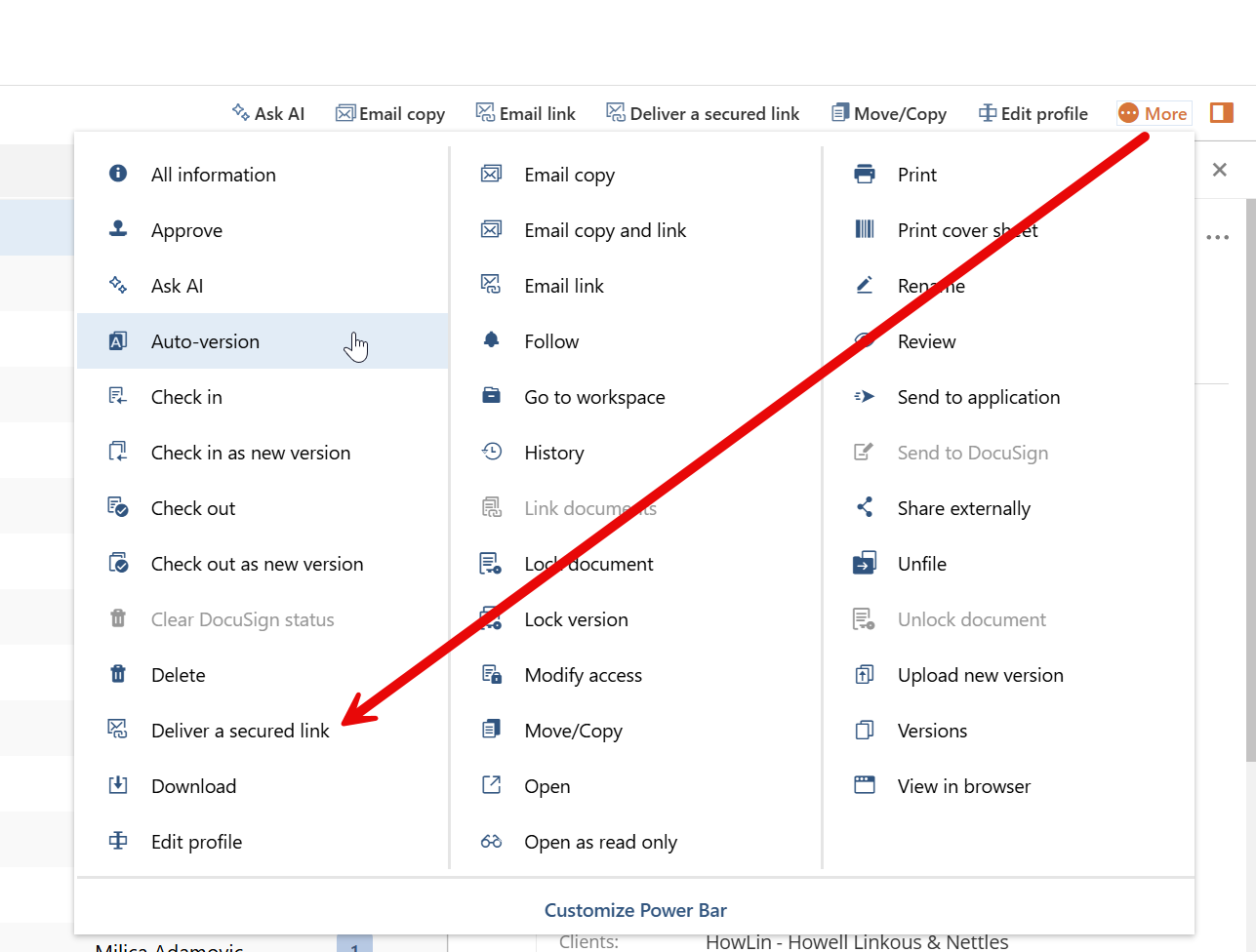
Step 3: Set the Expiration Date and Link to the Official Version
Set an expiration date, or remove it if the link shouldn’t expire. Set Link to to Official Version.
Step 4: Decide Whether to Require a Password
Require Password is checked by default. For most large files going to a client, you can uncheck it. For anything sensitive, leave it checked and send the password separately — never in the same email as the link.
Step 5: Click Send
What You Should Know
Your admin may require passwords – NetDocuments added the Require Password checkbox in August 2024. Your Cabinet Administrator can set the Cabinet so a password is always required. If you can’t uncheck it, that’s why.
You can revoke a link – If you sent it to the wrong person, open the document, click the version number, and revoke the delivery. Once you revoke it, you can’t send a new link to that same version. You’ll need to create a new version first. I walk through it in How to Revoke a Secured Link in NetDocuments.
Need Help?
If your firm is still sending large files through Dropbox or WeTransfer, we can show your team how to do it from NetDocuments instead, usually in a single call.
Schedule a free consultation at go.oncehub.com/optconsult.
Craig Bayer is the founder and leader of Optiable, an award-winning document management (DMS) consulting firm dedicated to helping law firms seamlessly integrate NetDocuments. Specializing in firms with 10 to 150 users, he has rolled out NetDocuments for over 600 law firms across the United States and Canada since 2010.