

If you open Foxit PDF Editor, go to File → Open, and NetDocuments is nowhere on the list, you’re not alone. Foxit does work with NetDocuments. It just doesn’t connect itself. The Foxit NetDocuments integration is a one-time setup inside Foxit, and once it’s done, NetDocuments shows up in Foxit’s Open and Save As screens like any other location.
This takes about five minutes per user, and none of it requires admin rights.
Foxit Talks to ndOffice, Not to NetDocuments Directly
Here’s how it works. Foxit doesn’t connect to NetDocuments on its own. It hands everything off to ndOffice, the NetDocuments desktop app that’s already sitting in your system tray. ndOffice handles the check-out, check-in, and versioning. Foxit just edits the PDF.
That’s why ndOffice has to be installed and running on the same computer as Foxit. If ndOffice isn’t there, the option to add it in Foxit won’t do anything useful.
Before You Start
- Foxit PDF Editor for Windows – The desktop application, not a browser PDF viewer.
- ndOffice installed, running, and signed in – Check the system tray, not just the Start menu.
- Foxit set as your default PDF app – So that when you open a PDF from NetDocuments, ndOffice hands it to Foxit and not to Edge. If it isn’t, ask your IT team to set it.
Part 1: Connect Foxit to ndOffice
Step 1: Go to File → Open → Add a Place
Open Foxit PDF Editor. Click File, then Open, then Add a Place.
Step 2: Choose ndOffice
From the list of places, select ndOffice.
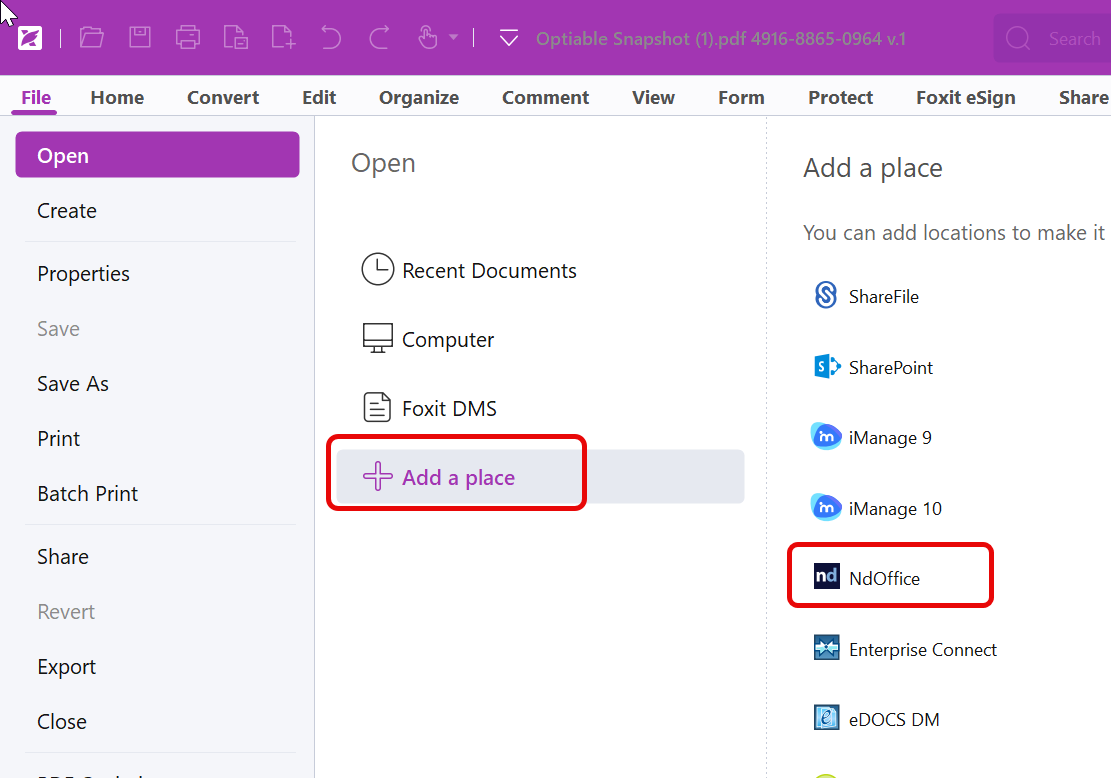
Step 3: Sign In with Your NetDocuments Login
Sign in the same way you sign in to NetDocuments. Once you’re authenticated, ndOffice stays in Foxit’s Open and Save As screens from then on. You won’t have to do this again.
Part 2: Insert a NetDocuments Document Into a PDF
Opening a PDF is only half of it. When you’re adding pages to a PDF you already have open, Foxit doesn’t go through the Add a Place screen. It opens the standard Windows file dialog instead, and that dialog drops you in a local folder (on my machine, the ndOffice Echo folder), not NetDocuments.
NetDocuments is still there. It’s just tucked behind a button.
Step 1: Start the Insert in Foxit
With your PDF open, start the insert the way you normally would, from the Organize tab, Insert → From File. The Windows Open dialog appears.
Step 2: Click the Arrow Next to Open from ECM
At the bottom of the Open dialog, click the small arrow on the right side of the Open from ECM button. Don’t click the button itself. You need the list.

Step 3: Choose NdOffice
From the list, select NdOffice. NetDocuments opens, and you can browse to the document you want to insert.
There’s No Way to Make NdOffice the Default
You have to pick NdOffice from that list every time. I’ve looked for a setting that makes Foxit default to NdOffice in that dialog, and I haven’t found one. The list includes every DMS and cloud service Foxit supports (SharePoint, iManage, Worldox, OneDrive, and so on), and NdOffice is just one entry on it.
It’s two extra clicks. The fix is making sure your users know the arrow is there.
What Happens When You Open and Save
When you open a PDF from ndOffice inside Foxit, it’s checked out to you, the same as a Word document. Make your edits, then save. Foxit gives you the choice to check it back in to NetDocuments or save a copy to your local drive.
Check it back in. A local copy is a client document sitting outside the DMS, and nobody else at the firm can see it.
For a PDF you just created or converted in Foxit, use File → Save As → ndOffice and profile it to the right Workspace like any other new document.
Need Help?
If your firm is running Foxit alongside NetDocuments and half your users are still saving PDFs to their desktops, that’s worth a single call. We’ll look at how Foxit and ndOffice are set up on your machines and get everyone working through NetDocuments instead of around it.
Schedule a free consultation at go.oncehub.com/optconsult.
Craig Bayer is the founder of Optiable and has rolled out NetDocuments for over 600 law firms since 2010, specializing in firms with 10 to 150 users.
CONNECT WITH CRAIG → https://www.linkedin.com/in/craigbayer/