

If NetDocuments goes down in the middle of your day, you don’t have to stop working. Your ndOffice Echo folder keeps a local copy of the documents you’ve recently opened, right on your computer, and it’s your lifeline until the cloud comes back.
When Optiable sets up NetDocuments for a firm, we configure the Echo folder to keep the last 14 days of documents. That’s a two-week window of your recent work sitting on your machine at all times.
Here’s how the Echo folder works, what to do during an outage, and the settings IT should check.
First: Is It NetDocuments or Is It You?
Before you do anything else, check the NetDocuments status page for your region:
- US firms – trust-us.netdocuments.com
- Canadian firms – trust-ca.netdocuments.com
Each one shows the live status of every major piece of the platform — the core service, search, indexing, and integrations — along with a history of past incidents.
From supporting firms every day, I can tell you: when there’s a NetDocuments issue, it’s posted there. If the page is all green, the problem is closer to home — your internet connection, your VPN, or your computer — and that’s a call to your IT team.
While you’re there, click Subscribe to Updates at the top of your region’s page. You’ll get an email, text, or Slack message whenever NetDocuments declares, updates, or resolves an incident, so you won’t be left refreshing a browser tab wondering what’s going on.
What Is the ndOffice Echo Folder?
It’s a local cache that ndOffice keeps on your computer. Every time you open a document through ndOffice, it stores a copy in the Echo folder. That gives you two things:
- Disaster recovery – if NetDocuments is unavailable, you can open your recent documents straight from the Echo folder and keep working.
- Document recovery – if a file didn’t save properly, or you need an attachment or comparison copy back, this is where to look.
Your working documents — everything you’ve opened through ndOffice in the retention window — sit in the Echo folder itself, not in a subfolder. Alongside them you’ll find:
- Backup – copies of documents that failed to upload or save properly. These are separate from your regular cached documents.
- Attachments – copies of documents you’ve attached to emails.
- Comparisons – versions of documents used in a comparison.

What to Do During an Outage
When NetDocuments is down, go to the Echo folder, copy the file out, and work on the copy.
Your changes won’t go back into NetDocuments on their own when it comes back up. You have to upload them yourself.
How to Find Your ndOffice Echo Folder – Option 1
Step 1: Open Your Echo Folder
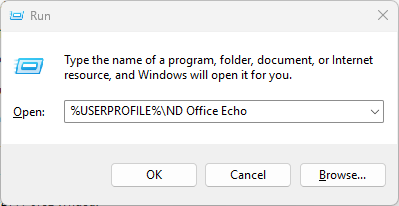
Hold the Windows key, press R, paste in %USERPROFILE%\ND Office Echo, and press Enter. Other ways in are covered in the next section.
How to Find Your ndOffice Echo Folder – Option 2
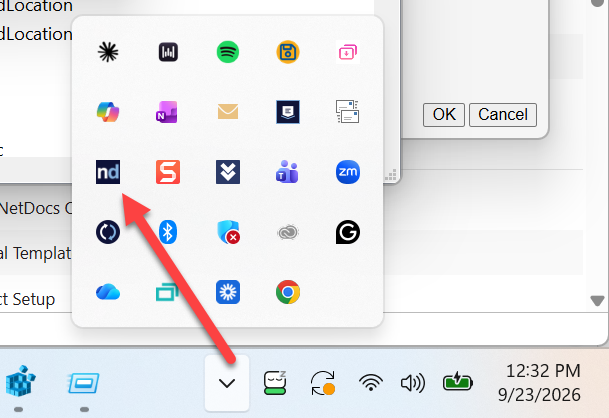
Step 1: Click the ndOffice Icon in Your System Tray
It’s the dark blue icon with a white “nd,” in the bottom-right corner of your screen. If you don’t see it, click the up arrow (^) to show hidden icons.
Step 2: Click the Gear Icon and Choose View Echo Folder
The gear is in the bottom-left corner of the Activity window. File Explorer opens straight to your Echo folder.

Step 2: Find the Document
Sort by Date modified and look for the file name. Use your eyeballs — if you had it open this morning, the timestamp will say this morning.
Step 3: Copy It to Your Desktop
Right-click the file, choose Copy, then right-click your desktop and choose Paste. Don’t edit the file inside the Echo folder. Work on your own copy, somewhere you know where it is, and leave the Echo folder to ndOffice.
Step 4: Make Your Changes on the Desktop Copy
Open the copy on your desktop and work as you normally would. Save as often as you like — it’s a regular file now.
Step 5: Once NetDocuments Is Back, Upload It as a New Version
Open NetDocuments, find the original document, and select it. Go to More → Upload New Version and choose the copy on your desktop.
Your changes land on the same document as a new version, so everyone who goes looking for it finds your edits — no duplicate file with a slightly different name.
Don’t skip this step. Until you do it, the only copy of your edits is on your desktop.