

If you’re moving from Clio to NetDocuments, we need your complete Clio matter list before we can build anything. Exporting it takes five steps.
Why We Need Your Clio Matter List
Your matter list is what we use to set up your Cabinet structure, your Workspaces, and your matter numbering in NetDocuments. If the list is incomplete, those will be too.
That’s why we ask you to export every available column, not just the matter names.
How to Export Your Clio Matter List
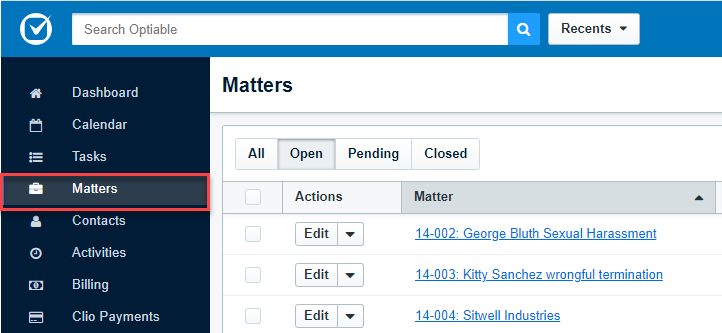
Step 1: In Clio, Click Matters
Log into Clio and click Matters in the left menu.
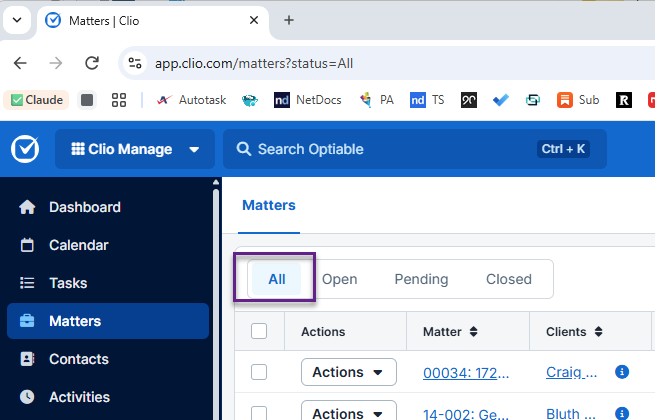
Step 2: Make sure you have All selected
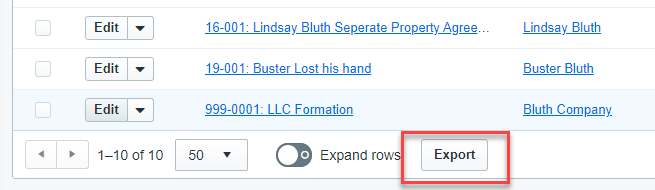
Step 3: Click Export
The Export button is in the upper right of the Matters screen.
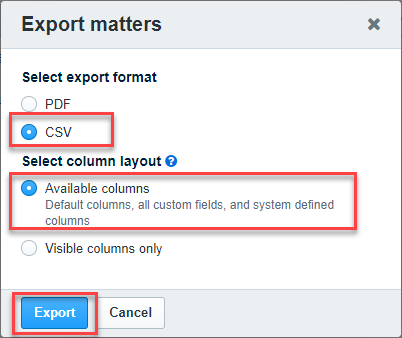
Step 4: Choose CSV and Available Columns, Then Click Export
- Format – CSV
- Columns – Available Columns, so every matter field comes out
Then click Export.
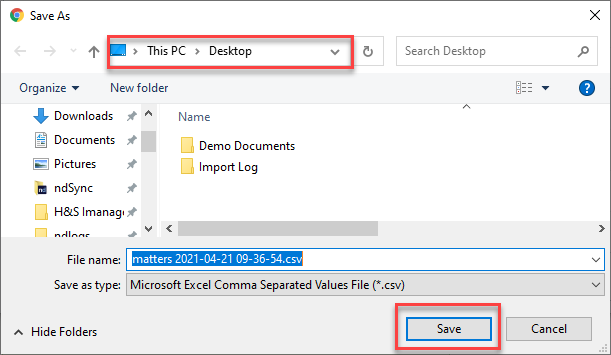
Step 5: Save the File to Your Desktop
Put it somewhere you can find it in the next step.
Step 6: Upload the File to Optiable
Go to upload-optiable.titanfile.com/w0i4uZ, drag your CSV into the upload area, and click Upload.
That’s it. We’ll take it from there.
Need Help?
If the export doesn’t look right or the upload won’t go through, we can sort it out with you on a quick call.
Schedule a free consultation at go.oncehub.com/optconsult or reach out at optiable.com/contact.