

If you’ve ever tried to email a document out of NetDocuments and watched the window sit on “Activating email. Please wait….” with Outlook never opening, you’re not alone.
Nothing is wrong with your document. The email just never got handed off.
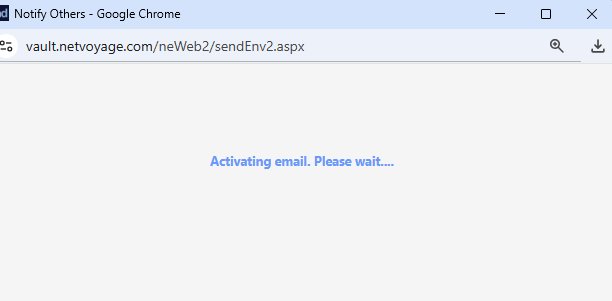
Why Does NetDocuments Get Stuck on Activating Email?
NetDocuments doesn’t send the email itself. It passes the document to the email program on your computer, and Outlook builds the message.
When that handoff gets blocked, NetDocuments has no way of knowing. It just keeps waiting. Three things can block it.
Cause 1: Desktop Email Integration Is Turned Off
Check this first. If this setting is off, NetDocuments has nothing to hand the email to.
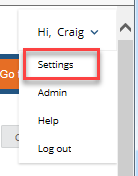
Step 1: Open Your Settings
Click the arrow next to your name, then click Settings.
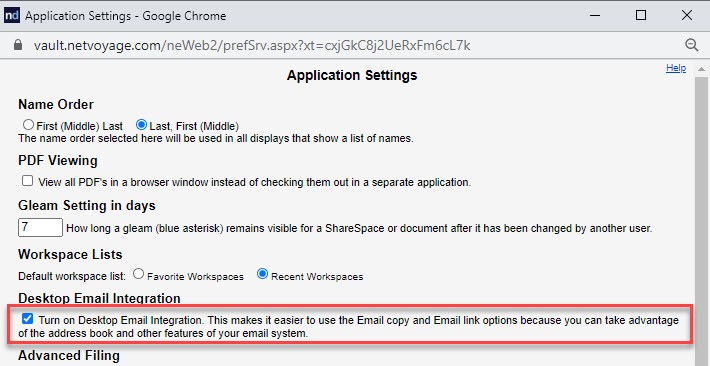
Step 2: Check “Turn on desktop Email Integration”
Go to Application Settings and make sure Turn on desktop Email Integration is checked. Save, close the stuck window, and try emailing the document again.
I covered this setting in a previous post, Having Trouble Emailing Documents Out of NetDocuments.
Cause 2: Your Browser Is Blocking It
If the setting is already on, your browser may be stopping NetDocuments from opening Outlook. Look for either of these:
- A prompt asking to open Outlook – Chrome and Edge ask before a website can open a desktop program. If you dismissed it, or it’s hiding behind the window, the email never gets created. Allow it, and check the box to always allow it so you aren’t asked every time.
- A blocked pop-up – Look for the pop-up blocked icon at the right end of the address bar. If it’s there, allow pop-ups for vault.netvoyage.com and try again.
Cause 3: Outlook Isn’t Your Default Email App
NetDocuments hands the email to whatever Windows thinks your default email program is. If that isn’t Outlook, the email goes nowhere useful.
Step 1: Open Default Apps in Windows
Go to Settings → Apps → Default apps.
Step 2: Set Outlook as the Default for MAILTO
Find MAILTO and set it to Outlook. Then go back to NetDocuments and try again.
Cause 4: The Problem Is Microsoft Office, Not NetDocuments
If none of that worked, test emailing outside of NetDocuments.
Step 1: Email a Document from Word
Open any document in Word and go to File → Share → Email.
If that doesn’t work, this isn’t a NetDocuments issue. It’s a Microsoft Office issue. Skip to the fix below.
Step 2: Email the Document from ndOffice
If Word can email, open the ndOffice Activity Center, right-click the document in your history, and click Email Link.
Step 3: Try a Different Browser
Log in to NetDocuments in another browser and try emailing the document again.
If either of these works, the problem is the web page or your browser. Go back to Cause 2.
The Fix for Microsoft Office: What IT Should Check
These steps need admin rights. Test emailing again after each one.
Step 1: Set the Outlook Address Book Registry Values to 1
Look for the promptoomaddressbookaccess and promptoomaddressinformationaccess registry values. If they exist and are set to 0, change them to 1, restart the computer, and test again.
They aren’t always there. If you can’t find them, skip this step.
Step 2: Check the Outlook TypeLib Registry Key
Open HKEY_CLASSES_ROOT\TypeLib{2DF8D04C-5BFA-101B-BDE5-00AA0044DE52} and make sure it has matching 2.6, 2.7, and 2.8 subkeys.
Step 3: Repair or Reinstall Microsoft Office
Run an online repair of Microsoft Office. If that doesn’t fix it, do a clean reinstall.
Still Having Issues?
If you’ve worked through all four causes and NetDocuments is still stuck on “Activating email. Please wait….”, contact NetDocuments Support.
Craig Bayer is the founder and leader of Optiable, an award-winning document management (DMS) consulting firm dedicated to helping law firms seamlessly integrate NetDocuments. Specializing in firms with 10 to 150 users, he has rolled out NetDocuments for over 600 law firms across the United States and Canada since 2010.