

Someone sets up a new matter and types the number wrong. The key should have been 5-1207 and it went in as 1207. Documents are already filed to it, the Workspace is built, and now you need it fixed.
You can’t fix it by editing it. A NetDocuments matter key is permanent once it’s created — there is no rename, no correction, no admin override. What you can do is build the right matter, move everything to it, and delete the wrong one. It takes about ten minutes and nine steps, and this post walks through all of them.
This is an administrator task. You’ll need Admin Console access to the Client Cabinet and rights to edit profiles in bulk.
You Can’t Change a NetDocuments Matter Key. Ever.
It helps to understand why, because the question comes up in every implementation.
The client and matter keys aren’t labels sitting on a folder. They’re Profile Attribute values, and every document filed to that matter carries them on its profile. The Workspace itself is generated from them. Change the key and you’d be changing the identifier that thousands of document profiles point at — so NetDocuments doesn’t let you.
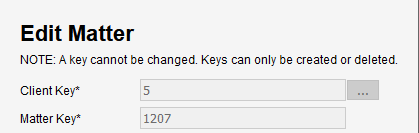
Descriptions are a different story. The description is free text and can be edited any time; it’s only the key — the number itself — that’s locked. If all you have is a typo in the matter name, you don’t need any of what follows.
The Fix
Step 1: Create the Correct Matter in the Admin Console
Build the matter with the right key. Match the description and the Workspace Type to what the bad one has, so the only thing that differs is the number.
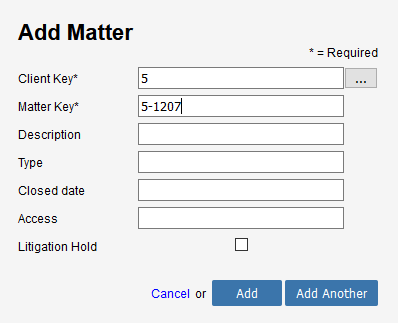
Step 2: Search for the Incorrect Client and Matter in Advanced Search
Open Advanced Search and search on the wrong client and matter numbers. You want every document profiled to that matter in one result set.
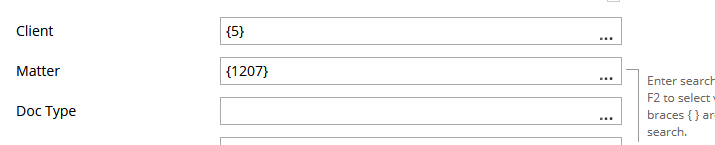
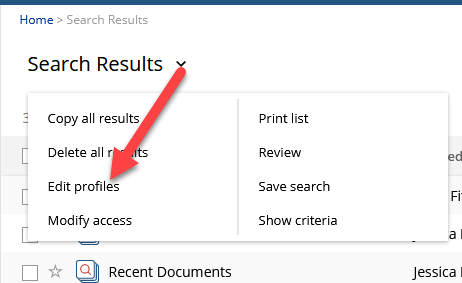
Step 3: Select All Results and Choose Edit Profiles
From the search results, select everything, then go to Search Results → Edit Profiles.
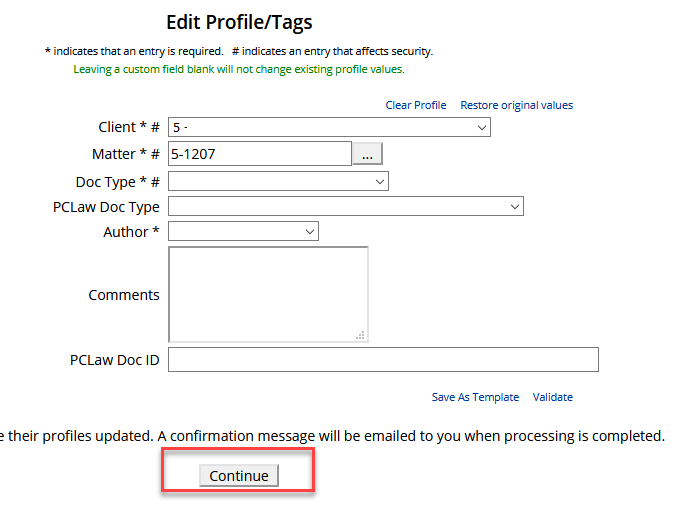
Step 4: Enter the Correct Client and Matter ID
Fill in the new client and matter values and apply the change. This reprofiles every selected document at once.
Step 5: Open the Correct Workspace and Confirm the Documents Landed
Use your eyeballs before you delete anything. The documents should be sitting in the new Workspace, filed under the right Doc Types.

Step 6: Open the Incorrect Workspace
Go back to the bad Workspace. The document list should now be empty. What may not be empty are the folders.

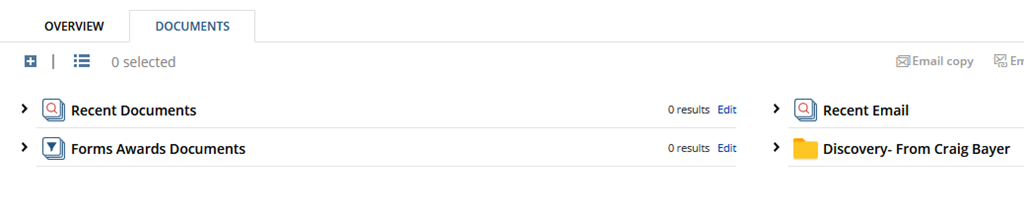
Step 7: Move Any Custom Folders to the Correct Workspace
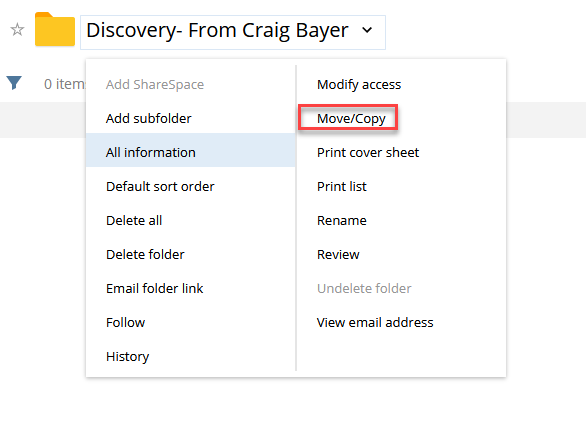
Reprofiling moves documents, not folder structure. If anyone built custom (yellow) folders under the old Workspace, select them, choose Move, and pick the correct Workspace.
Choose Move and Choose the Correct Workspace
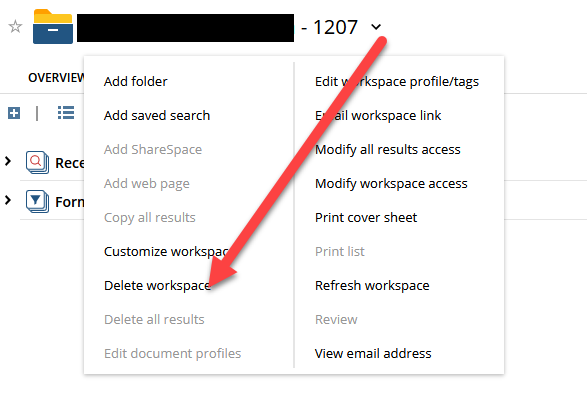
Step 8: Delete the Empty Workspace
With the documents reprofiled and the folders moved
Step 9: Delete the Bad Matter in the Admin Console
Deleting the Workspace doesn’t remove the matter. Go back into the Admin Console and delete the matter itself, or it stays in the lookup list and someone files to it again next week.

What About a Wrong Client Key?
Same procedure, bigger blast radius. A client key is locked exactly the same way, but fixing one means rebuilding every matter under it and reprofiling all of their documents. The order is the same: create the correct client and its matters first, reprofile, move folders, then delete from the bottom up — Workspaces, then matters, then the client.
The Real Fix Is Upstream
There’s no way around the key being permanent, so the only place to save yourself this work is at matter creation. Restrict who can create clients and matters, decide on a numbering format before the first matter goes in, and if your numbers come from a practice management system, let that system be the one that creates them.
Need Help?
If you’re looking at a pile of matters with bad keys, or your client and matter numbers are arriving from a practice management system in a format that doesn’t work in NetDocuments, that’s usually a single call. We can look at how your numbering is set up today and who’s able to create matters, and fix the process instead of the symptoms.
Schedule a free consultation at go.oncehub.com/optconsult.
Craig Bayer is the founder of Optiable and has guided over 550 law firms through NetDocuments implementations since 2010, specializing in firms with 10 to 150 users.
CONNECT WITH CRAIG → https://www.linkedin.com/in/craigbayer/