

Open a workspace in NetDocuments, and you get tabs. Pleadings, Correspondence, Memos, whatever Doc Types your firm set up. That covers a lot of what people need on a matter, and then it stops.
The tabs won’t tell you what happened on the matter this week. They won’t tell you which of these documents you worked on. They won’t separate the four emails that mattered from the four hundred that didn’t.
That’s what NetDocuments saved searches are for. A saved search isn’t a snapshot — it’s a live query. Click it, and NetDocuments runs the search again, so the results are always current. Build the right ones onto a workspace and nobody at the firm has to construct that search again.
This article is specifically about workspace saved searches. That distinction matters, so let’s get it out of the way first.
NetDocuments Saved Searches Live in Three Places
- On a workspace – Scoped to a single matter, sitting alongside the Doc Type tabs. For most firms, a workspace is matter-centric; for firms that don’t use matters, it’s client-centric. Either way, the search only returns documents from that workspace. This is what the rest of this article covers.
- On your homepage – Not tied to any one matter. This is where a search spanning every client and every matter belongs — everything you’ve touched across the whole cabinet, for instance.
- On the client cabinet page – Cabinet-wide housekeeping. Checked-out documents and deleted items belong here, because the question they answer — “who has this locked?”, “where did it go?” — gets asked at the cabinet level rather than one matter at a time.
Same mechanism in all three places. Different scope, and the scope is what makes a search useful or useless. Below are the ten worth building on a workspace.
Two Ways to Put a Saved Search on a Workspace
In the workspace template. The template defines what every workspace in the cabinet looks like — including the tabs and saved searches that come with it. Build a group of saved searches into the template so they appear on every matter automatically, including matters nobody has opened yet. This is the version you want. It’s also the part where most firms need a hand: the template is a cabinet-wide configuration, and a mistake there affects every workspace at once. Realistically, setting up your workspace template is a conversation with a consultant.
On the workspace itself. Open a matter, and there’s an Add Saved Search option right there. Anyone can use it, no admin rights required, and the search you build lives on that one matter.
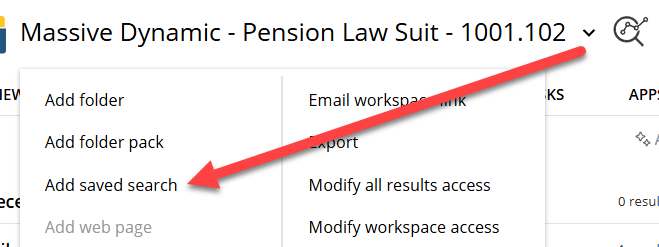
That gives you a sensible way to work up to the template. Build the searches yourself on a matter you’re actively working. Live with them for a few weeks. The ones you keep clicking are the ones worth pushing into the template so every matter in the cabinet gets them.
Use %CU% Instead of Your Own Name
Several of the searches below are about you — your documents, your email. That creates an obvious problem. If I build the search with my own name in it:
=6(Craig Bayer)then it’s my search. Push it out to the firm, and every attorney who clicks it gets a list of my documents.
NetDocuments has a token for this. %CU% means the current user — whoever is logged in and clicked:
=6(%CU%)Same search, deployed once, correct answer for every person at the firm. Nobody builds their own copy, nobody’s copy is subtly wrong, and when it needs to change, you change it in one place.
1. All Documents
Every document on the matter, sorted by last modified date.
This is the matter’s pulse. What’s moved lately, and who moved it. It’s how you get up to date on a file before a call, and how you find the document a colleague mentioned this morning but never sent you.
NOT =11( msg OR eml OR ndsq OR ndfld OR ndcs )11 is the file extension, and NOT throws out everything in the list. The first two keep email out — emails outnumber documents on an active matter by a wide margin, and if you leave them in, the documents get buried beneath them. The last three are NetDocuments’ own objects: saved searches, folders, and CollabSpaces. They live in the cabinet alongside your documents, but they aren’t documents and have no business on this list.
2. All Emails
Every email filed to the matter, sorted by sent date.
=11(msg OR eml)Same idea, opposite half of the workspace — the exact inverse of the first half of the search above. Filed email is where the substance of a matter actually lives — the agreement to the extension, the client’s approval, opposing counsel’s position. Treating it as second-class material is a mistake.
Sort by sent date rather than the date it was profiled. What matters is when the message was sent, not when somebody finally got around to filing it.
3. My Documents
Everything on this matter you created or edited.
=6(%CU%) OR =8(%CU%)6 is Created By and 8 is Last Modified By. The OR is doing real work — leave it out and NetDocuments ANDs the two conditions, so you’d only get documents where you were both the creator and the last person to touch it. That’s a much smaller list than the one you want, and it’s an easy mistake to miss, because the search still returns results.
One limit worth knowing: 8 is the last modifier, not everyone who ever edited the document. Something you worked on Tuesday that a colleague edited Wednesday won’t match — and if you didn’t create it either, it drops out of the search entirely.
4. My Emails
Every email on the matter you sent or received.
=19(%CU%) OR =17(%CU%) OR =18(%CU%)19 is Email From, 17 is Email To, 18 is Email Cc. %CU% Works here the same way it does on Created By, so this is one saved search that gives every person at the firm their own mail.
Three conditions, two ORs. Sent by you, addressed to you, or copied to you — any one of those is a match. Side by side, without the ORs, you’d be asking for messages you sent to yourself and copied to yourself, which is a very short list.
5. Meeting Notes
Every meeting transcript is filed to the matter.
We use Otter.ai for meeting transcription and save the transcripts into NetDocuments. Otter and Zoom both deliver via email from fixed addresses, making them trivial to search for. Put both in the Email From field with an OR:
=19(no-reply@zoom.us OR no-reply@otter.ai)Swap in whatever your firm actually uses — Teams, Fathom, Read.ai, a court reporter’s service. The mechanism is the same: a sender address you can rely on.
Transcripts are worth separating out because they don’t behave like documents. They have no natural Doc Type, nobody thinks to look for them, and they’re the only record of what was actually said on a call three months ago.
6. Internal Email
Every email on the matter that went from one person at the firm to another.
=19(@optiable) =17(@optiable) =11(msg OR eml)Swap in your own domain. 19 is Email From, 17 is Email To, 11 is the file extension. Notice there’s no operator between the conditions — NetDocuments ANDs them, which is exactly right here. The message has to be from an internal address and to one.
Internal email is where the firm discusses the matter rather than communicating with the client. Staffing, strategy, who’s covering the hearing, the second opinion on a settlement number. It’s a different body of material from client correspondence, and it’s worth isolating.
One honest limit: an email addressed to a colleague and the client together will match because the To field contains an internal address—it also contains an external one. This search means “internal recipients included,” not “internal only.”
7. Hot Docs / Smoking Gun / Milestone
Every document on the matter flagged as a milestone, regardless of what kind of document it is.
An attorney explained this to me years ago, and his phrase stuck: “these are the smoking-gun documents.” The signed agreement. The email in which the other side admits it. The one exhibit that decides the case.
The point is that the flag is independent of Doc Type. A memo that turns out to be pivotal shows up under the Memo tab and here. You’re not choosing between classifying a document correctly and marking it as important — you get both.
For a litigation firm, this is the most valuable saved search on the list. Ten thousand documents on the matter, forty that matter, one click.
8. Documents Filed This Year
Every document on the matter filed with a court since January 1, sorted by filing date.
It tells a partner what actually went out the door this year. It gives a new associate a fast education in what the firm’s filings look like. And when somebody asks whether a particular pleading was ever actually filed, you stop relying on memory.
9. All Executed Documents
Every document on the matter whose status has been set to Executed.
Drafts outnumber finals ten to one. A single agreement can carry thirty versions, and the only one anybody needs after closing is the last one. This search skips the drafting history and shows you what’s done.
It’s also the fastest way to answer “is this signed?” — if it’s not in this list, the answer is no.
10. All Unprofiled Documents
Anything that landed on the matter without a Doc Type.
Documents arrive unprofiled through drag-and-drop, bulk imports, and people in a hurry. The problem is that a document with no Doc Type doesn’t appear under any of the workspace’s tabs — it’s on the matter and invisible at the same time. This search is how you find them and profile them properly.
It should be empty most of the time. When it isn’t, somebody has work to do.
Three of These Depend on Profile Attributes
Searches 7, 8, and 9 can’t exist unless the cabinet is configured to support them. That means adding a few non-required Profile Attributes — non-required meaning users can ignore them entirely when they profile a document, and nothing breaks.
Every firm does this differently, so treat the following as a menu rather than a checklist:
- Doc Status – A dropdown, typically Draft, Pending, and Executed. It defaults to Draft and stays there until someone changes it. This is what powers the All Executed Documents search, and it’s the one I’d add first at a transactional firm.
- Filed – A Yes/No field that defaults to No. Once the document goes to the court, it gets flipped to Yes.
- Date Filed / Date Received – The date something was filed with the court, or the date it came in. Pair it with the Filed attribute and you can search a date range instead of a flag.
- Hot Docs / Milestone / Smoking Gun – A Yes/No flag marking a document as significant. Call it whatever your attorneys will actually use. This one sits alongside Doc Type rather than replacing it.
None of these are things an end user can create. If you want them, that’s a conversation with whoever administers your cabinet — your IT team, your firm administrator, or your consultant. The work is small. The payoff is that three of the ten searches above become possible.
A word of caution on non-required attributes: they’re only as good as the habit behind them. A Milestone flag nobody ever sets is worse than no flag at all, because now people trust an empty list. Decide who owns the flag before you build the search.
Which Ones Should You Build First?
If you do nothing else, build All Documents and All Emails. Those two cover the daily reality of working a matter, and they need no configuration at all. Add My Documents and My Emails next, built with %CU% so one search serves everyone.
Then add the ones that match your practice. Meeting Notes if your firm has settled on a transcription tool. Internal Email if you ever need to separate what the firm said to itself from what it said to the client. All Unprofiled Documents if your filing discipline is anything short of perfect.
Then decide whether the last three are worth the Profile Attributes they require. At a litigation firm, the Milestone flag alone justifies the conversation. At a transactional firm, it’s Doc Status.
Ten searches, built once, on every workspace in the cabinet. Most firms have none.
Need Help?
Not sure which saved searches belong on your workspaces, or which Profile Attributes your cabinet needs to support them? We can look at how your firm actually works a matter and set this up to fit — usually in a single call.
Schedule a free consultation at go.oncehub.com/optconsult.
Optiable has rolled out NetDocuments for over 600 law firms since 2010, most of them between 10 and 150 users.