

Every morning I want to know what landed in the system since yesterday. A NetDocuments saved search set to the last 24 hours does it in one click — no filters to rebuild, no date fields to retype.
It takes about two minutes to set up, you only do it once, and it works for anyone in the firm. No admin rights required.
Why -1 and +0 Instead of Actual Dates
This is the part that trips people up. If you type real dates into the Created field, you get a snapshot of one specific day. Tomorrow it’s wrong, and you’re back in Advanced Search editing the range.
NetDocuments accepts relative dates instead. -1 means one day ago and +0 means today, and the system recalculates both every time the search runs. Save it once and it’s always current.
That’s the whole trick. Everything below is just where to click.
Step 1: Open Advanced Search
From the NetDocuments home page, click the down arrow in the search bar and choose Advanced Search.
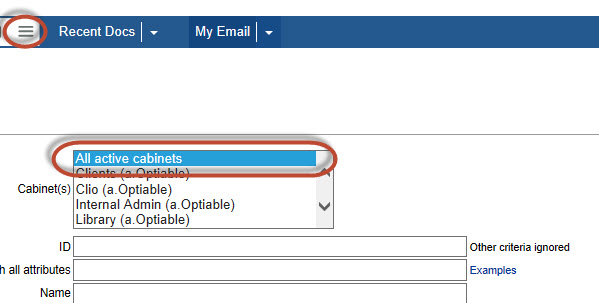
Step 2: Select All Cabinets
Make sure every Cabinet you have access to is checked. If you leave this at a single Cabinet, you’ll miss anything filed elsewhere — which defeats the purpose of a morning check.
Step 3: Set the Created Date Range to -1 and +0
Find the Created line. Enter -1 in the first date box and +0 in the second.

Step 4: Run the Search
Click Search. You should get back everything created in the firm since this time yesterday. If the list looks unexpectedly short, check Step 2 — a missing Cabinet is almost always the reason.
Step 5: Save the Search
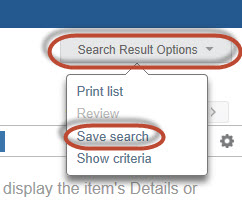
Click Save Search, give it a name you’ll recognize — I use Created Last 24 Hours — and store it in your User Folder.
Step 6: Star It
Click the star icon next to the saved search name. That pins it to the Saved Searches section of your home page.
Three Variations Worth Building
The same search takes about ten seconds to adapt once you understand the date syntax.
- Option 1: Only your documents – add yourself to the Author field. Useful if you’re trying to reconstruct what you worked on yesterday for your time entries.
- Option 2: The last week – change
-1to-7. This is the one I’d give an attorney coming back from vacation. - Option 3: One client or matter – add the Client or Matter Profile Attribute. Good for a partner who wants to see activity on a live deal without watching the whole firm.
Save each one separately and star the ones you’ll use daily. There’s no limit that matters here.
The Result
One click every morning tells you what the firm produced yesterday. Supervising attorneys use it to see what came out of their team. Administrators use it to spot documents filed to the wrong Cabinet while it’s still easy to fix. And anyone reconstructing their day for billing gets a list instead of a memory test.
Need Help?
If your firm is filing documents but nobody’s looking at what comes out the other end, saved searches are the cheapest fix available — and there are a dozen more worth building beyond this one. We can review how your Cabinets and Profile Attributes are set up and put a standard set of searches in front of your users, usually in a single call.
Schedule a free consultation at go.oncehub.com/optconsult.
I’ve implemented NetDocuments at over 550 law firms since 2010, most of which are in the 10- to 150-user range.