

On go-live day, one of your attorneys logs into NetDocuments for the first time and lands in another law firm’s Cabinet. If you’ve seen that happen, you’re not alone — and it’s the single best reason to set a default Cabinet in NetDocuments before your users ever touch the system.
Here’s the part most firms don’t realize: nobody picks their default Cabinet. NetDocuments picks it for them. The setting is called your Primary Cabinet, and every user gets one whether they asked for it or not.
Nobody Chooses Their Default Cabinet — NetDocuments Assigns It
There is no point in the setup process where a user is asked which Cabinet they want. NetDocuments assigns a Primary Cabinet on their very first login, and the logic is simple: if they only have access to one Cabinet, they get that one. If they have access to more than one, they get the one that comes first alphabetically.
That’s the whole rule. It doesn’t look at their practice group, their title, or what they do all day.
That list is per user, not per firm — it only includes the Cabinets they actually have access to. So most of your staff, who can only see the client Cabinet, get handed the client Cabinet, and nothing goes wrong.
The trouble starts with anyone who can see more than one. Your firm administrator with rights to both Accounting and Client Documents gets dropped into Accounting every morning, because A comes before C.
Which means the Cabinet name is doing the assigning. That’s why, when we build out a new NetDocuments environment, we name the Cabinet where the actual client work lives so that it sorts first. The simplest way is a numeric prefix — our own client Cabinet is named 01. Client Cabinet, because 01. sorts ahead of every letter, leaving us room to slot others in behind it.
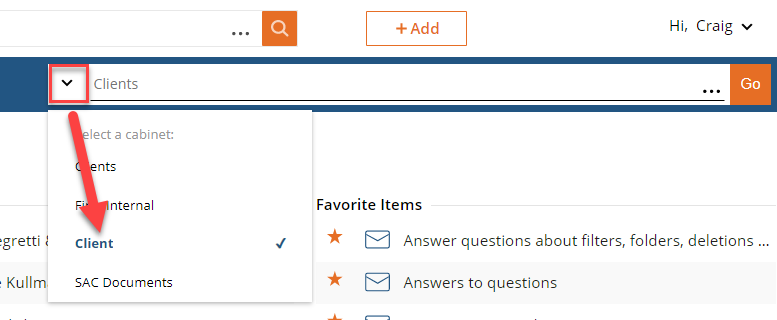
It costs nothing at setup, and renaming Cabinets later is a much bigger conversation. Get it right on day one.
The Real Problem: Other Firms’ Cabinets
Sorting your own Cabinets is the easy half. Here’s the one that actually causes trouble.
Some of your attorneys already had NetDocuments access before your firm ever bought it — an outside firm’s Cabinet, shared during a co-counsel arrangement or a document review, still attached to their email address. I covered where those come from and how to get rid of them in Another Law Firm’s NetDocuments Are Showing Up in My NetDocuments.
What matters here is that the assignment rule doesn’t care whose Cabinet it is. That outside firm’s Cabinet is one they have access to, so it counts toward their alphabetical list exactly like one of yours — and this is how an attorney who should be a simple one-Cabinet user ends up with two. If the outside firm’s name sorts before yours, that’s what they get on first login, and it sticks until somebody changes it. Day one of your rollout, before they’ve formed a single habit about where their own documents live.
Revoking the external access means waiting on somebody else’s IT department. Changing the Primary Cabinet takes a minute, and you control it. Do both, but do this one first.
How to Change a Default Cabinet in NetDocuments (1 Minute)
You can’t stop NetDocuments from assigning one, but you can change what it assigned. No admin rights required — each user does this in their own account.
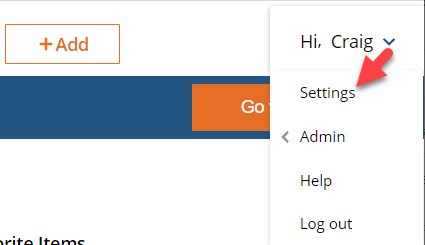
Step 1: Click Settings
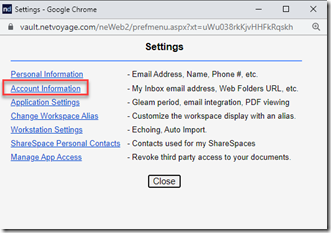
Step 2: Open Account Information

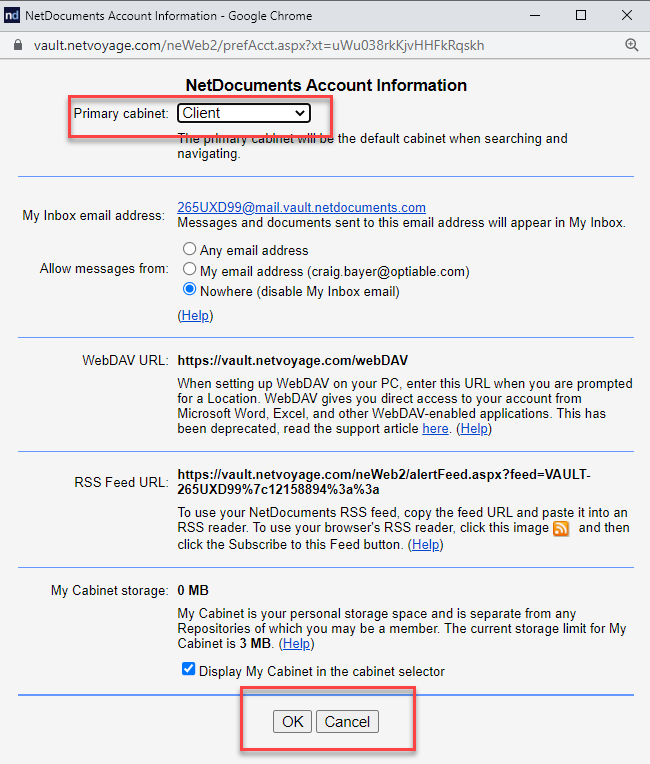
Step 3: Choose Your Primary Cabinet and Click OK
Step 4: Close Your Browsers, Log Out, and Log Back In
The setting doesn’t apply to an active session. Close every browser window, log out of NetDocuments, and log back in.
There’s a Registry Key, But It’s Not This One
IT people ask this constantly, so let’s settle it: you cannot push the Primary Cabinet. It’s an account-level setting, not a workstation setting, so there’s nothing in the registry to reach. NetDocuments explicitly states in its documentation that it isn’t currently possible, through the API or any other tool, for an administrator to assign a Primary Cabinet on another user’s behalf.
Here’s where it gets confusing, and I’ll admit I went down this road myself.
There is a registry value called WorkspacesNavigationCabinet, under HKEY_CURRENT_USER\Software\NetVoyage\NetDocuments. NetDocuments describes it as specifying the Cabinet you open and attach documents from, or save documents to. Read that on a Tuesday afternoon, and it sounds exactly like a way to push a default Cabinet to every workstation in the firm.
It isn’t. That key controls where the ndOffice Open, Save, and Attach dialogs start — the same thing as the Cabinet drop-down in ndOffice Settings → Navigation. It has nothing to do with the Primary Cabinet. Push it to every machine at your firm, and you will not have changed a single user’s Quick Search, Go to a Matter button, Navigation Pane, or upload default. Those still follow the Primary Cabinet, which still came from that alphabetical list.
Two different settings that sound the same. That’s the trap.
You also rarely need the registry one, because ndOffice 2.2 and later already follow the user’s Primary Cabinet. Get the Primary Cabinet right and Word, Excel, and Outlook come along with it — there’s nothing separate to configure.
So there’s no way around it. The system assigns a Primary Cabinet, and only that user can change it. Send the four steps above out as an email, or knock it out during onboarding while you have their attention. And get your Cabinet names right before anyone logs in, because the name you pick is the only lever you have that reaches every user at once.
One thing to watch afterward: if a user’s access to their Primary Cabinet is removed, or that Cabinet is deleted, NetDocuments automatically assigns them the next Cabinet in the list. So cleaning up a stale external share can quietly move somebody’s Primary Cabinet out from under them. Worth a spot check rather than assuming the fix stuck.
The Result
Users land where the work is. The search bar assumes the right Cabinet, uploads default to the right Cabinet, ndOffice follows along, and nobody starts their morning in another law firm’s document management system because that firm’s Cabinet happened to sort first.
Need Help?
Setting up a new NetDocuments environment or seeing outside firms’ Cabinets appear in your users’ accounts? We’ll get your Cabinets named and ordered correctly from the start, so the default is right before anyone logs in.
Schedule a free consultation at go.oncehub.com/optconsult.
Optiable has implemented NetDocuments at over 550 law firms since 2010, working with firms of 10 to 150 users.