

If you’ve ever clicked ndSave in Word, Excel, or PowerPoint and ended up looking at a plain Windows save box instead of NetDocuments, you’re not alone. ndSave saving locally comes down to one of two things, and both take about a minute to fix.
The Good News: Nothing Is Broken
Your document isn’t lost, and NetDocuments isn’t down. The file went to your computer instead of NetDocuments, and that’s fixable.
What’s Happening?
ndSave doesn’t come from Word. It comes from ndOffice, a program installed on your computer that puts the NetDocuments buttons into Outlook, Word, Excel, PowerPoint, and Adobe.
Those buttons only work when ndOffice is connected to NetDocuments. When it isn’t, there’s nothing on the other end to send the document to, so Word does the only thing it can: save locally. Same thing in Excel and PowerPoint.
Is the Button Missing Entirely?
That’s a different problem. If ndSave isn’t on the ribbon at all, Office has disabled the NetDocuments add-in. See why Outlook keeps disabling the NetDocuments add-ins and how to stop it →
If the button is there and you’re getting a local save, keep reading.
Two Reasons ndSave Saves Locally
It can be the first, the second, or both.
Cause 1: You’re Not Logged In to NetDocuments
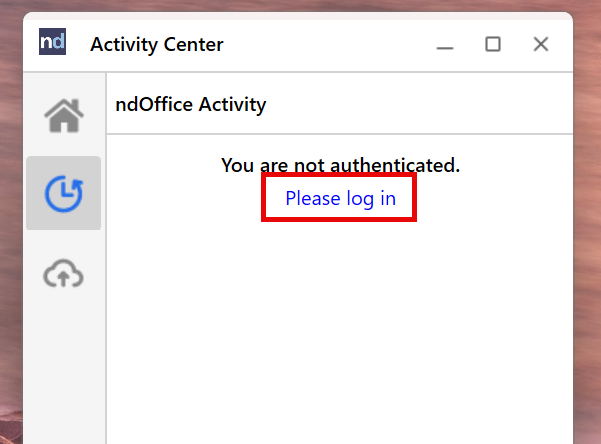
ndOffice has its own login. If you never logged in, or the login failed, ndSave has nowhere to send the document.
Cause 2: ndOffice Is in Offline Mode
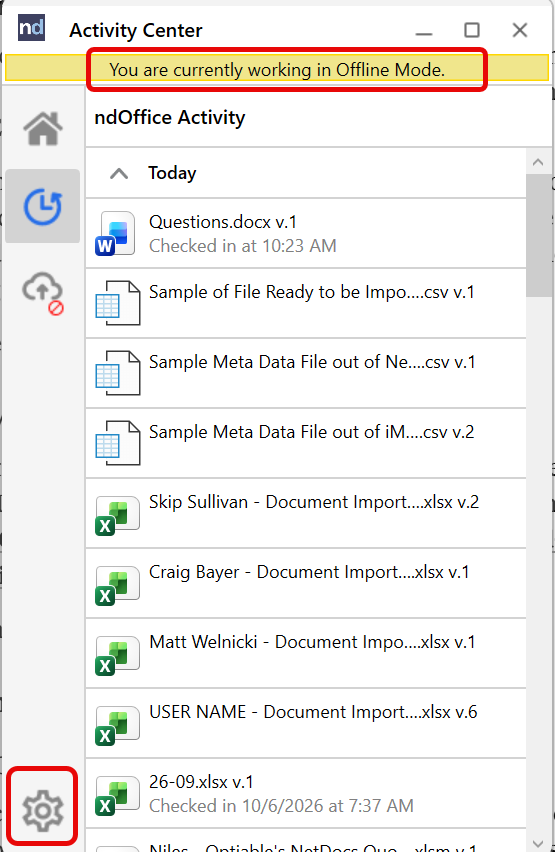
If you had trouble logging in to NetDocuments, or didn’t log in, ndOffice will most likely be in offline mode. Logging in doesn’t take it back out. You have to put ndOffice back online yourself, or ndSave keeps saving locally.
That’s why you can’t stop after fixing one. If you log in and still get a local save, you’re in offline mode too.
Step 1: Open ndOffice
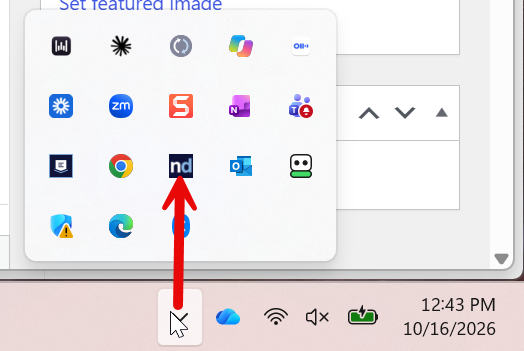
Click the ndOffice icon in the system tray, next to the clock in the bottom-right corner of your screen. If you don’t see it, click the up arrow to show hidden icons, or open ndOffice from the Start menu.
Step 2: Log In
Sign in with your NetDocuments login — the same one you use on the website.
Step 3: Determine if you are in Offline Mode
If ndOffice shows that you’re working offline, switch it back to online.
Step 3: Click on the Gear and then Go back online

Step 5: Go Back to Your Document and Click ndSave Again
This time you’ll get the NetDocuments save window, and the document goes where it belongs.
What About the File That Saved Locally?
It’s still on your computer, wherever Word put it. Open it, click ndSave now that you’re logged in, and get it into NetDocuments. Then delete the local copy so nobody ends up working on the wrong version.
Need Help?
If ndOffice keeps logging users out, or ndSave keeps landing documents on people’s desktops, we can find out why and fix it across the firm — usually in a single call.
Schedule a free consultation at go.oncehub.com/optconsult.
Optiable has rolled out NetDocuments for over 600 law firms since 2010, specializing in firms with 10 to 150 users.