

Today is your first day in NetDocuments and you’re on a Mac. Before you install anything, before you worry about ndClick or Outlook or where the Save button went, you need to get logged in. That’s all this post covers: the NetDocuments Mac login, start to finish, in about two minutes.
There’s No App to Install First. NetDocuments Starts in Your Browser.
Your Windows colleagues open Word and see NetDocuments sitting inside it. You won’t, and that’s not a mistake — Macs use a different app to connect, and it comes later.
For now, NetDocuments is a website. Chrome, Safari, and Firefox all work. Everything else you’ll ever do on a Mac starts from that website, so getting in is the whole job today.
Before You Start
You need two things:
- Your work email address – the one your firm gave you, not a personal Gmail account.
- Your firm’s Microsoft 365 password – the same one you use for Outlook and Windows.
Your firm should have sent you a direct link to log in. If you have it, click it and skip to Step 5. If you don’t, Steps 1 through 4 will find it for you.
The NetDocuments Mac Login, Step by Step
Step 1: Go to optiable.com/netdocs-login
Open your browser and go to optiable.com/netdocs-login.
Step 2: Choose I Want to Use My Organization’s Login
Your firm signs you in through Microsoft 365, so this is the option you want — not a NetDocuments password.
Step 3: Enter Your Work Email Address
NetDocuments uses your email address to work out which firm you belong to and where to send you.
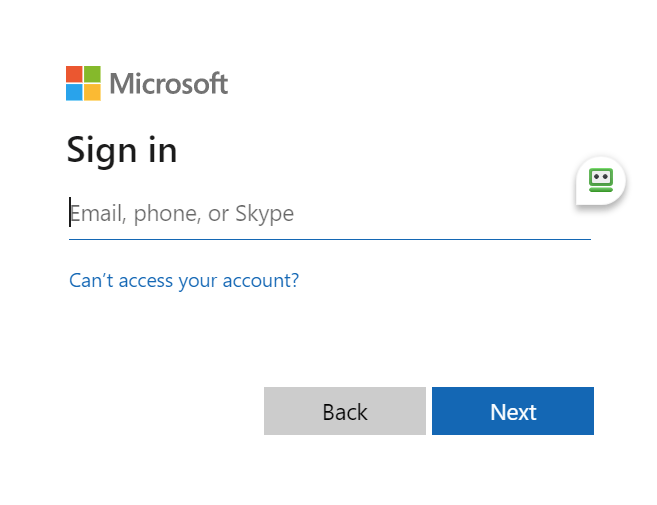
Step 4: Sign In With Your Firm Account
You’ll be handed off to your firm’s Microsoft sign-in page. Enter your work email and password, and approve the multi-factor prompt on your phone if your firm uses one.
Step 5: Bookmark the Page
Once your Workspaces load, bookmark the page. You’ll come back to it several times a day — on a Mac, the website is where every document starts and finishes.
You’re In. What’s Next?
Logging in gets you to your documents. Opening and editing them needs one more piece: ndClick, the small app that downloads a document to your Mac when you click it and sends your changes back when you’re finished. It’s the Mac equivalent of what ndOffice does on Windows.
Next: Installing ndClick on a Mac.