

You’re in a deposition, at a client’s office, or standing in an airport, and you need a document that lives in NetDocuments. The NetDocuments iPhone app handles that — but only if it’s set up correctly, and the out-of-the-box defaults aren’t what you want.
This takes about five minutes. Here’s how to install it, get logged in without fighting your authenticator app, and configure the three settings that make it worth having on your phone.
The steps and screenshots below are from an iPhone. Android is close enough that you can follow along, but the screens won’t match exactly
Before You Start: Open Your Authenticator App First
If your firm requires multifactor authentication on Microsoft 365 — and it should — open your authenticator app and sign into it before you touch NetDocuments. You’re about to bounce between two apps, and having the second one already open and unlocked turns a fiddly handoff into a single tap.
Most firms use Microsoft Authenticator. Some people use RoboForm, 1Password, Duo, or something else that holds their codes. The app doesn’t matter here. The habit does.
While you’re in there, check three things:
- Is it on this phone? Not your old phone, not the one in your desk drawer. The phone you’re setting up right now. If your work account isn’t in the authenticator app on this device, stop and fix that with IT first — nothing below will work.
- Are notifications turned on? Check Settings → Notifications and find your authenticator app. If you use push approvals and notifications are off, the prompt never surfaces and the sign-in spins until it times out.
The Setup (5 Minutes)
Step 1: Download the NetDocuments iPhone App
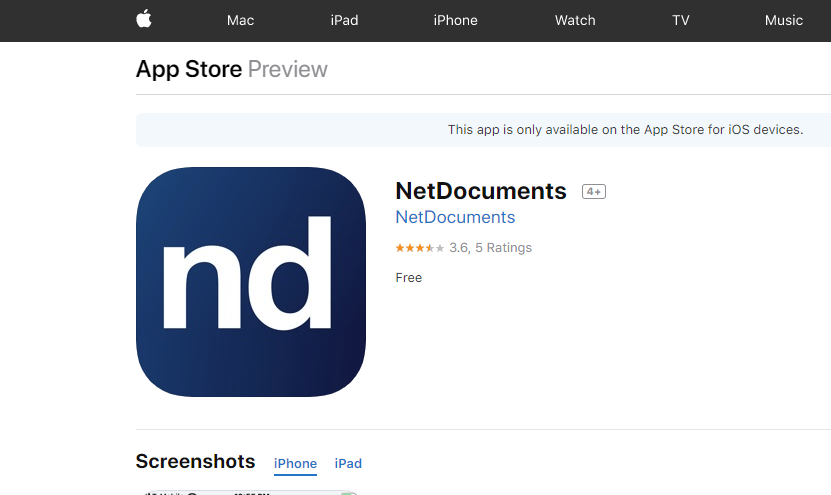
Search for NetDocuments in the App Store, or use the direct link: NetDocuments on the App Store. It requires iOS 16.6 or later.
You’ll see a second result called NetDocuments for EMM. Ignore it. That build exists for firms that push apps to phones through an enterprise mobility management platform, and in fifteen years I have not had a client running it. Download the standard NetDocuments app.
Step 2: Choose the Right Service
Open the app and check the Service setting before you type anything. NetDocuments runs separate datacenters for the US, the EU, and Australia, and your credentials only work against the one your firm’s Repository lives in.
US firms can leave the default alone. If your firm is on the EU or AU service and you skip this, your login fails and it looks like a password problem. It isn’t.
Step 3: Log In
This is the step people get wrong, so it gets its own video.
There are two ways to get stuck, and between them they cover just about every “I can’t log into NetDocuments on my phone” call.
Mistake 1: Typing Your Password Instead of Using SSO
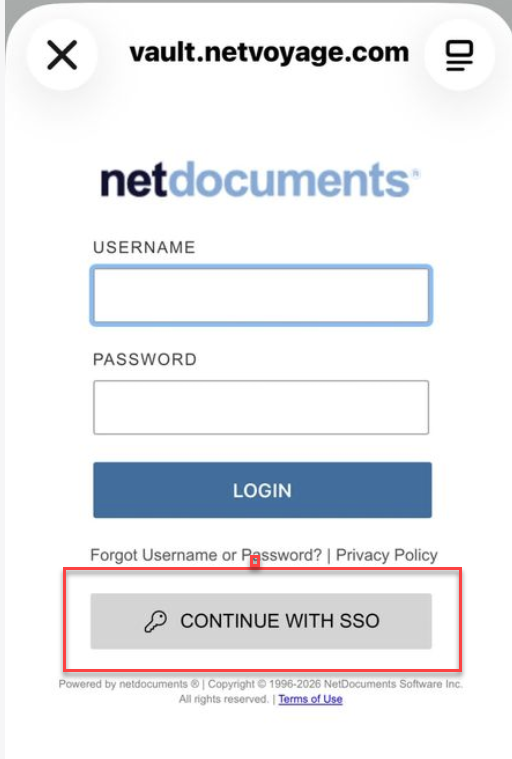
If your firm signs into NetDocuments with Microsoft 365 credentials — and that’s how firms are typically set up now — you do not type a username and password into the NetDocuments login screen. You tap Continue with SSO.
Typing your Microsoft 365 password into the NetDocuments password field doesn’t work. The app is asking for a NetDocuments-native password that your firm probably no longer issues, so you get rejected, try it three more times, and conclude the app is broken.
The rule is simple: however you sign into NetDocuments at your desk, sign in the same way on your phone. If your browser redirects you to a Microsoft sign-in page, use SSO on your phone too.
Mistake 2: Losing the Handoff to Your Authenticator App
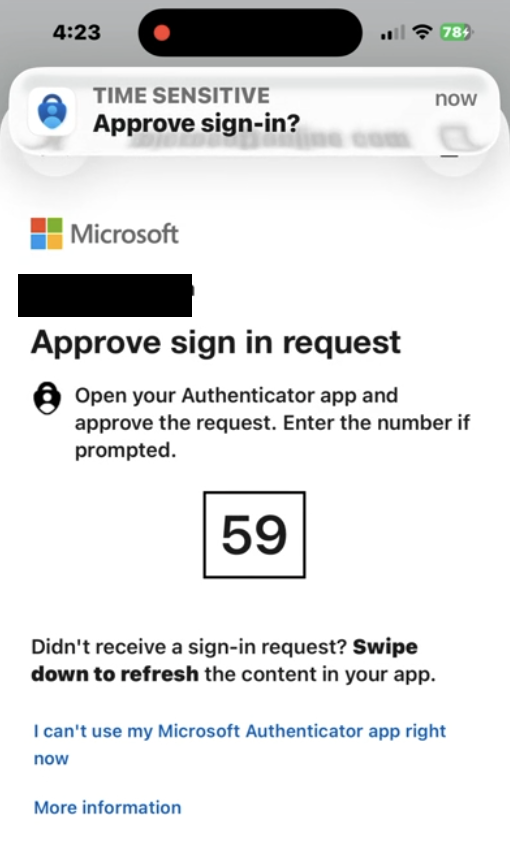
Once you tap Continue with SSO, Microsoft takes over. If your firm requires multifactor authentication — and it should — you’ll be prompted to use Microsoft Authenticator to approve the sign-in, usually by entering a two-digit code.
Here’s where it falls apart. You leave NetDocuments to get your code, go hunting for the authenticator on your home screen, unlock it, tap around trying to find your way back, and the sign-in times out behind you.
This is why you opened the authenticator first. Two ways to make the round trip:
- Push approval: swipe down on the notification banner, match the number, and iOS drops you back into NetDocuments on its own. You never actually leave the app.
- Six-digit code: double-tap the home bar to switch apps rather than going back to the home screen. Copy the code, switch back, paste. If you use RoboForm or 1Password, it will usually offer the code straight from the keyboard and you skip the trip entirely.
If it times out anyway, don’t reinstall anything. Tap Continue with SSO again and be ready this time.
Still Can’t Log In?
One question settles this: can you log into NetDocuments on your computer right now?
If you can, nothing is broken. Single sign-on between Microsoft 365 and NetDocuments is configured correctly, your account is active, and your password is up to date — the computer just proved all three. The problem is on the phone, in the last two minutes, and it’s one of the mistakes above.
That’s good news. It means you don’t need IT to change anything. Go back to Step 3 and check four things:
- Did you tap “Continue with SSO” or type a password? Password field, wrong door.
- Is your authenticator app on this phone, and did you open it first?
- Is the Service set to the same region as your firm? US, EU, or AU.
- Did the sign-in time out while you were switching apps? Start it again and be ready for the prompt.
Still stuck after that? Sign into NetDocuments in Safari on the phone. If the browser lets you in and the app won’t, delete the app, reinstall it, and walk the steps again.
Get Someone to Stand Next to You
This is the part nobody says out loud: a phone login problem requires someone to hold the phone. Nobody can remote into your iPhone — not your IT provider, not NetDocuments, not me. Screen-sharing tools don’t reach iOS the way they reach a desktop, so a support call becomes someone reading instructions to you over the phone while you tap.
Skip that. Find whoever in your office already has NetDocuments working on their phone and hand them yours for two minutes. They’ve made the same mistakes, and they’ll spot it instantly. That’s a faster fix than any ticket.
Step 4: Turn On Automatic Login
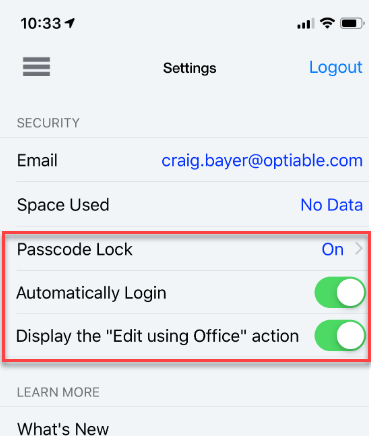
Open Settings (the gear icon) and switch on Automatic login.
Leave it off, and the app makes you run through Step 3 every time you open it. On a phone, that’s the setting that causes the app to be deleted in week two. Turn it on.
Step 5: Turn On Passcode Lock
In the same Settings screen, turn on Passcode lock and set a passcode. Pair it with Face ID so you don’t have to type digits every time.
This is the setting that makes Step 4 safe. Automatic login means anyone with your unlocked phone has access to your firm’s document management system. A passcode in the app adds a second layer of protection between a lost phone and everything your firm has. I cannot stress this enough — if your firm allows NetDocuments on personal phones, this is a requirement, not a suggestion.
Step 6: Turn On the “Edit Using Office” Action
Still in Settings, switch on the option to display the Edit Using Office action.
With it on, opening a document lets you launch it directly into Word, Excel, or PowerPoint on your phone, edit it, and send it back. With it off, you can read documents and not much else. When someone tells me the mobile app is “read-only,” this setting is usually the reason.
Next Step: Point Microsoft Office at NetDocuments
Installing the app is half the job. The other half is making sure that when you edit a document in Word on your phone, it saves back to NetDocuments instead of quietly landing in OneDrive or on the device.
That’s a separate setup, and I’ve written it up here: Configuring Microsoft Office to Work with NetDocuments on Your iPhone or iPad.
Need Help?
If your firm is rolling NetDocuments out to phones and you’d rather have the SSO and security settings enforced firm-wide than left to every user to remember, that’s a configuration question, not a per-phone question. We can review how your Repository is set up and tell you what to lock down — usually in a single call.
Schedule a free consultation at go.oncehub.com/optconsult.
Craig Bayer is the founder of Optiable, a document management consulting firm dedicated to helping law firms get the most out of NetDocuments. He has guided over 550 law firms through NetDocuments implementations since 2010, specializing in firms with 10 to 150 users.