

If you’ve ever sat in WordPerfect at a firm running NetDocuments, clicked File → Save As, and waited for the NetDocuments save dialog to appear the way it does in Word, you already know how this ends. Nothing pops. You get the plain WordPerfect Save As dialog box pointed at a folder on the network. NetDocuments WordPerfect integration isn’t something the platform ships — there’s no ndSave button in WordPerfect, no add-in to install, and no support ticket that will change the answer.
You can work around it. You can also buy the integration. Here’s both, and why most firms end up buying.
Can’t You Just Work Around It?
Yes, and I’ve written up how. In a previous post on using NetDocuments and WordPerfect, I walked through doing everything from the NetDocuments web interface instead of from inside WordPerfect:
- A brand new document – Click Add → Blank Document, select WordPerfect as the application, name and profile the document, and it opens in WordPerfect.
- A new version – Check the box next to the document, click more, then Check out as new version.
- A copy into another matter – Check the box, click more, choose Move\Copy, click Copy, name it, and click Open to launch it in WordPerfect.
Everything Word’s ndSave button does, you can accomplish. It just takes more clicks and a different order of operations.
Where the Workaround Falls Down
The mechanics work. The habits don’t.
- The workflow runs backwards – In Word, you write first and profile when you save. In WordPerfect, you have to profile an empty document before you type a word. That’s the opposite of how attorneys think, and it’s the part they forget.
- Every action starts in the browser – Nobody who’s mid-draft in WordPerfect wants to alt-tab to NetDocuments to make a copy of what’s in front of them.
- File → Save As still does the wrong thing – The workaround doesn’t change what happens inside WordPerfect. Save As still points to the file system, and any document saved there is invisible to your Cabinet, your search, and your security.
- It relies on training holding—one user who doesn’t remember the browser-first sequence creates a document outside the DMS, and you don’t find out until someone goes looking for it.
That last one is the whole problem. A workaround that depends on every user remembering it each time isn’t a document management policy—it’s a hope.
The Fix: One Step Save
One Step Save is a third-party product that restores the integration in WordPerfect. File → Open and File → Save As talk to your Cabinet, the same way your attorneys already expect from Word. No browser-first sequence, no profiling an empty document.
It’s Not Just WordPerfect
WordPerfect is the reason most firms buy One Step Save, but it isn’t the only thing it does. It puts a hook into a long list of programs that have no NetDocuments integration of their own:
- Unsupported PDF editors – if your PDF software isn’t Adobe Acrobat, Tungsten Power PDF (formerly Kofax, formerly Nuance), or pdfDocs by Litera, there is no NetDocuments plug-in for it. One Step Save covers Nitro PDF, PDF-XChange, Soda PDF, PDF Architect, PDF Suite, CutePDF, and Corel PDF Fusion.
- Printing a web page to PDF – Chrome, Edge, and Firefox get a hook, so a printed PDF lands in the Cabinet instead of the Downloads folder.
- AI – LLMs like Claude, ChatGPT, Gemini, and even Copilot will all get a hook into NetDocuments.
- Text and data editors – Notepad, Notepad++, WordPad, Rons CSV Editor, and Rons Data. CSV files stop living on people’s desktops.
- Accounting and practice management – QuickBooks, PCLaw, the Tabs3 modules (Billing, Accounts Payable, Task Bill, Practice Master), Unity Accounting (ESI Law), TValue5, BNA Income Tax Planner, and CCH Axcess.
- Scanning, images, and screenshots – ScanSnap, Windows Photos, Snipping Tool, and MS Paint.
- The rest of Office and Corel – Publisher, Visio, Project, OneNote, Quattro Pro, Open Office, and HotDocs Filler.
- ZIP files – Windows File Explorer compressed folders.
- AI tools – ChatGPT, Claude, and Copilot.
Every one of those is a place where a document is currently saved somewhere other than NetDocuments. That’s the real argument for One Step Save: it closes the gaps where your filing policy quietly stops applying.
What It Costs
There are two license types, and the difference between them is bigger than it looks:
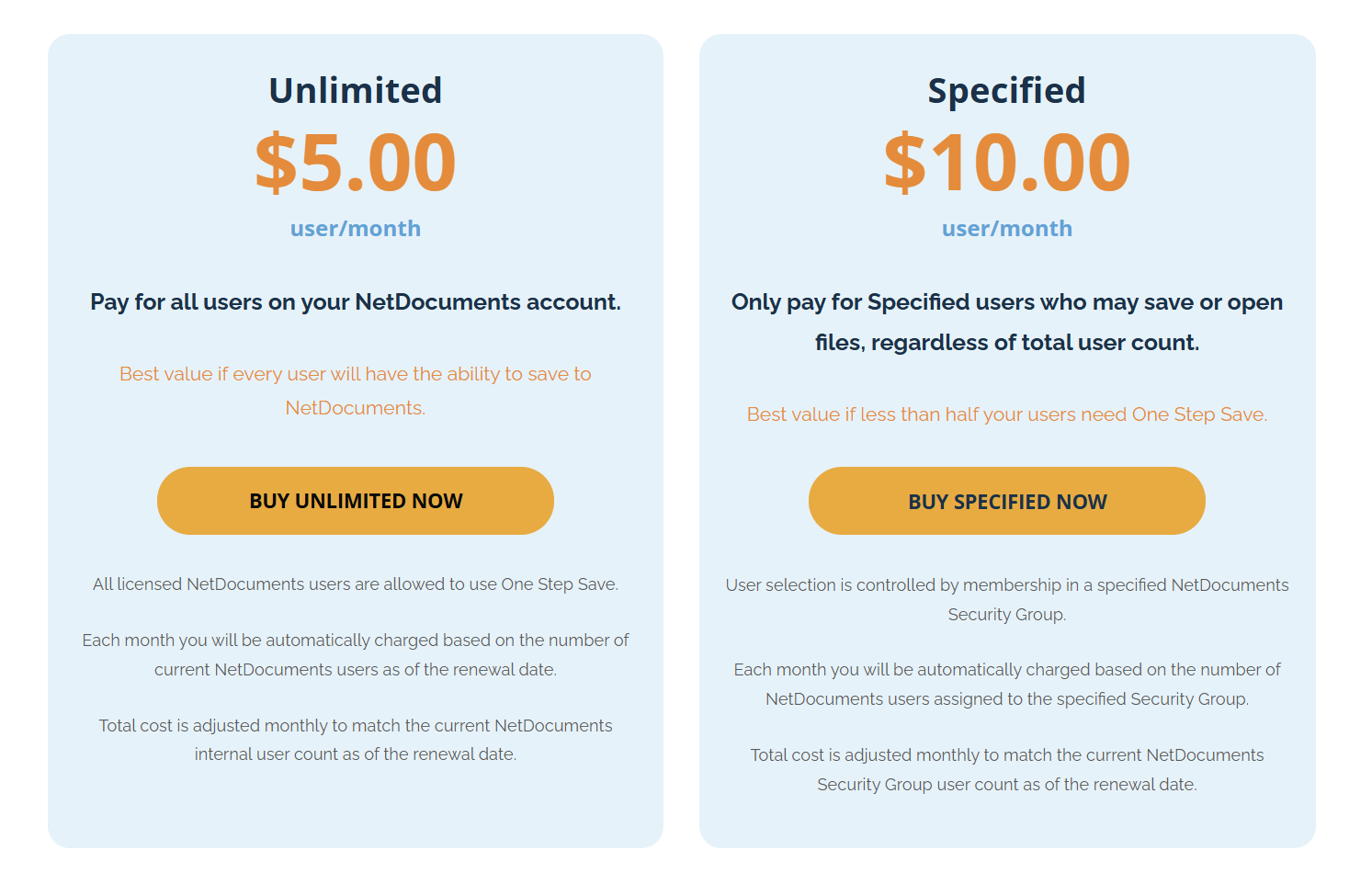
- Unlimited – $5 per user per month, covering every user at the firm.
- Specified users – $10 per user per month, for named users only.
Do the arithmetic before you choose. Take a 30-user firm. Unlimited runs $150 a month. Specified licensing at $10 each breaks even at 15 users — so the moment more than half your firm might touch one of the programs above, unlimited is the cheaper option, and you stop maintaining a list of who’s licensed.
My rule of thumb: buy unlimited. Firms shop for this because of WordPerfect and count three WordPerfect users, but every one of those 30 people prints a web page, opens a CSV, or scans something. Licensing three seats to solve a firm-wide filing problem is the expensive way to save money.
The Setup (10 Minutes)
You’ll need to be someone who can authorize an application against your NetDocuments Repository, and you’ll need a credit card at the end.
Step 1: Open the One Step Save Pricing Page
Click on THIS LINK. The link drops you straight to the legal pricing section — if it doesn’t, scroll down until you see the pricing tiers.
Step 2: Click Buy Unlimited Now or Buy Specified Now
Pick the tier you settled on above and click its Buy button.
Step 3: Choose Your Data Center
One Step Save asks which NetDocuments data center your firm lives in. Choose US if you’re in the United States and Canada if you’re in Canada. If your Repository is hosted elsewhere, select that region from the list instead.
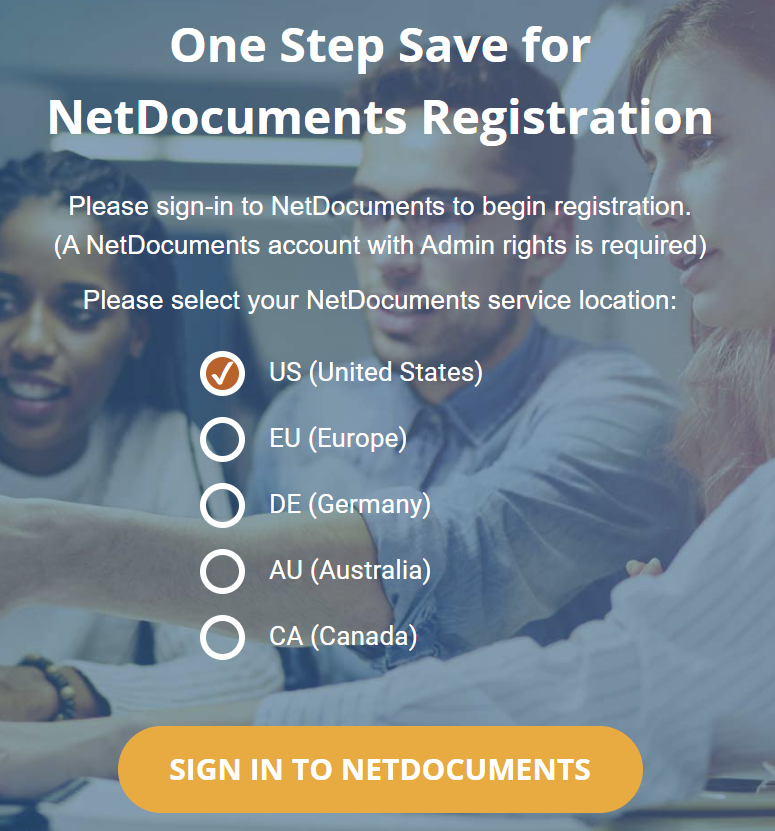
Step 4: Click Sign In to NetDocuments
This isn’t creating a separate account. It’s tying the subscription to the Repository you already have.
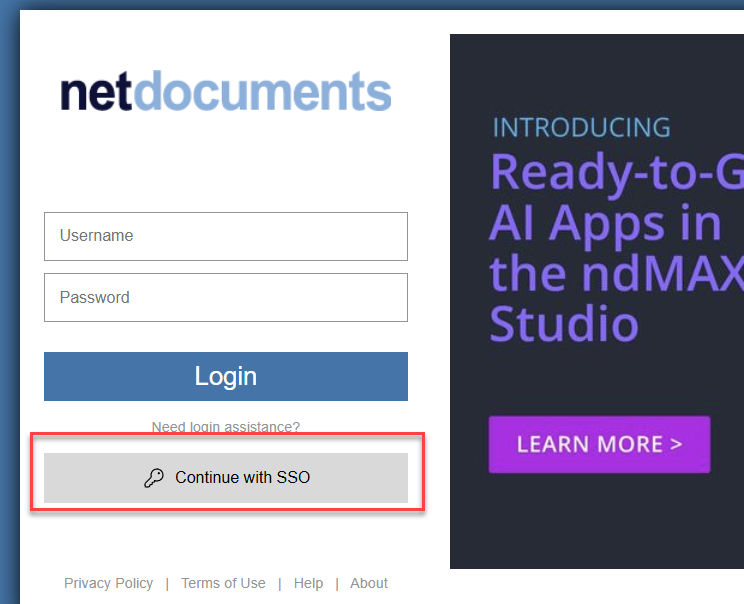
Step 5: Click Continue with SSO
This is the step that trips up most firms. Almost everyone uses single sign-on, so click Continue with SSO, enter your work email address, and you should be signed in automatically — the password prompt you see, if you see one, is from your firm’s identity provider, not NetDocuments.
If your firm isn’t using SSO — rare, but it happens — enter your NetDocuments username and password on this screen instead.
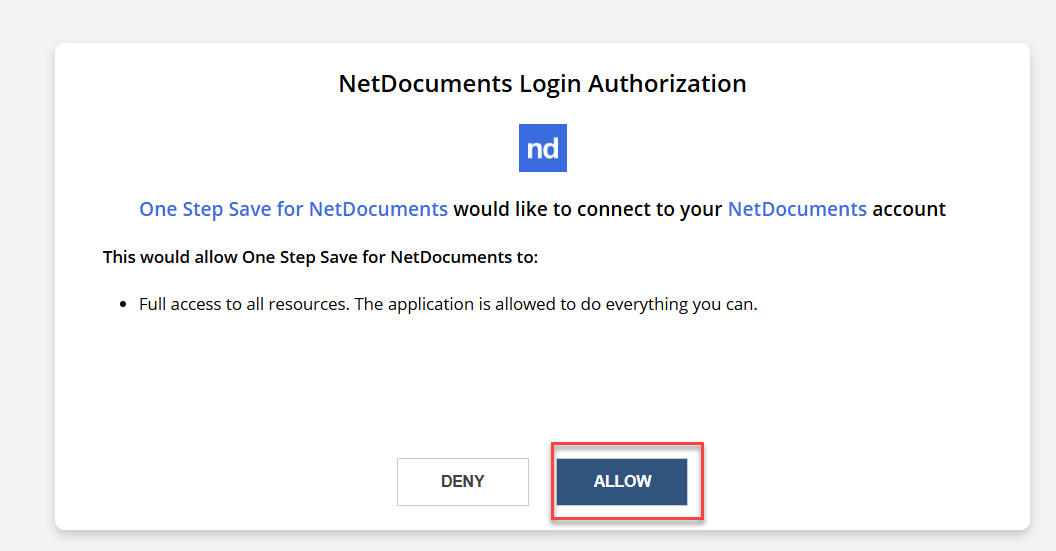
Step 6: Click Allow
NetDocuments will ask whether you want to grant One Step Save access to your Repository. Click Allow, then give it a moment to come back. Nothing works until you do this.
Step 7: Verify Your Contact Information
Scroll down and check everything on this page — firm name, address, billing contact — and fill in any contact fields that came through blank. This is what ends up on the invoice.
Step 8: Click Yes, Continue to Payment
Enter the firm’s payment details and submit. That’s the purchase done.
What Happens After You Pay
Two things still have to happen, and only one of them is yours:
- Configuration – One Step Save has an administration page listing all supported applications, where you choose which ones are enabled and whether users can still save to the local PC. If Optiable sets up your firm, we handle this for you.
- Installation on every computer – One Step Save is a program, not a cloud service. It has to be installed on each workstation. Buying the subscription doesn’t put it on anybody’s desktop. Install steps
The Result
Once the subscription is active and One Step Save is installed, WordPerfect behaves the way Word already does — File → Save As profiles the document into NetDocuments, File → Open searches your Cabinet — and so does everything else on that list. Nobody has to profile a blank document before typing, PDFs stop piling up in Downloads, and the documents your firm creates outside Office are searchable, versioned, and covered by the same security as everything else.
Need Help?
Deciding between unlimited and specified licensing, or wanting One Step Save purchased, configured, and deployed without your IT person learning a new product on the fly? We can review which programs your firm actually uses and handle the setup—usually starting with a single call.
Schedule a free consultation at go.oncehub.com/optconsult
Optiable has completed over 550 NetDocuments implementations since 2010, specializing in law firms with 10 to 150 users.