

About twenty minutes into every training session I run, somebody stops me and asks what a Cabinet is. They have been nodding along the whole time. They have been using the system for a week. They just have no idea what the word means, and they have been waiting for a moment where asking wouldn’t be embarrassing. That is the real problem with NetDocuments terms: nobody teaches them.
Your users are left to guess — and most of the guesses are wrong in ways that cost the firm real time. Somebody deletes a document because they think they are removing it from a folder. Somebody emails a client the wrong draft because they don’t know what an Official Version is. Somebody spends fifteen minutes hunting for a file that a five-word search would have produced, because nobody told them the search only covers the Cabinet they’re standing in.
Here is the vocabulary, in the order it actually makes sense to learn it.
The Containers: Repository, Cabinet, Workspace, Folder
These four run from largest to smallest. If you get the stack straight, half of the rest falls into place.
- Repository – Your firm’s entire NetDocuments account. Every user, every Cabinet, every document your firm owns lives inside one Repository. You will rarely think about it, but it’s the reason there are two different kinds of administrators at your firm — a Repository Administrator manages users, and a Cabinet Administrator manages what’s inside a Cabinet. They are not the same person’s job.
- Cabinet – A container inside the Repository that holds documents. Think of it the way it sounds: a filing cabinet. Most firms have a Client Cabinet for client work and a second for firm administration — HR, accounting, internal policies — because the two require different levels of security.
- Workspace – Everything for one matter, in one place. This is the screen your attorneys will spend their day on. Nobody builds a Workspace by hand — creating the matter makes it available, and it automatically pulls in every document profiled to that matter.
- Folder – A filing location, and the one that works exactly like you expect, because it works like Windows. Worth knowing: folders belong to the Cabinet, not to the Workspace. The Workspace is just showing you the folders that carry its matter’s profile values. Some firms run folder-based Cabinets with no Workspaces in them at all.
The Cabinet is the one worth understanding a little more deeply because it quietly shapes your day. It sets the default security for everything filed in it and the default scope of your search. When you type something into the search bar, you are searching the Cabinet you’re currently in — not everything the firm owns. You can add other Cabinets to a search, but you have to ask for it. That surprises people all the time, which is why I wrote a separate post on how to find documents in other NetDocuments Cabinets.
The Description: Profile Attributes, Client, Matter, Doc Type
Every document in NetDocuments carries a set of fields describing what it is and what it belongs to. Those fields are Profile Attributes, and they are the single most important idea in the system.
- Profile Attribute – A field attached to a document. Some are automatic: document name, who created it, when. The rest your firm defined when it set the system up.
- Client – Almost always the first custom Profile Attribute a firm creates. Note that “Client” is not something NetDocuments comes with — your firm chose that name and built the list of valid values, usually syncing them from your practice management or accounting system.
- Matter – The second one, and the one that lives underneath a Client. NetDocuments calls this a parent-and-child relationship, which is why you pick the client first and then the matter, and why matter number 001 under one client is a completely different thing from matter 001 under another.
- Doc Type – What kind of document this is: Correspondence, Pleading, Agreement, Memo. Your firm wrote this list too.
Here’s why this matters more than it sounds. In a Windows folder, a document’s location is its identity — move it, and you’ve changed what it is. In NetDocuments, the profile is its identity. A document profiled to Client 4021, Matter 003, Doc Type Correspondence is a piece of correspondence for that matter, regardless of where it physically sits, and that is what makes everything else in the system work.
The Three Things That Look Like Folders (And Only One Is)
This is the part that trips up more users than everything else combined. Open a Workspace, and you will see three kinds of items. They look almost identical. They behave completely differently.
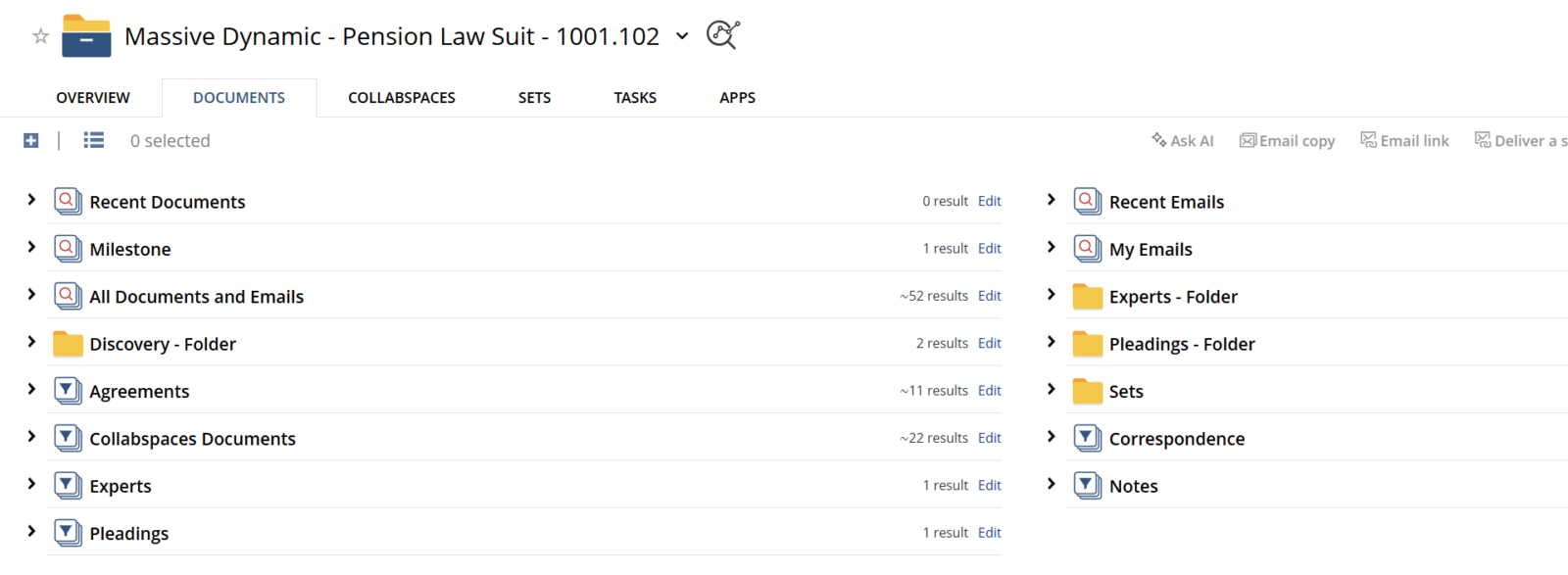
- Folder (YELLOW) – A real filing location. Somebody put a document in it, and it stays there until somebody moves it. You can create folders, rename them, and build subfolders inside them.
- Filter (BLUE) – A cross between a folder and a search. Filters are generated automatically from one of your Profile Attributes — usually Doc Type — so a Workspace with Correspondence, Pleadings, and Discovery filters shows you those three groups even if no one has filed anything. A document appears in a Filter because of how it is profiled, not because somebody put it there. You can drop a document onto a Filter, but that isn’t filing in the folder sense — it stamps the filter’s profile values onto the document, and the document turns up there as a result. You cannot create a Filter, you cannot rename one, and a Filter never has subfolders.
- Saved Search (RED)– A search you ran once and kept. It re-runs every time you click it, so its contents change as documents change. You can create as many as you like. You cannot file anything into one.
The practical version:
| Folder | Filter | Saved Search | |
|---|---|---|---|
| Contents change on their own? | No | Yes | Yes |
| Can you file a document into it? | Yes | Yes — it re-profiles the document | No |
| Can a regular user create it? | Yes | No | Yes |
| Can it have subfolders? | Yes | No | No |
The one that catches people is the Filter. A user re-profiles a document from Correspondence to Pleadings, and the document appears to have moved itself. It didn’t move — it was never in a folder in the first place. It just answers a different question now.
Every Document Has a Permanent Address
- Document ID – A 12-digit number NetDocuments assigns to every document the moment it’s created, usually shown as three groups of four. It never changes. Rename the document, move it to another folder, re-profile it, add fifty versions — the Document ID is the same number it was on day one. It’s the closest thing your firm has to a permanent address for a file, and it’s what you should be pasting into an email or a task instead of describing where you think you put something. I’ve covered how to find the Document ID separately.
- Version – A numbered snapshot of the document. When you close a document, ndOffice offers to save it as a new version, and the old one is kept intact. This is the feature that saves firms from their worst days. Note the word offers: saving as a new version is a checkbox, and if somebody clears it, that save writes over the version they’re in.
- Official Version – The version NetDocuments hands out. When someone opens the document from a Workspace, emails it, or sends a link, they get the Official Version. Normally that’s the newest version, because a new version becomes the official one by default. But any version can be designated official regardless of its number, and once somebody pins an old one, it stays pinned — every link and every attachment from then on delivers the old draft while the Workspace keeps racking up newer versions nobody is getting. When a firm tells me the wrong draft went out to a client, this is usually why. It’s also why I tell people not to delete versions when what they actually want is to change which one is official.
Sharing Outside the Firm
- CollabSpace – A space where people outside the firm — the client, co-counsel, an expert — get access to specific documents inside your matter. They see what you granted them and nothing else, they work in the document where it already lives, and everything they do is on the record. How much they can do is up to you: read it in the browser and nothing more, or download and upload as well.
- Secured Link – The one-off version of the same idea. Instead of attaching a file to an email, you send a link to the document where it lives. It expires after 30 days unless you change it, it asks the recipient for a password unless the sender unchecks the box, and you can revoke it after it’s gone out. You cannot revoke an attachment.
Why These NetDocuments Terms Are Worth Twenty Minutes
Firms treat this as trivia. It isn’t.
A user who doesn’t know the difference between a Folder and a Filter can’t file properly. A user who doesn’t know what a Profile Attribute is will name documents “Smith letter FINAL v2 USE THIS ONE” because the profile means nothing to them. A user who doesn’t know what a Cabinet is will tell you the firm’s search is broken. And a user who can’t name what they’re looking at can’t call IT and describe the problem, so they don’t call — they build a workaround, and now you have a partner keeping the real files on their desktop.
A firm that never teaches the vocabulary is paying for a document management system and getting a network drive with extra steps.
Twenty minutes at go-live, and a page like this one somewhere your users can find it, gets you most of the way there.
The Bottom Line
You don’t need to know all of it. Cabinet, Workspace, Profile Attribute, and the folder-versus-filter distinction cover about ninety percent of the confusion I see in the field. Learn those four, and NetDocuments stops feeling like somebody else’s filing system.
Need Help?
If your firm went live and never got real training — or you inherited a NetDocuments setup nobody at the firm can explain — that’s a fixable problem, and usually a fast one. We can walk your Cabinet structure with you, see whether your Workspaces and Filters are actually built the way your practice groups work, and get your users speaking the same language.
Schedule a free consultation at go.oncehub.com/optconsult.
Craig Bayer is the founder of Optiable and has guided over 550 law firms through NetDocuments implementations since 2010, specializing in firms with 10 to 150 users.
CONNECT WITH CRAIG → https://www.linkedin.com/in/craigbayer/