

If you’ve ever run a search in NetDocuments and then spent twenty minutes opening files one at a time looking for a single answer, you’re not alone. Search returns a list of documents. It doesn’t tell you what’s in them. NetDocuments Smart Answers does.
You ask a question in plain language; it searches your Cabinet, reads the relevant documents, and returns a written answer with citations to the files it used.
This post walks through running a Smart Answers query start to finish — what you click, what you type, and what you should check before you rely on the answer.
Search Finds Files. Smart Answers Reads Them.
Worth being clear about the difference before you start, because it determines when you’d reach for this at all.
A standard NetDocuments search matches keywords and Profile Attributes, returning a list of results. The Legal AI Assistant, as most people have used it so far, lets you upload specific documents and ask questions about them. Smart Answers combines those two steps: it finds the documents and reads them in a single pass.
Use search when you know which file you want. Use Smart Answers when the answer is spread across files you haven’t found yet.
Before You Start
Three things need to be true:
- You have the Legal AI Assistant – Smart Answers lives inside it. No Assistant, nothing to turn on.
- You are subscribed to the full ndMax Package.
- Somebody asked NetDocuments to turn it on – per NetDocuments support, Smart Answers is enabled by request through your firm’s account manager. It is not being switched on automatically for everyone who has the Assistant.
That third point is the one that catches firms out, so I’ll say it plainly: having the Legal AI Assistant does not mean you have Smart Answers. Someone at your firm has to ask for it. Reach out to your account manager, and if you don’t know who that is, contact NetDocuments Tech Support: 801.226.6882, Option 2.
Running Your First NetDocuments Smart Answers Query
Step 1: Open the Legal AI Assistant
Open the Legal AI Assistant from your NetDocuments Cabinet. You’ll land in the same chat window you’d use to ask questions about a document you’ve loaded.
Step 2: Confirm the Search NetDocuments Chip Is Checked
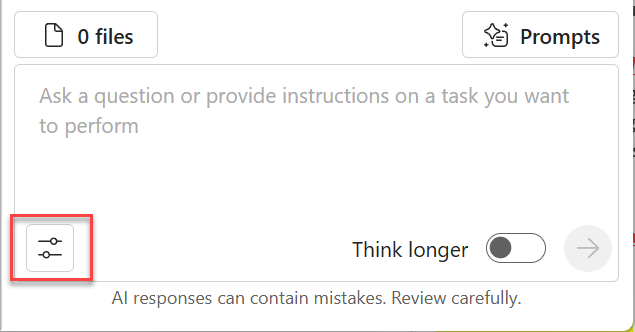
Look at the bottom of the compose box. There’s a chip labeled Search NetDocuments with a checkmark beside it when it’s active. That checkmark turns an ordinary AI Assistant conversation into a Smart Answers query — with it on, the Assistant searches your Cabinet before answering. Turn it off, and you’re back to the old behavior, where the Assistant only knows about documents you’ve loaded yourself.
Notice that the file counter above it reads “0 files”. That’s the whole point. You are not loading anything.
Use your eyeballs and confirm the checkmark before you type. (“Think longer,” the slider to the right, is a separate setting and has nothing to do with Smart Answers.)
Step 3: Ask Your Question in Plain Language
Type the question as you’d ask a colleague, but include the specifics. Name the document type, the condition, and the format you want back.
Here’s a real one:
Identify documents that mention the Riverton Expansion Project and provide a detailed summary of the key updates across those documents.
That prompt names what to find (documents mentioning a project), what to do with them (summarize), and what shape the output should take (key updates). Vague in, vague out — more on that below.
Step 4: Watch It Search, Then Read the Answer
Smart Answers works in the open. You’ll see it run the Cabinet search across full text and metadata, consult the documents it finds, and then build the response. The answer comes back as prose — not a list of results — with inline citations indicating which document each piece came from.
Step 5: Open the Citations Before You Rely on Anything
The citations are the whole point. Click through them and confirm the source says what the summary says it says. I cannot stress this enough: a cited answer is a starting point for your review, not a substitute for it.
This is also how you catch a search that missed something. If the answer cites three documents and you know there are eight, your prompt was too narrow — or the documents are profiled in a way the search didn’t catch.
Don’t See Smart Answers in Your AI Assistant?
Nothing is broken. It almost certainly hasn’t been turned on.
NetDocuments enables Smart Answers by request, through your firm’s account manager. They are not enabling it for every customer with the Legal AI Assistant, and there is no setting in the Admin Console to do so yourself. So don’t spend an afternoon hunting for a checkbox and don’t open a support ticket — neither one will get you there.
Email your NetDocuments account manager and ask them to enable Smart Answers on your account. That’s the whole process.
Worth knowing before you ask: it’s the account manager, not support and not your IT team. If you’re not sure who yours is, whoever handles your renewal will know.
Need Help?
Not sure whether your firm is licensed for Smart Answers — or whether your documents are profiled well enough for it to return anything useful? We can review your Cabinet setup, check where you stand on ndMAX, and train your attorneys on prompting that actually works. Usually in a single call.
Schedule a free consultation at go.oncehub.com/optconsult.
We’ve implemented NetDocuments at over 550 law firms since 2010, most of them between 10 and 150 users.