

A partner sends back a 40-page agreement with three questions buried in an email. You open the document, hunt for the paragraph she’s talking about, and by the time you find the third one, you’ve forgotten what the first question was. NetDocuments Margin Notes fix that — they let you attach a comment to a specific piece of text right in the preview pane, so the question lives next to the language it’s about.
Here’s how they work and how to use them.
What NetDocuments Margin Notes Actually Do
Margin Notes let you and your colleagues have a conversation about a document while previewing it, without changing the underlying text and without creating a new version. You highlight a sentence, type a comment, and it shows up in a side panel next to the document. Anyone else with access to that document sees the same note and can reply to it.
Nothing you do in a Margin Note touches the document itself. You are not editing the file. You are not checking it out. You are commenting on top of it.
Why Not Just Use Word Comments?
Word comments are fine, and there’s nothing wrong with using them. But a Word comment lives inside the file. To leave one, you have to open the document, edit it, and save it back — which means a new version and a document that’s checked out while you think about your wording.
A Margin Note skips all of that. You’re in the preview pane, the document stays exactly as it was, and the version history stays clean. For a quick “should this be 30 days or 60?” that’s a much lighter way to work.
Step 1: Open the Document in SmartView
Check the box next to a document and choose Full View
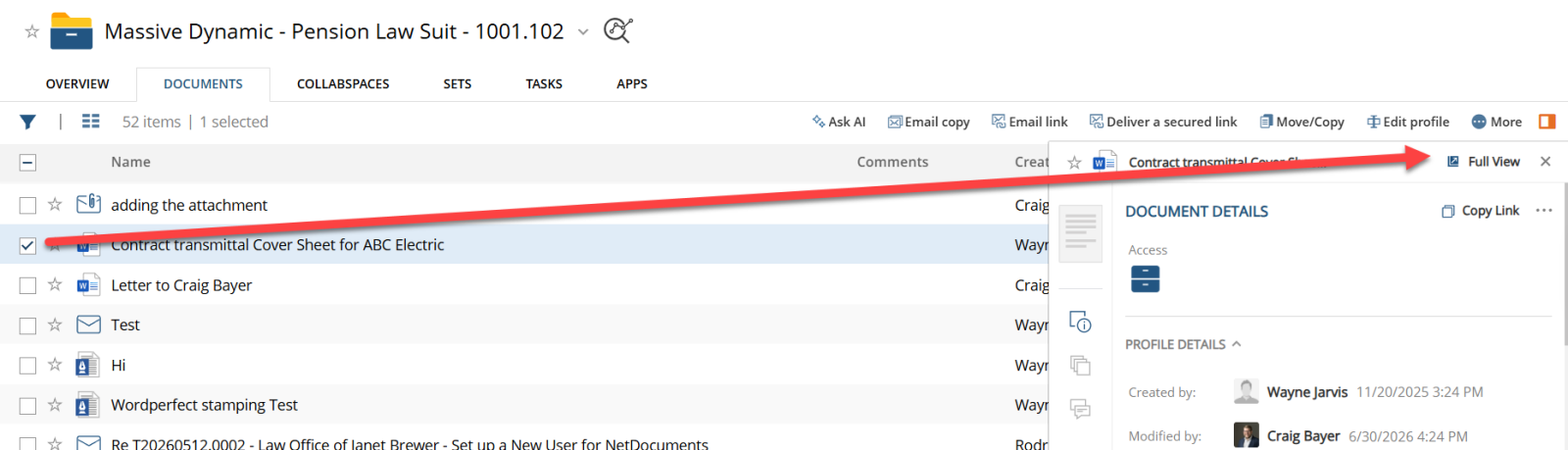
Step 2: Click on the Comments icon and then click by the Text You Want to Comment On

Select the sentence, clause, or paragraph the note is about — the same way you’d highlight text anywhere else. A small commenting box appears.
Step 3: Type Your Comment and Send It
Type your comment and click the paper airplane icon. The note appears in the side panel alongside any other notes on the document, and the text you highlighted is marked and numbered.

That’s the whole thing. Three steps, and the comment is on the document for everyone who needs to see it.
What Are the Highlight Colors For?
You’ll notice the commenting box also offers a set of highlight colors, and this is where people get confused, so let’s be clear about it.
They don’t mean anything.
NetDocuments doesn’t attach any behavior to the colors. You can’t filter by color, sort by color, or run a search for every red note in a matter. The color changes how the highlight looks on the page, and that is the entire feature. If you’ve been staring at that palette wondering which one you’re supposed to pick, the answer is that there is no supposed to.
Which means a color is worth exactly as much as the convention your firm agrees on. Two ways to go:
Option 1: Ignore them. Take whatever color comes up and move on. On a document with three notes, color adds nothing and one more decision per comment just slows the reviewer down. This is what most firms should do.
Option 2: Assign meanings and write them down. Yellow for questions, red for don’t-sign-until-this-is-resolved, green for reviewed and fine. This can genuinely speed up a long review — but only if the convention is documented somewhere your people can find it and covered in training.
If you go with Option 2, the documenting part is not optional. A color convention that lives in one partner’s head is worse than no convention at all, because the next person reads the color, assumes they know what it means, and guesses wrong. If nobody at the firm can tell you what red means, red doesn’t mean anything.
Replying to a Note
Click the note in the side panel to expand it. Type in the box that says “Leave a reply…” and click the paper airplane icon. Replies stack underneath the original comment, so the whole exchange stays in one place instead of scattered across four emails.
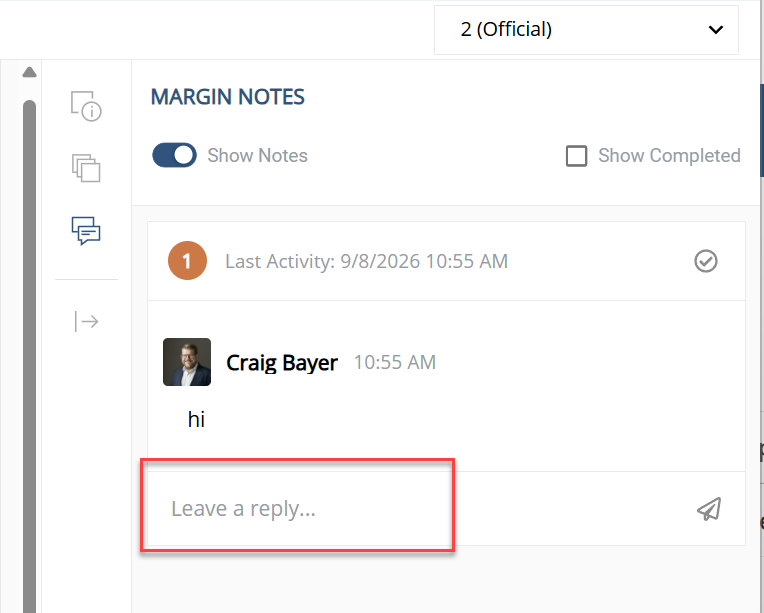
Finding the Text a Note Refers To
Every Margin Note is numbered. Click the number in the side panel, and NetDocuments jumps you to that spot in the document. On a long agreement with a dozen notes on it, this is the part that saves you the most time.
Editing or Deleting a Note
Hover over the note in the Margin Notes Pane (not in the document) and click the ellipsis that appears in the corner. From there, you can edit the comment or delete it outright.
Marking a Note Complete
When the question has been answered and the note has done its job, complete it. Completing a note hides it from the side panel and removes the marking from the text, so the panel shows only what still needs attention.
Showing Completed Notes Again
Completed notes aren’t deleted, just hidden. Check the Show Completed box above the notes panel, and they come back — useful when someone asks six weeks later why a clause was worded the way it was.
The Result
Comments live next to the language they’re about, replies stay threaded, and the document itself never gets touched. No new version, no checked-out file, no email chain trying to describe where in the agreement the problem is. For document review inside a firm, it’s the fastest way to have the conversation.
Need Help?
Not sure whether your firm has Margin Notes, or whether SmartView is set up the way it should be for the way your people actually review documents? We can look at your NetDocuments configuration and tell you what you’re leaving on the table — usually in a single call.
Schedule a free consultation at go.oncehub.com/optconsult.
I’ve implemented NetDocuments at over 550 law firms since 2010, working with firms in the 10–150 user range.