

You send a draft agreement to opposing counsel. Two days later it comes back as an attachment with their revisions in it. You want that revision on the matter, and what you do not want is a second document sitting next to the first one called “Purchase Agreement (1).”
NetDocuments Attach Match is built for exactly this. It recognizes that the attachment in your inbox is already a document in your system and offers to save it as a new version instead of a new document.
It works well. It also stops one step short of finished, and the step it skips is the one that decides which version your firm actually gets.
What NetDocuments Attach Match Actually Does
When you file an email, ndMail looks at the attachments and tries to match each one to a document that already exists in NetDocuments. It does that two ways, in order.
First it checks the email’s metadata for a Document ID. When an email is saved to NetDocuments, a Document ID gets stamped on it, so an attachment that started life in your system usually carries its own address home.
If there’s no Document ID, it falls back to the document title, and it requires a 100% match — the exact name, with no other document in the Cabinet carrying that same name. If two documents share a name, you get no suggestion at all.
That’s deliberate. NetDocuments only offers a match when it’s certain, because the alternative is versioning a revision onto the wrong document. I’d rather it stay quiet than guess, and so would you.
You need ndMail 1.13 or higher for any of this.
Part 1: Turn On Attach Match
Step 1: In Outlook, open up your ndMail Settings
The Settings button is the gear in the upper-right corner of the ndMail predictions panel.
Step 2: Check the box next to Enable “Attach-Match”
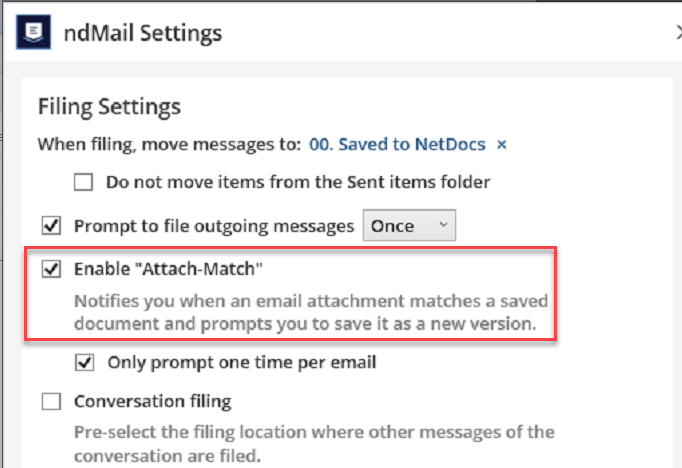
While you’re in there, look at Only prompt one time per email just below it. Checked, the Attach Match banner appears once and doesn’t come back for that email whether or not you did anything with it. Leave it unchecked if your users need a second look.
Part 2: Save the Attachment as a New Version
Step 1: Select the Email with the Returned Attachment
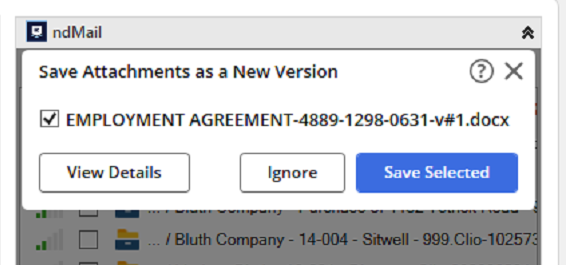
Step 2: Click View Details
This shows you the document that Attach Match wants to version and where it lives. Hover over the container icon to see the folder, Filter, or Workspace it’s headed for. Click the blue arrow to open the document in NetDocuments and confirm you’re viewing the right one.
Use your eyeballs here. This is the moment to catch a match you don’t want, and it takes three seconds.
Step 3: Click Save Selected
The original stays as version 1. The revision you just received is now version 2 of the same document.
And this is where most people stop.
The New Version Is Not the Official Version
Here’s the part that isn’t in the documentation.
Attach Match adds the version, but it does not make it official. Your v2 is sitting in the Versions dialog with no status next to it, and v1 is still flagged Official.
That matters more than it sounds like it should, because the Official Version is the version NetDocuments hands out. It’s what opens when someone clicks the document in a list or a Workspace. It’s what gets attached when someone emails a copy. It’s what a Secured Link delivers. NetDocuments calls it the default version, and default is exactly right — it’s what everyone gets when they don’t go looking.
So the revision from opposing counsel is in your system, correctly versioned, on the right matter. And every single person who opens that document tomorrow gets the draft you sent before they marked it up.
You did the work and accomplished nothing. Worse than nothing, actually — you now believe the current draft is in NetDocuments, and it is, in a place nobody will find it by accident.
Part 3: Make the New Version Official
Step 1: Open the Versions Dialog
From the document’s Details panel, click Options… under Versions. Faster route: click the v# next to the document name in any list or summary view.
Step 2: Select the New Version
Check the box next to the version Attach Match just created. Look at the Status column while you’re here — you’ll see Official sitting on v1, which is the whole problem in one word.
Step 3: Choose Convert to Official Version
Click the ellipsis (. . .) and select Convert to Official Version. The option only appears on a version that isn’t already official, so if you don’t see it, you selected the wrong row.
Step 4: Confirm the Status Moved
Official should now read against v2. Close the dialog.
One caveat for IT: there’s a Cabinet setting that controls what rights a user needs to designate an Official Version — either Administer or Edit. If your users report that the option does nothing for them, that setting is why, and it’s worth deciding on purpose rather than discovering it the hard way.
When Attach Match Won’t Offer a Match
It’s not a guarantee, and these are the cases where nothing happens:
- The document was attached as a link – Secured Links and ND links aren’t matched.
- You emailed it to yourself – Excluded by design.
- Several attachments share a name – No suggestion, rather than a risky one.
- Someone already dismissed the banner – Click Ignore, Close, or the X once, and that email never prompts again.
- No Document ID and no exact title match – Rename a document after you send it and the trail is gone.
The Manual Route Actually Handles This Better
Worth knowing, because it’s the opposite tradeoff.
If you drag the attachment to your desktop and use Upload Version from the document’s Details panel in NetDocuments, the file is imported as the official version by default. More clicks, no cleanup.
Attach Match is faster and finds the document for you, which is why I’d still use it. Just don’t treat it as finished when the banner disappears.
The Result
Attach Match turns a duplicate document into a new version and does the hardest part — figuring out which document — without you having to search for anything.
Finish the job. Open the Versions dialog and convert it. Two extra clicks now, versus a client receiving a superseded draft later.
Need Help?
If your firm is running ndMail and nobody’s ever audited what your users are actually doing with email attachments, that’s usually worth an hour. We can check whether Attach Match is enabled, whether your Cabinet rights allow users to set an Official Version, and how many duplicate documents you’ve accumulated in the meantime.
Schedule a free consultation at go.oncehub.com/optconsult.
Craig Bayer is the founder of Optiable and has guided nearly 600 law firms across the United States and Canada through NetDocuments implementations since 2010, specializing in firms with 10 to 150 users.
CONNECT WITH CRAIG → https://www.linkedin.com/in/craigbayer/