

If you’ve ever filed an email, watched ndMail put the check mark on it, and then gone looking for that email in NetDocuments and found nothing there, you’re not alone. Outlook says the message filed. NetDocuments has never heard of it.
That’s ndMail stuck in the filing process, and it’s worse than an email that plainly refuses to file — because this one tells you it worked.
The Check Mark Is Not Proof
This is the part to take seriously. The check mark means ndMail accepted the email for filing. It does not mean the email reached NetDocuments.
So until this is fixed, nobody at the firm should delete an email on the strength of that check mark. The email is still sitting in the mailbox, which is the only reason this is an annoyance instead of a disaster. Leave it there.
If someone has already cleaned out a folder full of “filed” emails during an outage, stop and check the Workspace before you assume those are safe.
Why ndMail Gets Stuck in the Filing Process
ndMail doesn’t file emails from inside your copy of Outlook. It files them server-side, using a connection between NetDocuments and your firm’s mail system. That’s the whole reason ndMail can file an email you dropped in a folder from your phone at 9 PM with your laptop closed.
It also explains the check mark. The mark goes on when ndMail queues the email — a local action, on your machine, that succeeds whether or not the other end is reachable. The actual upload happens afterward, somewhere you can’t see. When that second half fails, the queue stops moving and the check mark stays exactly where it is, cheerfully wrong.
The failure lands in one of two places.
Cause 1: The firm-wide connection has dropped. The connection NetDocuments uses to reach your mail system runs on stored credentials. When those credentials change — a password rotation, an account that got reset, an authentication change on the Microsoft 365 side — the connection stops working and nothing files for anybody. This is by far the most common cause when the whole firm is complaining at once.
Cause 2: One user’s local ndMail database is corrupt. Each machine keeps a small local database that tracks what ndMail is doing. When that file gets damaged, that one user’s filing stalls while everyone else is fine.
First, Figure Out Which One You Have
Before you touch anything, confirm the emails really aren’t there. Open the Workspace they should have filed to and look — don’t search from the check mark, look at the destination. Filing to the wrong Workspace looks identical to not filing at all from inside Outlook.
Once you’re sure they’re missing, ask one question: who is affected?
- Everyone in the firm – Go to Part 1. Don’t waste time on individual computers; the problem isn’t there.
- One person, or a handful – Go to Part 2. The firm-wide connection is fine.
- Everyone, and it started right after an IT change – Still Part 1, and check what changed on the mail account first. That’s usually your answer.
Both parts below require admin rights. If you’re an end user and your emails aren’t filing, this is a ticket for your IT team, not something to work through yourself.
Part 1: Fix the Firm-Wide Connection
Step 1: Open the NetDocuments Admin Console
Sign in with an account that has admin rights to your Repository.
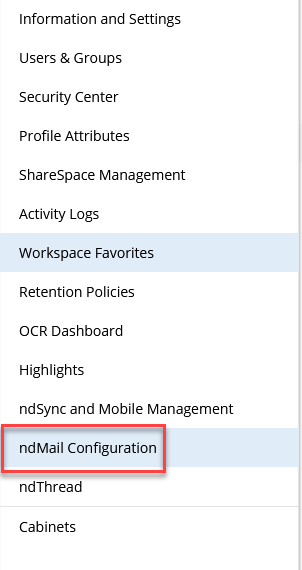
Step 2: Go to ndMail Configuration
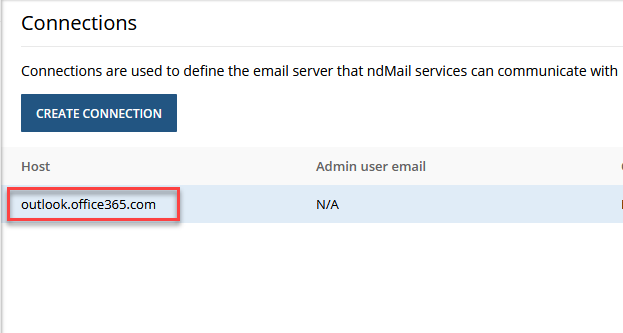
Step 3: Click Connection
This is where the credentials ndMail uses to reach your mail system are stored.
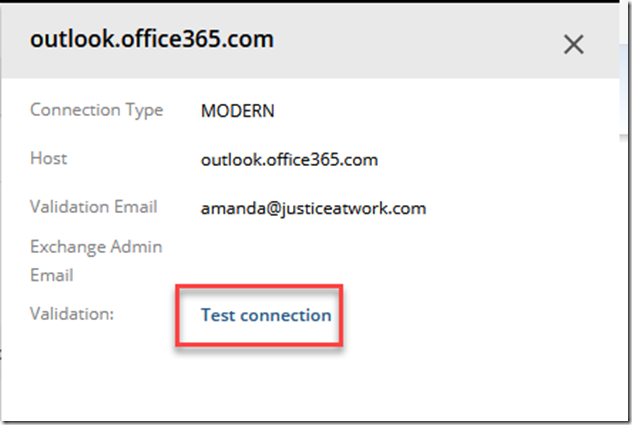
Step 4: Click Test Connection
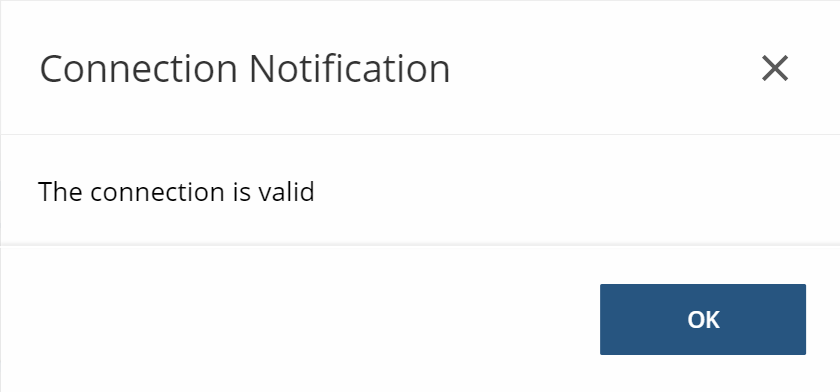
If the test passes, your problem is somewhere else — skip to Part 2 and check whether it’s really only affecting a few people.
If the test fails, you’ve found it and you will need to reset MSGraph so NetDocuments can connect to Exchange.
Part 2: Fix One User’s Machine
This clears the local ndMail database and lets it rebuild. The user’s filed emails are not affected — this file is a working cache, not a record of anything.
Step 1: Close Outlook and ndMail Completely
All the way out. Check Task Manager and confirm there’s no OUTLOOK.EXE still running, because a background process holding the file open will block the next step.
Close ndMail in your system tray.
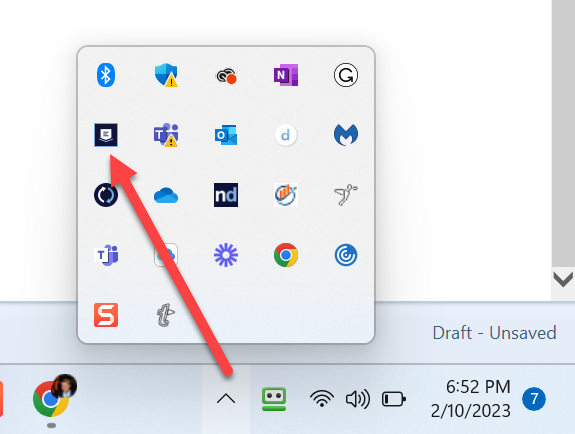
Step 2: Browse to the ndMail Folder
Go to C:\Users\USERNAME\AppData\Local\NetDocuments\ndMail, substituting the user’s Windows username. You can also paste %LocalAppData%\NetDocuments\ndMail into the address bar and skip the typing.
Step 3: Rename ndMailDatabase_v1.db
Rename it — ndMailDatabase_v1.old works fine. Rename it rather than delete it, so you have something to put back if you need to.
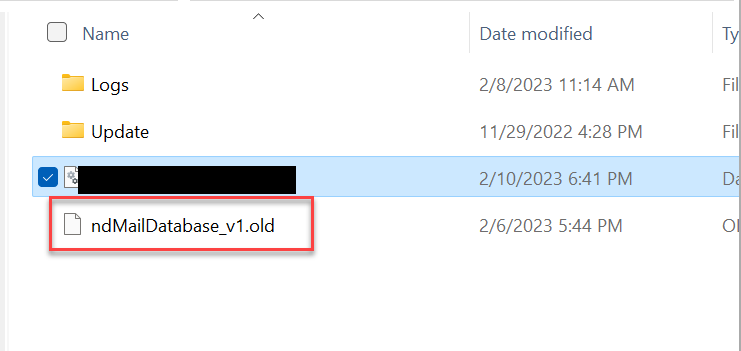
Step 4: Relaunch Outlook
ndMail builds a fresh database on startup. Give it a minute before testing, then file a test email.
Confirm It Actually Worked
Don’t close the ticket on a check mark. That’s what got you here.
File one test email, then go into NetDocuments and open the Workspace it was supposed to land in. If the email is sitting there, you’re done. If it isn’t, the fix didn’t take, no matter what Outlook is showing you.
Then go back and deal with the backlog. Any email that picked up a check mark during the outage never made it, so those need to be filed again — and they’ll need to be found by date range in Outlook rather than by filing status, because as far as ndMail is concerned they’re already handled.
If it’s your ndMail configuration that keeps causing trouble — service accounts, filing folders, predictions that never settle down — that’s a setup problem, and we can go through it with you and tell you what to change. Usually in a single call.
Schedule a free consultation at go.oncehub.com/optconsult.
I’ve guided over 550 law firms across the United States and Canada through NetDocuments implementations since 2010, specializing in firms with 10 to 150 users.