


If you’ve ever gotten on a plane, opened your laptop, and realized every document you need is sitting in a browser tab you can’t load, you’re not alone. That’s what ndSync fixes. This post walks through how to install ndSync on a Mac, sign in, and pick what syncs — about five minutes start to finish.
What ndSync Actually Does
ndSync is Dropbox for NetDocuments. It puts a folder on your Mac, keeps the workspaces and folders you choose inside it, and pushes your changes back up.
That gets you two things Mac users otherwise don’t have:
- Offline access – Your matter files are on the laptop. No signal, no problem.
- A save target in Mac apps – Word for Mac has no NetDocuments plugin. With ndSync running, you can save into an ndSync folder from any Mac application and it lands in NetDocuments.
ndSync Is Not a Replacement for ndClick
These two get confused constantly, and installing the wrong one is why some Mac users spend a month frustrated.
ndClick is what makes the NetDocuments website work. Click a document, it downloads, checks out to you, and opens. Every Mac user at the firm needs it. If that’s what you’re after, start with installing ndClick on a Mac.
ndSync is for offline access and for saving from apps that can’t talk to NetDocuments directly. It’s useful, but it’s the second thing you install, not the first.
Before You Start
Your firm has to turn ndSync on. A Repository Administrator enables it. If the installer runs fine but nothing will sync, that’s the reason — ask your IT team to enable ndSync policies for your account.
You’ll need your Mac’s administrator password. Not your NetDocuments password. The one that unlocks your Mac and installs software.
You need macOS 10.15 (Catalina) or newer.
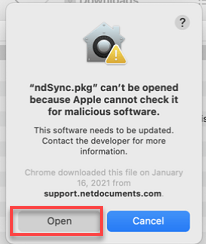
macOS will warn you about the installer. That’s expected. Step 2 handles it.
Install ndSync on a Mac, Step by Step
Step 1: Download ndSync
https://apps.netdocuments.com/apps/ndSync/ndSync.pkg
Step 2: Go to Finder and Click on the Downloads Folder
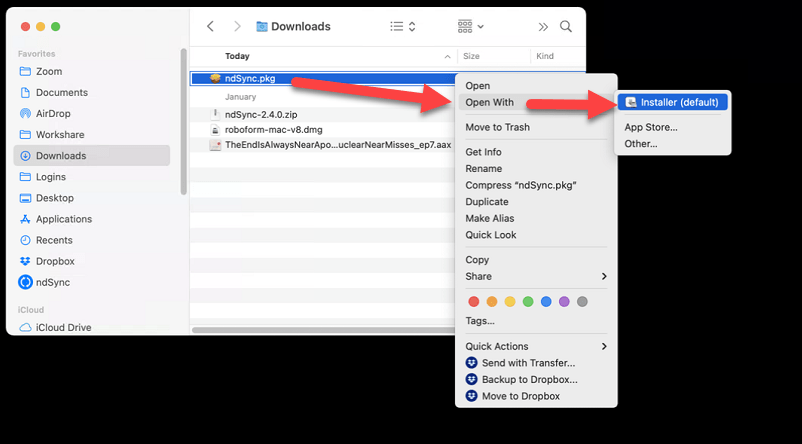
Step 3: Right-click on the file that downloads, click Open With, and then Installer
Step 4: Click Open
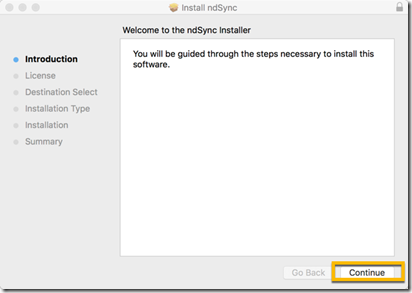
Step 5: Click Continue
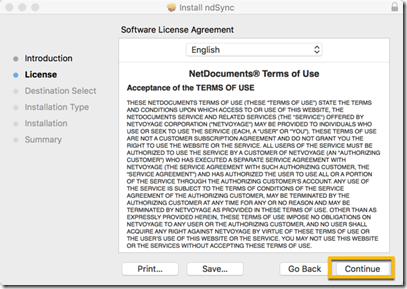
Step 6: Click Continue
Step 7: Click Install
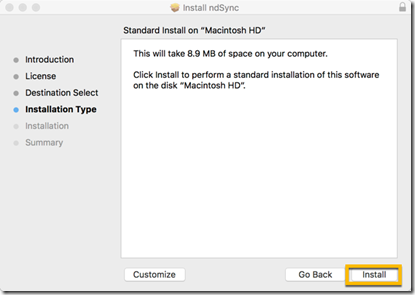
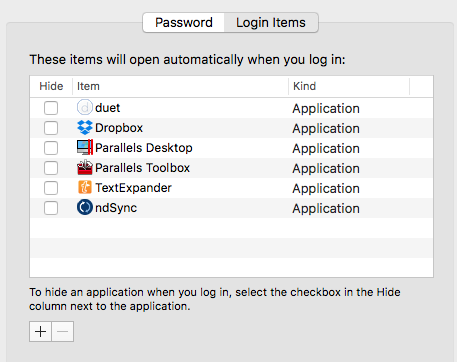
Step 8: Set up ndSync to Launch at Startup
System Preferences –> Users & Groups -> Login Items
Where Your Files Live
Everything syncs to a folder called ndSync in your home folder — Users/<your name>/ndSync. It shows up in Finder like any other folder, and you can drag it to your Finder sidebar.
Open a file from there, edit it, save it, and the change goes back to NetDocuments. Changes made by other people come down on a schedule, usually within the hour, or immediately when you click Sync Now from the menu bar.
What You Should Know Before You Rely on It
Opening a file from the ndSync folder does not check it out. Nobody in the firm sees a green checkmark saying you have it. If two people edit the same synced document, you get two versions, not a warning. For day-to-day work, click the document in the browser and let ndClick check it out instead.
There’s a 5,000-document cap per folder, workspace, or filter. Big matters won’t sync in full.
Documents profiled to a workspace but not filed in a folder or filter don’t sync. The workspace syncs its folders and filters, not everything that carries that Client and Matter.
Sync what you need, not everything. Every folder you check is a copy of firm documents on a laptop that can be lost or stolen. Pick the active matters.
My Workspace Isn’t in the List
This one generates the most tickets, and it isn’t a bug.
By default, NetDocuments only offers your recent or favorite workspaces in the sync selection. If a matter isn’t there, open that workspace in NetDocuments once, or add it to your favorites, then reopen Select Items to Synchronize. It’ll be there.
Folder Cabinets behave differently — you can pick any folder you have rights to.
Still Having Issues?
Nothing syncs at all. ndSync policies aren’t enabled for your account. That’s an admin setting, not something you can fix on the Mac.
The app won’t open. System Settings → Privacy & Security → Open Anyway.
It worked yesterday and not today. Check the menu bar. If the icon is gone, ndSync isn’t running — go back to Step 7.
Need Help?
Rolling out Macs, or supporting a few attorneys who won’t give theirs up? We deploy ndClick and ndSync across a firm, set the sync policies so nobody walks off with the entire Cabinet, and get your Mac users working the same way as everyone else — usually in a single call.
Schedule a free consultation at go.oncehub.com/optconsult.
Optiable has rolled out NetDocuments for over 600 law firms since 2010, specializing in firms with 10 to 150 users.