

f you’ve ever stopped halfway through an email wondering whether somebody already saved that attachment, you’re not alone. It’s one of the most common questions I get from end users, and it’s usually asked right before a matter picks up its fourth copy of the same exhibit.
There’s a quick way to check NetDocuments email attachments — two clicks, starting from the email in Outlook. Whether it works at your firm depends entirely on how your users are saving email in the first place, so start there.
ndSave Gives You Three Ways to Save an Email
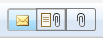
When you save an email with ndSave, you get three options, and they produce three genuinely different results:
- Option 1: Envelope – Saves the email with the attachments embedded, exactly as they look in Outlook. One document in NetDocuments.
- Option 2: Page and Paperclip – Saves the email and the attachments as separate documents. The email itself no longer contains anything embedded, but the attachments are still linked as Linked Documents.
- Option 3: Paperclip – Saves just the attachments. No email.
Only Option 2 lets you answer the question. Save with the envelope; the attachments are buried inside the message, so no one can see them as documents. Save with the paperclip, and there’s no email to look at.
Part 1: Check Whether the Attachments Are Already Saved
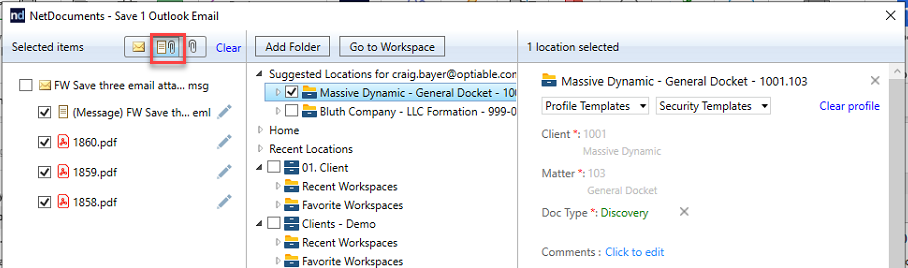
Step 1: Select the Email in Outlook and Click ndSave
Step 2: Choose the Page and Paperclip Option
Part 2: Check Whether the Attachments Are Already Saved
Step 1: Right-click on any email in Outlook and choose View in ND
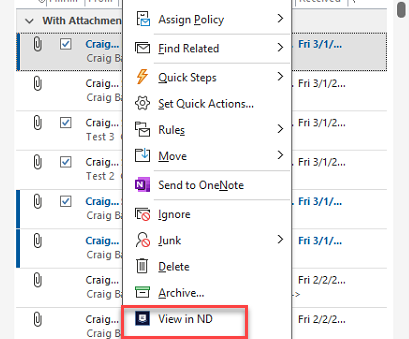
You start where you already are. No searching for the email, no opening the Workspace, and no hunting for a subject line.
If you’re already in NetDocuments, check the box next to the email in the list instead. Either route gets you to the same place: the Details pane on the right.
Step 2: Look at Linked Documents in the Details Pane
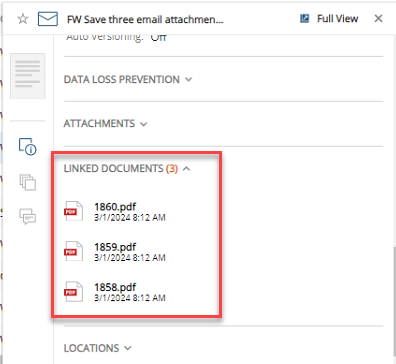
If the attachments are there, they’re saved — each one a real document with its own Document ID, ready to open, share, or check out. If Linked Documents is empty, they aren’t.
That’s the whole check. Two clicks from the email you were already looking at, and no guessing at document names.
An Empty List Is Not an Answer
I have to be straight with you about this, because it’s the difference between a useful habit and a false sense of security.
A Linked Documents list with attachments in it is proof. A blank one isn’t, and there are three different reasons it can come up blank.
Reason 1: Nobody saved anything. The attachment isn’t in NetDocuments. This is the one you were hoping for, and it’s the least common.
Reason 2: Somebody saved with the envelope. The attachments were embedded in the message, so there’s nothing to link. They exist, but not as documents.
Reason 3: Somebody saved the attachments without the email. They used the paperclip option. The attachments are in NetDocuments as real documents — there’s just no email carrying a pointer to them.
You cannot tell these three apart from the Details pane. They all look identical: an email with nothing attached.
Most People Just Save the Attachments
Reason 3 is the one that will actually bite you, because it’s what most users do.
Think about the behavior. An attorney gets an executed agreement attached to a two-line email that says “signed, see attached.” They want the agreement on the matter. They do not care about the cover email, and they’re right not to. So they hit the paperclip, save the attachment, and move on.
That’s a perfectly sensible thing to do, and it completely defeats this check. The document is sitting in the Workspace. Linked Documents is empty. If you take the blank list at face value, you save a second copy of an agreement that was already there — which is the exact outcome the check was supposed to prevent.
So treat a blank list as a prompt to go look, not as an answer. Search the matter for the document by name before you save anything.
Does ndMail Do This?
No. ndMail files emails, but it doesn’t create a link between a message and attachments saved separately.
In practice, that shouldn’t come up in Outlook Classic, because attachments there go through ndSave, not ndMail. The two components divide the work: ndMail handles the message, ndSave handles the attachments. So if your users are on Outlook Classic, the link is being created by the component that’s already doing the job.
One Tradeoff Worth Knowing
Save with Option 2, and the email in NetDocuments will no longer have attachments embedded. So if you go back later and forward that email to someone, the attachments won’t be included — you’ll have to reattach them yourself.
That’s a real cost, and it catches people. It’s also, in my experience, worth paying for: an attachment saved as its own document can be found by name, versioned, and shared as a document, whereas an attachment buried inside a message can’t do any of those things.
The Result
Two clicks tell you whether an attachment is linked to its email. Something in the list means it’s saved — that much you can rely on. A blank list means go look.
The reason it only works in one direction is that your firm is using three different save options. Pick one, teach it, and it starts working both ways.
Need Help?
If your firm doesn’t have a policy on how email gets saved — or you have one and nobody follows it — that’s a fixable problem, and usually a fast one. We can look at which of the three save options your users are actually reaching for, tell you what it’s costing you in duplicate documents, and get everyone on the same one.
Schedule a free consultation at go.oncehub.com/optconsult.
Craig Bayer is the founder of Optiable and has guided nearly 600 law firms across the United States and Canada through NetDocuments implementations since 2010, specializing in firms with 10 to 150 users.
CONNECT WITH CRAIG → https://www.linkedin.com/in/craigbayer/