

If you’ve ever gone to check a document back in to NetDocuments from your Mac and it just didn’t take, you’re not alone. Often the cause is simple: ndClick isn’t running.
ndClick is the small program that handles check-in and check-out between your Mac and NetDocuments. If it isn’t open, NetDocuments has nothing to hand the document off to. The fix is to make ndClick open automatically every time you log in, so you never have to think about it.
The Good News: Your Document Is Safe
If a check-in failed, your work hasn’t vanished. The document is still checked out to you in NetDocuments, and your edited copy is still on your Mac. Once ndClick is running again, you can check it back in normally.
Why Isn’t ndClick Running?
There are two likely reasons.
Cause 1: It was never set to open at login. ndClick only runs if someone opens it. Restart your Mac, forget to launch it, and check-in quietly stops working.
Cause 2: macOS turned it off in the background. Starting with macOS Ventura, Apple shows a pop-up whenever an app adds itself as a background item. Plenty of people dismiss that notification without reading it, or flip the switch off. Once that toggle is off, ndClick won’t stay running, even if it’s installed correctly.
This isn’t a NetDocuments problem. It’s a macOS setting, and it takes about two minutes to fix.
How to Check if ndClick Is Running
Step 1: Open Terminal
Open the Terminal application.

Step 2: Run the command
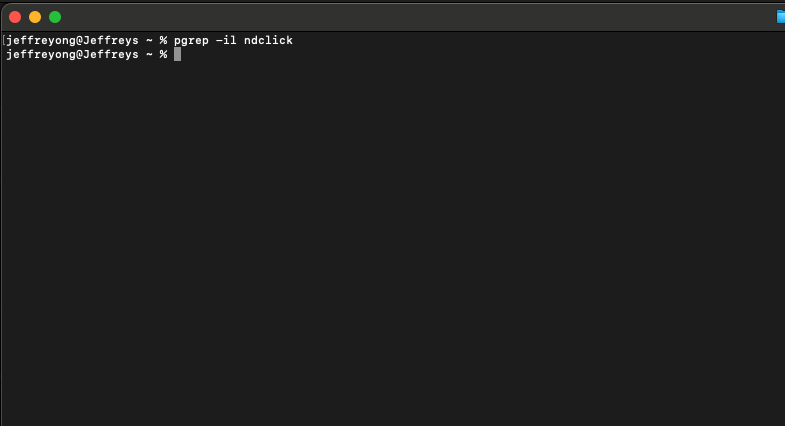
Copy and paste the following command into Terminal and press Enter:
pgrep -il ndclick
- If you see a process ID: ndClick is running in the background.

- If the result is blank: No ndClick process was found, which means NDclick is not currently running.
The Fix: Add ndClick to Your Login Items (2 Minutes)
These steps are for macOS Ventura (13) and later. No admin rights required.
Step 1: Open System Settings

Click the Apple menu in the top-left corner of your screen and choose System Settings.
Step 2: Go to Login Items

Click General in the sidebar, then click Login Items & Extensions. On some versions of macOS it’s just called Login Items.
Step 3: Add ndClick Under Open at Login
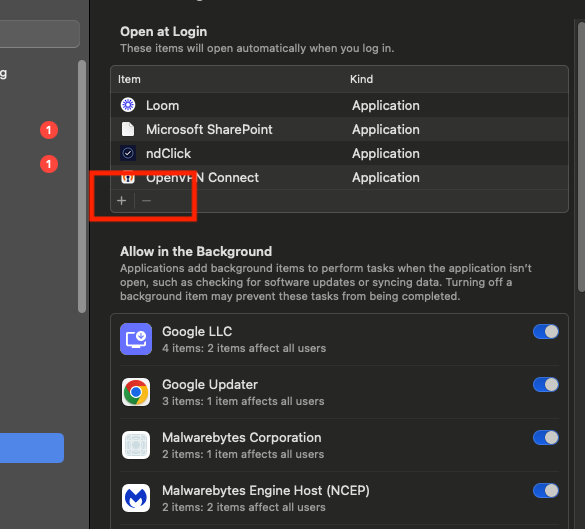
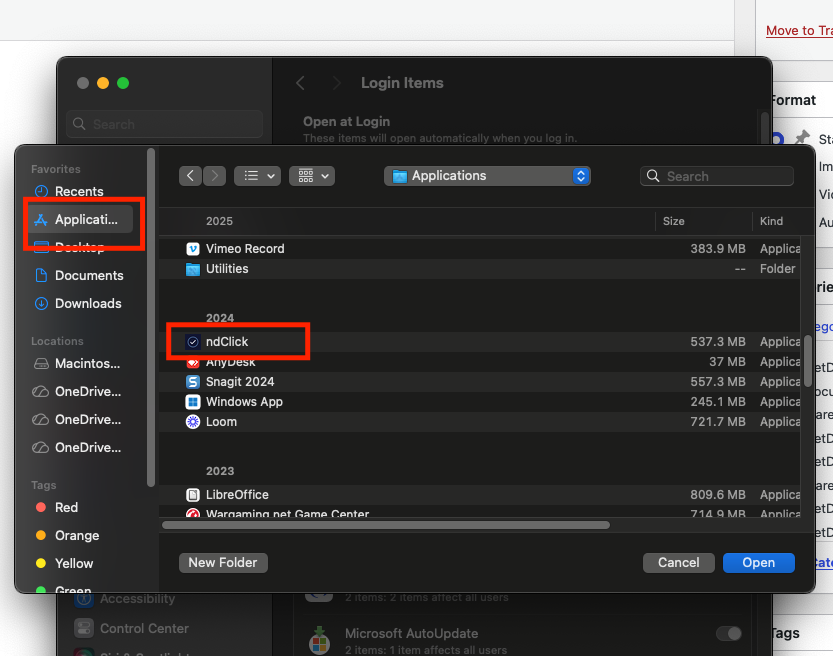
Under Open at Login, click the + button. Go to Applications, select ndClick, and click Open.
Open at Login: Automatically launches ndClick when you log in.
For some reason, ndClick doesn’t appear under Allow in the Background. You can check if it’s running in the background by opening Terminal, copying and pasting the following command, and pressing Enter:
pgrep -ifl ndclick

Step 4: Restart and Test
After logging in, you should automatically receive an ndClick prompt confirming that ndClick is running. Then open a document from NetDocuments, make a small change, and check it back in.

Running an Older Mac?
On macOS Monterey (12) or earlier, the setting lives in a different place:
- Click the Apple menu and choose System Preferences.
- Click Users & Groups, then select your user name on the left.
- Click the Login Items tab.
- Click +, select ndClick from Applications, and click Add.
Still Having Issues?
Login Items only solves one problem: ndClick not starting when you log in. If ndClick is running first thing in the morning but gone by the afternoon, something is closing it during the day, and you need a different fix.
My rule of thumb: before changing anything else, write down roughly when you noticed ndClick was missing and what you were doing at the time. Send that to your IT team. It tells them whether ndClick is crashing, getting closed by an update or security tool, or being quit by accident.
What IT Can Do If Login Items Isn’t Enough
If ndClick keeps disappearing mid-day, IT has two stronger options:
- A LaunchAgent with KeepAlive – A small configuration file that tells macOS to start ndClick at login and restart it automatically if it quits. Test it on one Mac first before rolling it out.
- Managed Login Items through your MDM – If the firm uses Jamf, Intune, Kandji, or a similar tool, IT can push ndClick as a managed login item. Users can’t switch it off, which removes Cause 2 entirely across the firm.
If ndClick is quitting on its own with nothing obvious closing it, it’s also worth opening a ticket with NetDocuments support.
For the bigger picture on running NetDocuments on a Mac, see The Secret to Using NetDocuments on a Mac.
Need Help?
Have Mac users at your firm who keep running into check-in and check-out problems? We can look at how ndClick is set up across your Macs and get it running reliably, usually in a single call.
Schedule a free consultation at go.oncehub.com/optconsult or reach us at optiable.com/contact.
Optiable has rolled out NetDocuments for over 600 law firms since 2010, specializing in firms with 10 to 150 users.