

Where Your Checked-Out Documents Are
When you open a document from NetDocuments, the copy you work on lives on your computer. It’s in one of two places.
Option 1: Your Downloads Folder
Start here. Hold the Windows key, press R, type shell:downloads, and press Enter. That opens your Downloads folder no matter what your username is.
Sort by Date modified and look for the file name.

Option 2: Your ndOffice Echo Folder (Check the Backup Folder)
If it isn’t in Downloads, go to the ND Office Echo folder. Hold the Windows key, press R, paste in the following, and press Enter:
%USERPROFILE%\ND Office Echo
You can also click the ndOffice icon in your system tray, click the gear icon in the lower left, and choose View Echo Folder.
Open the Backup folder and look for the document there.

For more on the Echo folder, see how to locate and manage your ndOffice Echo folder.
If NetDocuments is working correctly, you don’t need to check in documents. They should automatically check in when you close the document. If NetDocuments is not working correctly, documents won’t check in when you save and close them. This page outlines common steps to resolve these issues, so you don’t have to search for checked-out documents.
Finding Checked Out Documents with Advanced Search
NetDocuments’ advanced search feature provides powerful filtering options to quickly locate checked-out documents.
Here’s how to do it:
Step 1: Click the …. icon in the top navigation bar
Step 2: Select the Show more options
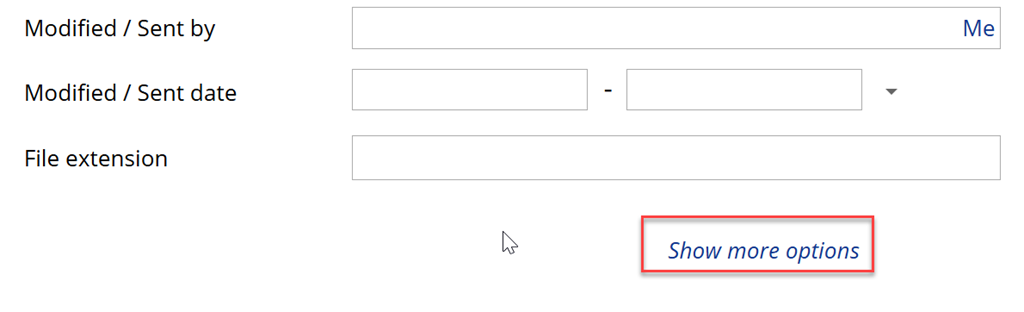
Step 3: Scroll down to find the Checked Out filter
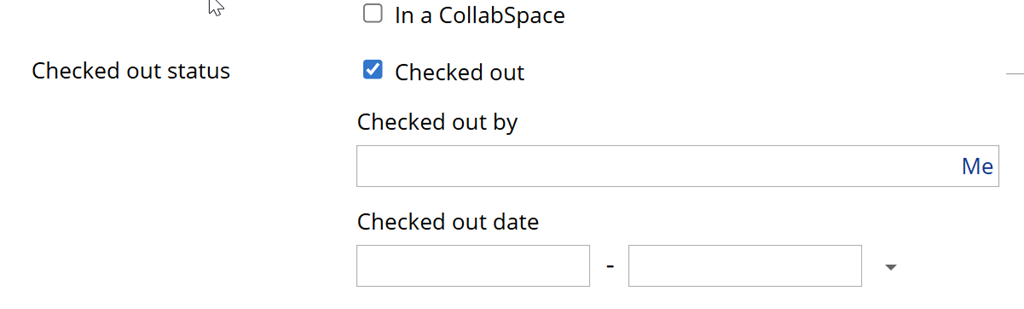
Step 4: Check the Box to search for checked-out documents
Step 5: (Optional) Add additional filters to narrow your results:
- Filter by Checked Out By to find documents checked out by a specific user
Once you run the search, NetDocuments will display all documents matching your criteria. The results will show who has checked out each document and when it was last modified.
You can use these search results to find out information about checked-out documents. Your firm should always have some documents checked out if people are working in NetDocuments. Usually, if a document has been checked out for more than two or three days, there’s an issue, and it will need to be checked back in manually. You can also use this search to troubleshoot checked-out issues. Is it just one user having checked-out issues? Is it just an issue with PDF documents? All of this information will help you gather data to troubleshoot this issue.
This page outlines common steps to resolve these issues, so you don’t have to search for checked-out documents.
Manually Checking Documents Back In
Once you have resolved the checkout issues, you may need to revisit and correct the documents that were improperly checked out. Clear checked-out documents one at a time. (Optiable does have tools to mass check in checked-out documents) If a document wasn’t edited when it was checked out, you need to clear the checked-out document. If the document was checked out and modified locally, you will need to locate it to check it back in. You can only upload documents with a green checkmark. A grey check mark means someone else checked it out.
Found a document that needs to be checked back in? The process is simple:
Step 1: Locate the document in your search results or navigate to it directly
Step 2: Click on the Green Check mark
Step 3: Decide if you need to check in the documents or clear the check-in
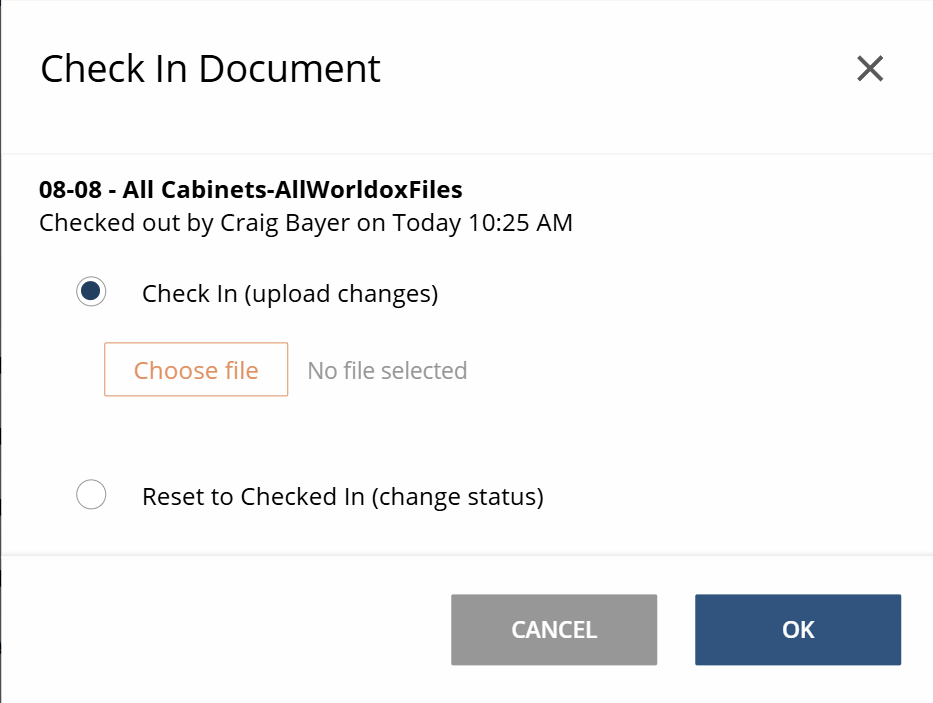
Step 4: If you need to check the document back in, click Choose File, then browse to your downloads folder to upload the file.
Step 5: If you need to clear the check-in, choose Rest to Checked in
Proper checkout management keeps your firm’s document collaboration running smoothly. When documents are left checked out unnecessarily, it can prevent others from accessing critical files and slow down time-sensitive work. By understanding how to locate and manage checked-out documents, you help maintain an efficient document management system for your entire team.
Need help optimizing your NetDocuments environment or training your team on best practices? Optiable specializes in NetDocuments implementations, migrations, and ongoing support for law firms across the United States and Canada. Contact us to learn how we can help your firm get the most out of NetDocuments.