

A paralegal opens a matter, sees Smith v. Jonhson sitting at the top of the Workspace, and emails IT. Two days later, someone with Cabinet Administrator rights logs into the Admin Console and fixes the typo. In the meantime, every document filed in that matter carries the misspelling, and the attorney who reported it has decided the document management system is difficult.
Fixing a NetDocuments matter description is a ten-second job. The problem is that, out of the box, the ten seconds are assigned to an administrator. One Step Workspace (from Legality Software) lets you hand that job to the people who actually notice the mistake, without giving them access to the Admin Console.
This Isn’t a NetDocuments Limitation, It’s a Permissions Problem
Client and matter names in NetDocuments aren’t free text on a folder. They’re Profile Attribute values in the Client Cabinet, and the Workspace name is generated from them. Editing one means editing the Cabinet’s profile data, and there’s no way to grant someone the rights to edit a description without also granting them the rights to do a great deal of damage — reprofiling, restructuring, deleting.
So NetDocuments does the sensible thing and keeps it with administrators. That’s the right call for the platform. It’s just a bad fit for a firm where the person who spots the typo is never the person who can fix it.
One Step Workspace sits alongside NetDocuments and offers a narrower door: users get a form that edits only the descriptions.
It comes from the same people behind One Step Save, so if your firm already subscribes to one, signing up for the other is familiar territory. If you’re new to their products, I covered how to sign up for and install One Step Save on a PC in a previous post.
What Users Can and Can’t Change
Worth being precise about this before you turn it on, because the question always comes up in the same meeting:
- Client description – editable, if you enable it.
- Matter description – editable, if you enable it.
- Client and matter numbers – never. They’re fixed at creation, and no setting changes that. This is the guardrail that makes the whole feature safe to enable.
- Workspace Type, Profile Tag defaults, and security are also editable through the modify feature, and each one is a separate decision. Enabling descriptions doesn’t enable these.
You pick the fields and which users get access. It doesn’t have to be everybody.
Before You Turn This On
If your client and matter data sync from a practice management system, stop and think. Firms running Clio, Centerbase, PCLaw, or a similar system usually treat the practice management system as the system of record for client and matter names. In that setup, the next sync overwrites whatever your user typed in NetDocuments, and you’ve built a very confusing experience: the typo comes back, and nobody knows why. Fix the descriptions at the source instead, or confirm how your firm’s sync is configured before enabling this.
If NetDocuments is where client and matter names actually live, carry on.
Step 1: Sign In to One Step Workspace
Go to onestepworkspace.com and sign in with your NetDocuments credentials. You’ll need to be an administrator in One Step Workspace to change these settings.
Step 2: Click on Admin
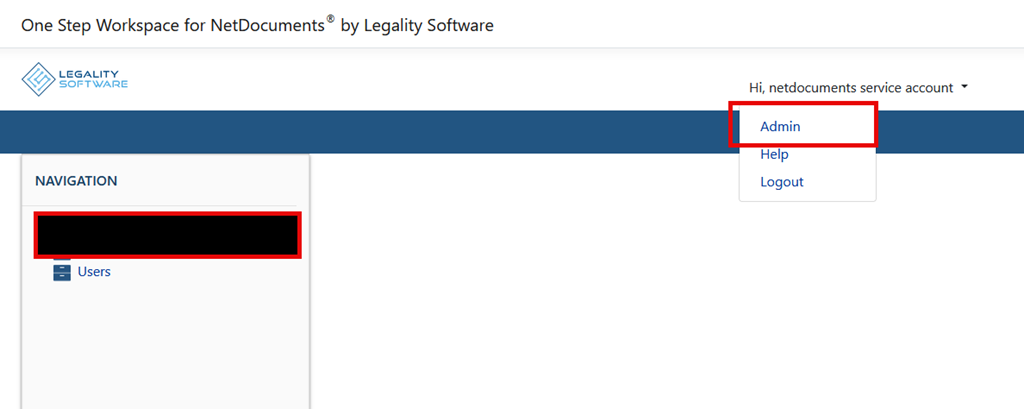
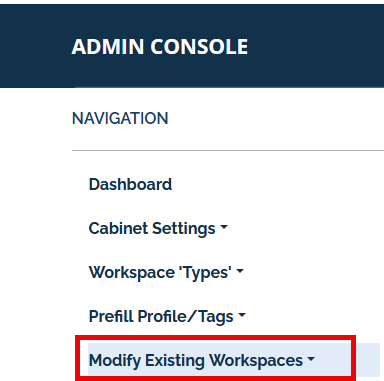
Step 3: Open the Modify Existing Workspaces Settings
Modify is a separate feature from workspace creation and has its own settings page. Open it.
Step 4: Enable the Client Description and Matter Description Fields
Check the box for each field you want users to edit. If all you’re after is typo cleanup, check those two and leave the rest alone.

Step 5: Choose Which Users Get Access
Decide who sees the modify option. Some firms open it to everyone; others start with the assistants and paralegals who do the filing, which is where the mistakes get caught anyway. Start narrow if you’re not sure — you can widen it next week.
Step 6: Save
Save the settings. The change is live for those users the next time they open One Step Workspace.
What Your Users Will See
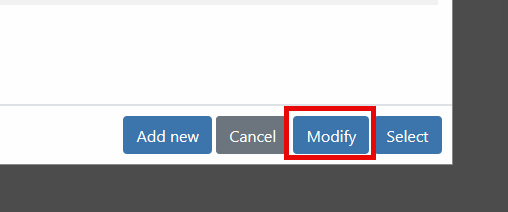
They open One Step Workspace, search for the matter the same way they’d search in NetDocuments, choose to modify it, and edit the description. Save, and the Workspace name updates in NetDocuments.
No Admin Console, no ticket, no two-day wait. The numbers stay exactly as they were, so nothing they do here breaks a Workspace or orphans a document.
Need Help?
If your firm is spending administrator time on typo tickets — or you want One Step Workspace configured so users can create and fix workspaces without opening a hole in your Cabinet security — that’s usually a single call. We can look at how your client and matter data flows today, including any practice management sync, and set the permissions accordingly.
Schedule a free consultation at go.oncehub.com/optconsult.
Craig Bayer is the founder of Optiable and has guided over 550 law firms through NetDocuments implementations since 2010, specializing in firms with 10 to 150 users.
CONNECT WITH CRAIG → https://www.linkedin.com/in/craigbayer/