

If you’ve ever saved an email to NetDocuments and then gone back into Outlook to delete the same email by hand, you’re not alone. NetDocuments can delete filed emails for you automatically — it just doesn’t do it until somebody turns it on. Until then it’s one of those small tasks that doesn’t feel like a problem until you multiply it by every email, every day, across the whole firm.
There are two ways to turn it on, and which one you use depends on whether your firm files with ndOffice or with ndMail. One is a registry change your IT team makes. The other is a setting a user can change in about ten seconds without any admin rights at all.
Both of them assume classic Outlook. If you’ve moved to new Outlook, skip to the end — the answer there is different, and it isn’t the one you want.
Which Method You Need
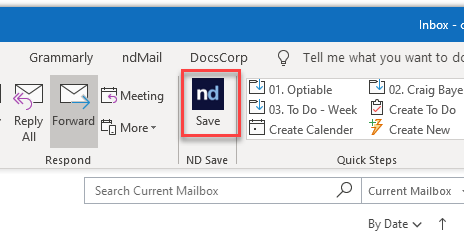
- Filing with ndOffice — the user clicks ndSave or One Step Save to file an email. Deletion is controlled by a registry value, so this is a job for IT. Go to Part1.
- Filing with ndMail — emails file automatically, or by dropping them in a filing folder. There’s no registry value for this, and no admin rights needed either. Go to Part 2.
Plenty of firms run two of these, and a firm mid-migration to new Outlook may briefly run all three. If yours does, you’ll want each part that applies.
Part 1: ndOffice — What IT Needs to Do
ndOffice reads a setting called DeleteEmailsFromOutlook. Set it to True and ndOffice deletes the email from Outlook after a successful save. Note the word successful — if the save fails, ndOffice leaves the email alone.
Step 1: Close Outlook Completely
All the way out. Check Task Manager and confirm there’s no OUTLOOK.EXE still running.
Step 2: Open Registry Editor
Press Windows Key + R, type regedit, and press Enter.
Step 3: Browse to the ndOffice Key Under HKEY_CURRENT_USER
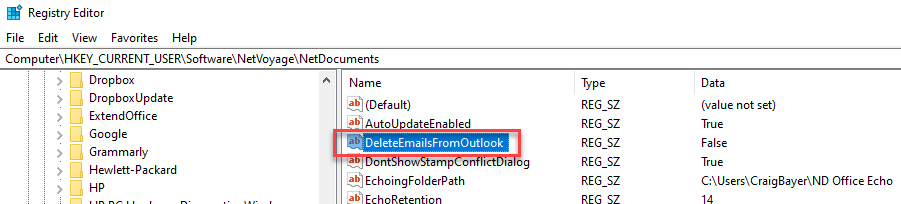
Computer\HKEY_CURRENT_USER\Software\NetVoyage\NetDocuments
The setting lives under the current user’s node, not the local machine node — which means it’s per user, and a machine with two Windows profiles needs it twice.
Step 4: Create DeleteEmailsFromOutlook and Set It to True
Right-click in the right-hand pane, create the value, name it DeleteEmailsFromOutlook, and set the data to True.
What Your Users Will See
Nothing, which is the point. They click ndSave the way they always have and the email disappears from the folder. Tell them it’s coming, though — an email vanishing on its own reads as a bug to anyone who wasn’t warned, and you’ll get the ticket.
Part 2: ndMail — What Users Can Do Themselves
There’s No Registry Setting for ndMail
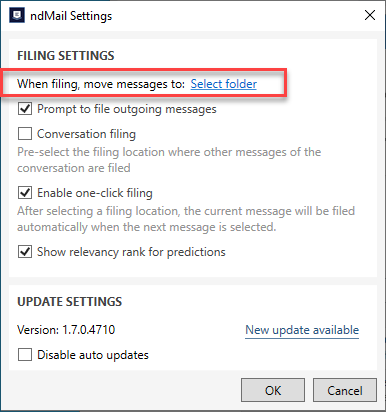
ndMail doesn’t work the way ndOffice does, so DeleteEmailsFromOutlook has no effect on it. What ndMail does have is a setting that tells it which Outlook folder to move an email to once it’s been filed.
Point that at Deleted Items and you get the same result by a different road.
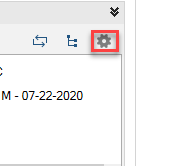
Step 1: Click the Gear Icon in ndMail
Step 2: Open the Folder Setting
This is where you choose where filed emails go after ndMail is done with them.
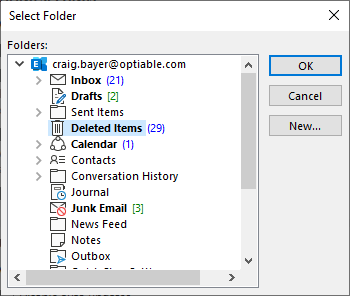
Step 3: Choose Deleted Items
Pick Deleted Items and save. From here on, anything ndMail files gets moved there instead of staying put.
Deleted Items Is Not the Same as Gone
Worth saying out loud, because it’s the best argument for this method rather than a caveat against it.
An email in Deleted Items is still recoverable. It sits there until Outlook’s retention rules clear it out, and after that it’s in Recoverable Items for however long your Microsoft 365 policy says. So a user who realizes on Thursday that Tuesday’s email filed to the wrong Workspace can still get it back.
That’s a real safety margin, and it’s one the ndOffice registry method doesn’t give you — that one deletes.
The Result
The mailbox stops being a second filing system. Emails go to NetDocuments, leave Outlook on their own, and nobody spends the last ten minutes of the day cleaning up behind themselves.
Need Help?
Not sure whether your firm should be filing with ndOffice, ndMail, or both — or whether auto-deleting from Outlook is safe given how your retention policy is written? We can look at how your firm files email today and tell you what to change, usually in a single call.
Schedule a free consultation at go.oncehub.com/optconsult.
I’ve guided over 550 law firms across the United States and Canada through NetDocuments implementations since 2010, specializing in firms with 10 to 150 users.