

If you’ve ever finished filling out a court form or a client intake sheet in Adobe Acrobat and wondered whether you have to dump a copy on your desktop first, you’re not alone. You don’t. You can flatten a fillable PDF and save it directly into NetDocuments in one pass.
Adobe Acrobat Pro does the flattening. ndOffice catches the save and profiles the document. Nothing has to touch your Downloads folder along the way.
NetDocuments Doesn’t Flatten PDFs — Acrobat Does
It’s worth being clear about where the work actually happens, because this trips people up.
NetDocuments stores, versions, and profiles the file you hand it. It does not open a PDF and convert live form fields into page content. There is no PDF engine inside NetDocuments doing that.
Flattening lives in Acrobat’s PDF Optimizer, and the PDF Optimizer is a Pro-only feature. If your firm runs Adobe Reader on the desktop, this procedure isn’t available to you and you’re back to the print-to-PDF fallback.
So Acrobat flattens, ndOffice files, and you get one save instead of three.
What Happens When You Flatten a Fillable PDF
Acrobat merges the completed form data into the page itself. The document looks identical — every answer you typed is still visible — but the fields are gone. No cursor, no blue highlights, nothing for the next person to click into and change.
That’s usually the point. A signed retainer, a filed form, or a completed questionnaire shouldn’t stay editable once it’s final.
It also means you want to think for two seconds about where the flattened copy goes, which is Step 5.
Before You Start
- Adobe Acrobat Pro – Reader does not include the PDF Optimizer used below.
- ndOffice running and signed in – with the NetDocuments Adobe integration installed, and matching your 32-bit or 64-bit version of Acrobat.
- The form open in desktop Acrobat – not in Chrome, not in Edge, not in a browser’s built-in PDF viewer. Browser viewers can’t hand the save off to ndOffice.
- A decision on new document vs. new version – in most cases you want a new document, so the blank form stays reusable.
Step 1: Complete the Form in Acrobat
Open the fillable PDF in Adobe Acrobat Pro and fill in every field you need.
Read your answers over before you go any further. Once the flattened copy is saved, those fields are no longer editable — fixing a typo means going back to the blank form and starting over.
Step 2: Go to Menu → Save as Other → Optimized PDF
On Windows, use Menu → Save as Other → Optimized PDF.
On a Mac, it’s File → Save as Other → Optimized PDF.
Step 3: Flatten the Form Fields
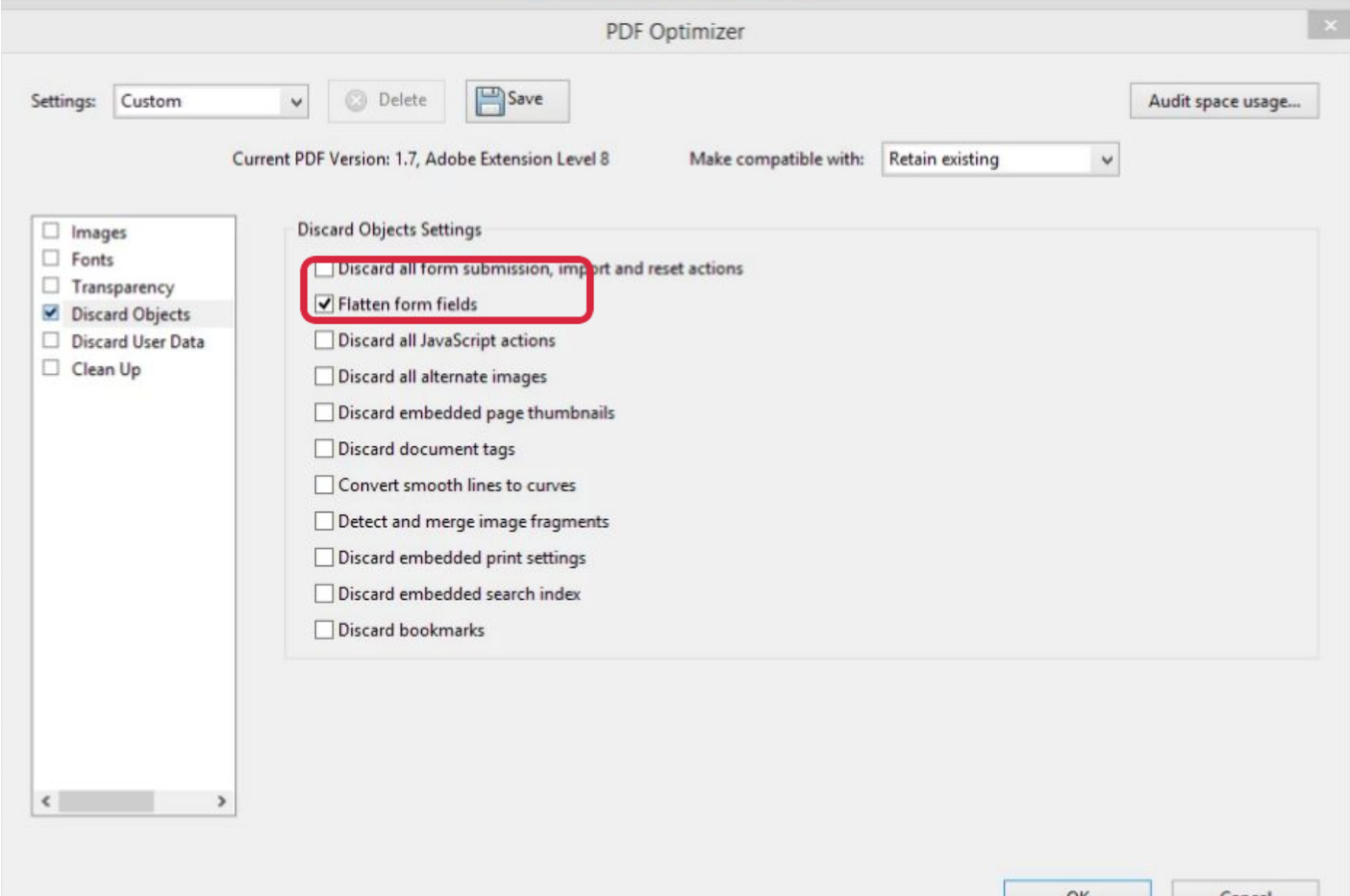
In the PDF Optimizer window:
- Set Settings to Custom, so you control what Acrobat changes.
- Select Discard Objects in the left panel.
- Check Flatten form fields.
- Leave Make compatible with on Retain existing unless the matter requires a specific PDF version.
- Clear any other optimization options you didn’t ask for, then click OK.
That last one matters more than it looks. The PDF Optimizer can also downsample images and strip embedded fonts, and you don’t want to discover that on a document going to a court.
Step 4: Route the Save As to NetDocuments
After you click OK, Acrobat asks where to save the optimized PDF. If the Adobe integration is working, ndOffice intercepts that Save As and the NetDocuments save dialog appears.
If Acrobat shows you its own storage page instead, click Choose a Different Folder. That drops you into the standard Windows Save As dialog, which is the one ndOffice can intercept.
Step 5: Profile and Save in ndOffice
- Pick the Cabinet, Workspace, or folder where the document belongs.
- Fill in the required Profile Attributes.
- Choose New Document to keep the original fillable form intact, or New Version only if the flattened PDF should replace the existing document going forward.
- Click Save and let ndOffice finish the upload and check-in.
DO NOT save the flattened copy as a new version of your blank form template. That’s how a firm loses a form it uses every week.
NetDocuments Isn’t Appearing When You Save?
I covered this in more detail in How to Make NetDocuments Automatically Open When Saving in Adobe Acrobat, which is worth a read if the save dialog still isn’t behaving.
How to Confirm the PDF Is Actually Flattened
Use your eyeballs. Open the saved document from NetDocuments in Acrobat and click on the areas that used to be fillable.
You want to see no cursor, no blue field highlight, and no editable control — and every value you typed still sitting there on the page. If you get a cursor, the flattening didn’t take and the Optimizer settings are the place to look.
Two Things This Doesn’t Cover
Comments and annotations. Flattening form fields does not flatten every comment, markup, or stamp on the document. If those need to become part of the page too, that’s a different Acrobat workflow.
Digital signatures. Flatten first, sign second. A certified or signed PDF can be locked against further changes, and you’ll want an unsigned original either way.
Need Help?
Adobe and NetDocuments have a lot of moving parts between them — the integration, the bit versions, Adobe’s cloud storage prompts, and whatever your firm’s default PDF handler happens to be this month. If PDFs aren’t saving into NetDocuments cleanly across your firm, we can look at the whole chain and get it working the same way on every desktop, usually in a single call.
Schedule a free consultation at go.oncehub.com/optconsult.
Optiable has guided over 550 law firms through NetDocuments implementations since 2010, specializing in firms with 10 to 150 users.
CONNECT WITH CRAIG → https://www.linkedin.com/in/craigbayer/