

Most NetDocuments users want a NetDocuments icon on their desktop. It’s one of the first things people ask for after go-live, and it’s a reasonable request — if you’re in a document management system all day, you shouldn’t have to type a URL or dig through bookmarks to get there.

It takes about thirty seconds. But there’s one thing you need to sort out before you do it, and skipping it is why some firms end up with more login problems after adding the shortcut than before.
Never Install NetDocuments as an App
Every browser will offer to install NetDocuments as an app — Install page as app in Chrome, Install this site as an app in Edge. Don’t do it. If your IT company suggests it, tell them no.
It looks like the more professional option. You get a cleaner icon, and NetDocuments runs in its own window instead of a browser tab. I understand why it’s appealing, and I’ve had IT providers set it up this way for clients, thinking they were doing them a favor.
The problem is that it takes away tabbed browsing. And NetDocuments is a tab-heavy product.
Think about how people actually work in it. You’re in a workspace. You run a search. You open a document, then open another one to compare it against. Then you jump back to the workspace. That’s four tabs in ninety seconds, and it’s a completely normal sequence for anyone doing real work in a DMS.
Strip tabs out of that, and every one of those steps becomes a separate window or a trip through the back button. Users won’t complain about it on day one. They’ll complain about it for the next year, and they won’t connect it to the icon someone put on their desktop.
A nicer-looking icon isn’t worth breaking how people work. Make a plain shortcut instead — that’s what the rest of this post covers.
First: Your NetDocuments Browser Needs to Be Your Default Browser
Whatever browser you use for NetDocuments should be the default browser on that machine.
If you work in NetDocuments in Firefox but Windows still has Edge set as the default, you’re going to have problems constantly. And they won’t look like browser problems, so you’ll waste time chasing the wrong thing.
Here’s why. A desktop shortcut to a website doesn’t remember which browser you made it in. It opens whatever Windows considers the default. So does every NetDocuments link in an email, every document link a colleague sends you, and every link out of your practice management system.
So if your session lives in Firefox and your links open in Edge, you get a login prompt every single time. Or you end up logged into NetDocuments twice in two different browsers, which is its own mess — edit a document in one, wonder why the other doesn’t show it.
Fix the default first. On Windows: Settings → Apps → Default apps, find your browser, set it as the default. Then come back and make the shortcut.
Google Chrome
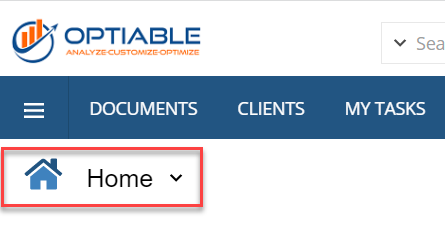
Step 1: Log into NetDocuments and land on your home screen — the page with the house icon.
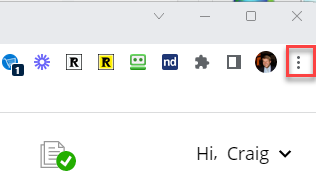
Step 2: Click the three-dot menu in the upper right corner.
Step 3: Go to Cast, save, and share.
Step 4: Choose Create shortcut…
Step 5: Change the name to NetDocuments and then Click Create
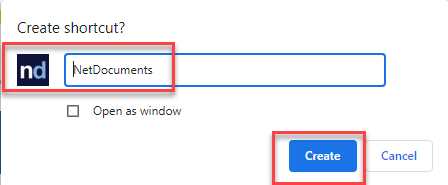
The icon lands on your desktop, and NetDocuments opens in a normal Chrome window.
Microsoft Edge
In Edge, you drag it to the desktop:
Step 1: Log into NetDocuments and land on your home screen.
Step 2: Resize the Edge window so you can see part of your desktop behind it.
Step 3: Click and hold the icon to the left of the address bar.
Step 4: Drag it onto the desktop and release.
Step 5: Rename it NetDocuments.
It opens in a normal Edge window.
Same reminder as above — this shortcut opens in your default browser. If you’re doing this in Edge, Edge needs to be the default.
Mozilla Firefox
In Firefox, you drag it to the desktop as well:
Step 1: Log into NetDocuments and land on your home screen.
Step 2: Resize the Firefox window so you can see part of your desktop.
Step 3: Click and hold the padlock icon to the left of the address bar.
Step 4: Drag it onto the desktop and release.
Step 5: Rename it NetDocuments.
This is where the default browser point matters most. Firefox users are the most likely to have something else set as the Windows default, because Windows keeps nudging people back to Edge, and most people click through that prompt without reading it.
Check it before you put the icon on anyone’s desktop. Otherwise, they click the NetDocuments icon, Edge opens, and they’re staring at a login screen for a session that lives in Firefox.
If the Drag Doesn’t Work
Some machines block drag-and-drop to the desktop, usually a group policy. This works anywhere:
Step 1: Copy your firm’s NetDocuments URL out of the address bar while you’re on the home screen.
- Right-click an empty spot on the desktop and choose New → Shortcut.
- Paste the URL, click Next, name it NetDocuments, and click Finish.
On a Mac, drag the address bar icon to the desktop instead.
The Bottom Line
| Browser | How |
|---|---|
| Chrome | Three-dot menu → Cast, save, and share → Create shortcut |
| Edge | Drag the address bar icon to the desktop |
| Firefox | Drag the padlock to the desktop |
All three get you the same thing: an icon that opens NetDocuments in a normal browser window.
And make sure the browser you use for NetDocuments is the default on that machine. Skip that step, and you’ll spend more time on login prompts than the shortcut ever saved you.
A desktop icon sounds like a small thing. It isn’t. The users who hunt for NetDocuments every morning are the same ones who give up and save to their desktop instead.