

If you’ve ever settled into a window seat, opened a document, and then spent the next two hours swatting away NetDocuments offline messages every time the plane’s WiFi drops, you’re not alone. Intermittent connectivity is the one thing that makes NetDocuments genuinely annoying, and the notifications pile up at the exact moment you’re trying to get real work done.
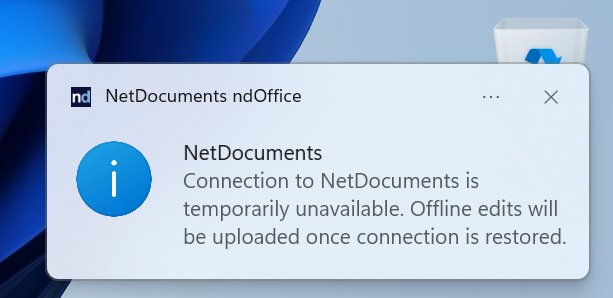
There’s a single registry setting that turns them off. Here’s what it does, who needs to make the change, and how.
The Good News: Nothing Is Actually Wrong
The messages aren’t telling you something happened to your documents. Nothing is corrupted, nothing failed to save, and nothing is stuck in a queue somewhere.
ndOffice keeps a live connection to NetDocuments and checks it constantly. On the ground that connection is steady and you never think about it. At 35,000 feet on spotty airplane WiFi, it flickers in and out — and every time it drops, ndOffice tells you. That’s the whole cause. The notification isn’t protecting you from anything; it’s narrating a problem you already know about, which is that you’re on a plane.
This Is a Registry Change, So It’s an IT Job
The setting lives under HKEY_LOCAL_MACHINE, which means it’s machine-wide and it takes admin rights to change. If you’re an attorney who wants this on your travel laptop, this is a quick ask for your IT team — not something to walk into the registry and attempt yourself.
Because it’s an HKLM key, IT can also push it to every machine at once through the same login-script mechanism they already use for the rest of the NetDocuments registry keys, rather than going desk to desk. Set it once for the firm and the people who travel stop calling about it.
The Fix: Turn Off NetDocuments Offline Messages
Step 1: Open Registry Editor
Press Windows Key + R, type regedit, and press Enter.
Step 2: Browse to the NetVoyage Key
Navigate to HKEY_LOCAL_MACHINE\SOFTWARE\NetVoyage\NetDocuments.
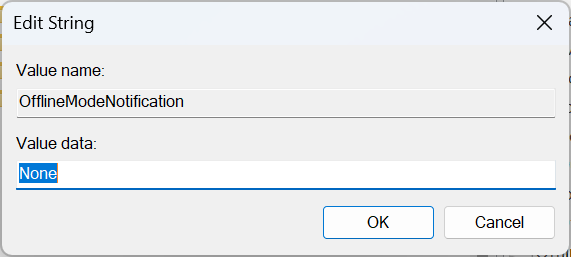
Step 3: Create OfflineModeNotification and Set It to None
If the value isn’t already there, right-click in the right-hand pane and create a new String Value (REG_SZ). Name it OfflineModeNotification and set its data to None.
Step 4: Restart ndOffice and Test
ndOffice reads this setting when it starts, so close it all the way out from the system tray and reopen it. Then disconnect from WiFi for a moment and confirm the offline message stays quiet.
Silencing the Message Isn’t the Same as Being Ready to Work Offline
One honest limit, because it’s the one that catches people. Turning off the notification doesn’t put your documents on your laptop — it only stops ndOffice from telling you it can’t reach the server.
So do the prep before wheels-up. Open the documents you plan to work on while you still have signal at the gate, so they’re cached locally, then save your changes back once you reconnect. The quieter experience in the air is the setting above. Having the right files with you is on you.
If you also work from a phone or tablet when you travel, it’s worth making sure Office saves back to NetDocuments there too rather than quietly landing in OneDrive — I covered that in configuring Microsoft Office to work with NetDocuments on your iPhone or iPad.
Further reading: NetDocuments’ own note on offline behavior is at support.netdocuments.com/s/article/360003029892.
Need Help?
If your attorneys travel and you’d rather set this once for the whole firm than field the same ticket after every conference, we can get the offline notification pushed out with the rest of your NetDocuments registry keys and make sure the traveling setup actually works when the WiFi doesn’t. Usually a single call.
Schedule a free consultation at go.oncehub.com/optconsult.
Craig Bayer is the founder of Optiable and has guided over 550 law firms through NetDocuments implementations since 2010, specializing in firms with 10 to 150 users.
CONNECT WITH CRAIG → https://www.linkedin.com/in/craigbayer/