

If you’ve ever grabbed a document in NetDocuments, clicked Email Link or Email Copy, and watched Outlook pop open a new message with your Outlook signature missing, you’re not alone.

The message looks fine otherwise. The link or the attachment is there. The subject line is filled in. But the signature block that shows up on every other email you send is missing, and if you don’t catch it, the message goes out to a client looking like it came from nobody in particular.
Why Is Your Outlook Signature Missing?
Look at the message Outlook just opened for you and check the format. It’s in Plain Text.
That’s the whole story. The signature is an Outlook signature — it lives in Outlook, and Outlook adds it to messages it creates. When another program hands Outlook a message to send, Outlook opens it in Plain Text and skips the signature. Even if it didn’t skip it, Plain Text can’t render an HTML signature anyway — no logo, no formatting, no linked website.
This Is a Microsoft Setting, Not NetDocuments
I’ve dealt with this issue with every program I’ve been a consultant for — Amicus Attorney, PCLaw, TimeMatters, Worldox. It isn’t a NetDocuments quirk. Any application that generates an email outside of Outlook hits the same wall, because they all hand the message off through the same Microsoft plumbing.
Microsoft documents this behavior and has said there are no plans to change it: messages created outside Outlook do not include the default Outlook email signature.
So don’t spend your afternoon in the NetDocuments Admin Console looking for the setting. There isn’t one.
The Fix: Two Buttons on Your Quick Access Toolbar
Here’s how I deal with it. You add two commands — HTML and Signature — to the Quick Access Toolbar in the Outlook message window. Then, when a NetDocuments email opens, you click both, and you’re done.
This is a one-time setup that takes about a minute. It has to be done from a message window, not the main Outlook window, because the compose window has its own Quick Access Toolbar.
Step 1: Open a New Email Message in Outlook
In Outlook Classic, click New Email. You need an actual compose window open — the Quick Access Toolbar you’re about to change belongs to this window, not to the main Outlook screen.
Step 2: Right-Click the Ribbon and Choose Customize Quick Access Toolbar
Right-click anywhere on the ribbon in the message window and select Customize Quick Access Toolbar.
Step 3: Set Choose Commands From to All Commands
The default list is short and won’t have what you need. Change the dropdown to All Commands.
Step 4: Add HTML to the Toolbar
Scroll to HTML in the left-hand list, select it, and click Add.
Step 5: Add Signature to the Toolbar
Scroll to Signature, select it, and click Add. You should now have both commands in the right-hand column.
Step 6: Click OK and Check the Toolbar
Click OK. The two new buttons appear in the top-left corner of every message window from now on.
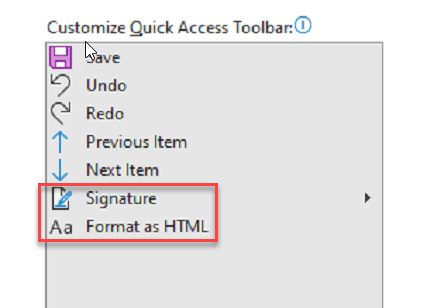
Order Matters: HTML First, Then Signature
When your next NetDocuments email opens, click HTML before you click Signature.
Switch the format first, and the signature drops in with your logo, your formatting, and your links intact. Do it the other way around and you’ll insert a stripped-down text version into a Plain Text message, then have to delete it and start over.
There’s No NetDocuments Setting for This
There is no toggle in the Admin Console, nothing in ndOffice, and nothing on the Email Link or Email Copy dialog that changes the format of the message Outlook receives. NetDocuments has no signature of its own to insert — the one you want is sitting in Outlook. There is a request in the NetDocuments idea bank asking them to address it, and it’s worth a vote, but the behavior is on Microsoft’s side of the line.
One note for firms that have moved to the new Outlook: it doesn’t have a Quick Access Toolbar, so this particular setup doesn’t apply. Users there have to manually insert the signature from the ribbon.
Need Help?
If your attorneys are sending client emails from NetDocuments without a signature and nobody has told them why, we can configure the toolbar, roll it out firm-wide, and fold it into your next training session.
Schedule a free consultation at go.oncehub.com/optconsult.
Optiable has rolled out NetDocuments for over 600 law firms since 2010, specializing in firms with 10 to 150 users.